

Call of Duty: Mobile has been one of the best mobile shooters since its release last year. The gameplay is one of the reasons why players celebrate it. With a few settings, mobile CoD plays even better. MeinMMO reveals them to you.

What are these settings? The settings aim to enhance your experience in CoD Mobile without relying on external input devices like PS4 or Xbox One controllers.
All settings can be easily adjusted in the game itself, helping you improve control and performance. The goal is to deepen the gaming experience and even give you an advantage over other players.
CoD Mobile may not necessarily look better with them, but it runs smoother and is easier to operate. They work for both multiplayer mode and Battle Royale.
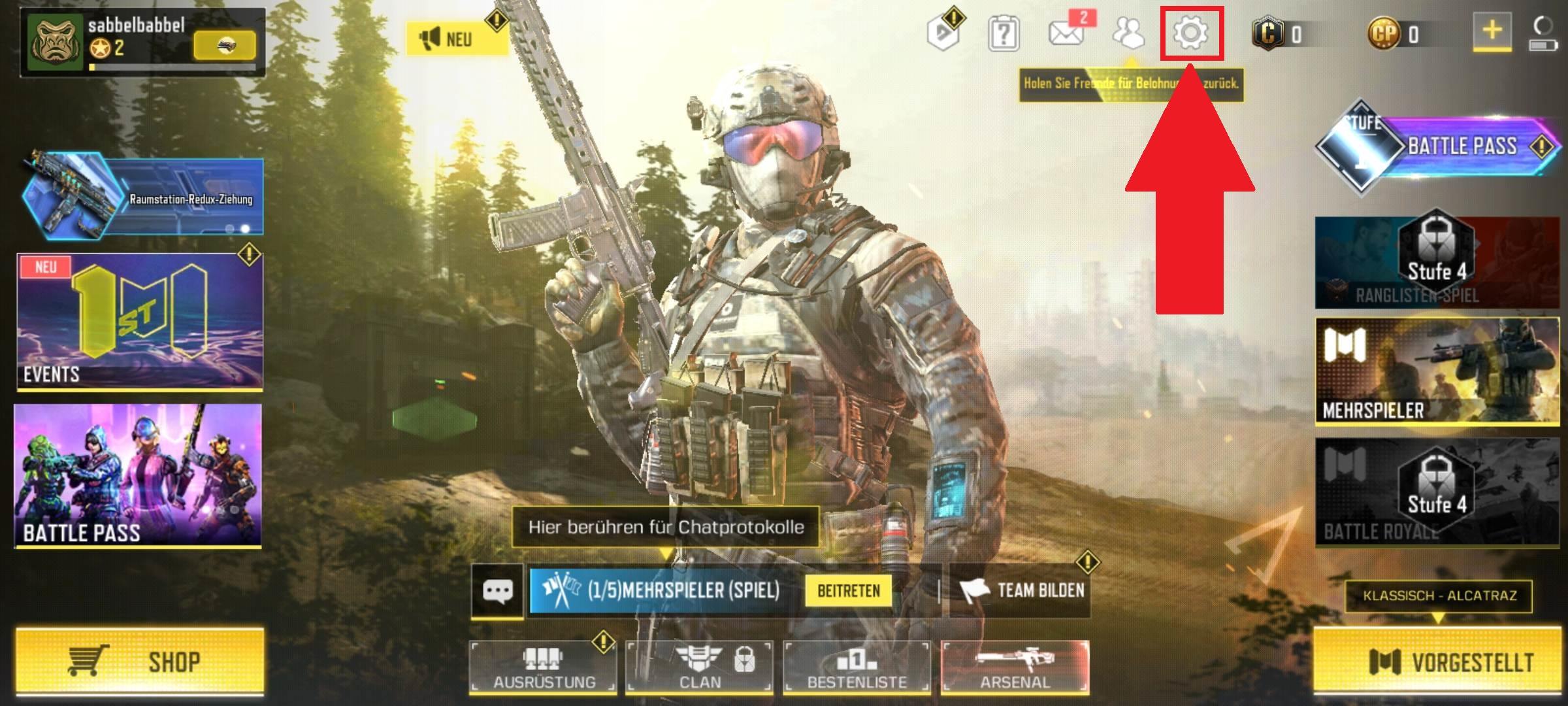
Where can I find the settings? In the main menu, you will find a gear icon in the upper right corner of the screen. Tap on it and navigate to the corresponding options.
Where do the settings come from? Some of these settings are used by one of the best players in CoD Mobile, iFerg. In his video on YouTube, he goes into a bit more detail.
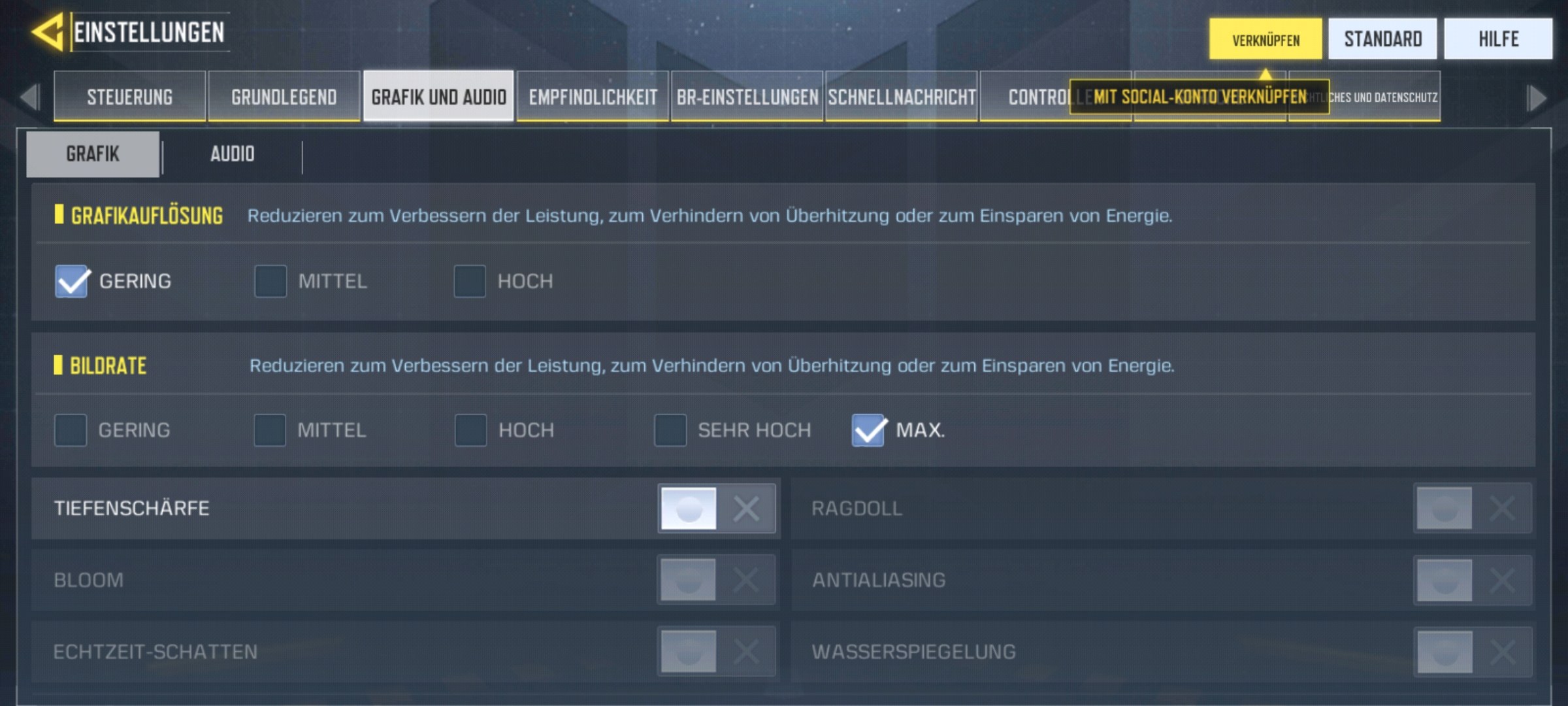
1. Graphics and Audio: Focus on high FPS instead of visuals
What you should set:
- Graphics resolution: Low or Medium
- Frame rate: Max.
- Depth of field: off
- All other options: off, unless they are already disabled by default
Why is this useful? This simple setting allows CoD Mobile to run more smoothly. However, you forego visual beauty. This is a trade-off that shooter players on PC have been making for many years.
A smoother game makes it easier to reliably see and hit opponents. That’s why many players generally focus on high FPS instead of fancy graphics.
Additionally, a lower graphic setting puts less strain on your graphic chip. This brings the advantage that your smartphone or tablet does not heat up as quickly, allowing you to play longer fluidly and without potential crashes.
2. Sensitivity: The right camera sensitivity
What you should set:
- Standard sensitivity: 60
- ADS sensitivity: 88
- Sensitivity of the tactical scope: 129
- Sniper scope sensitivity: 80
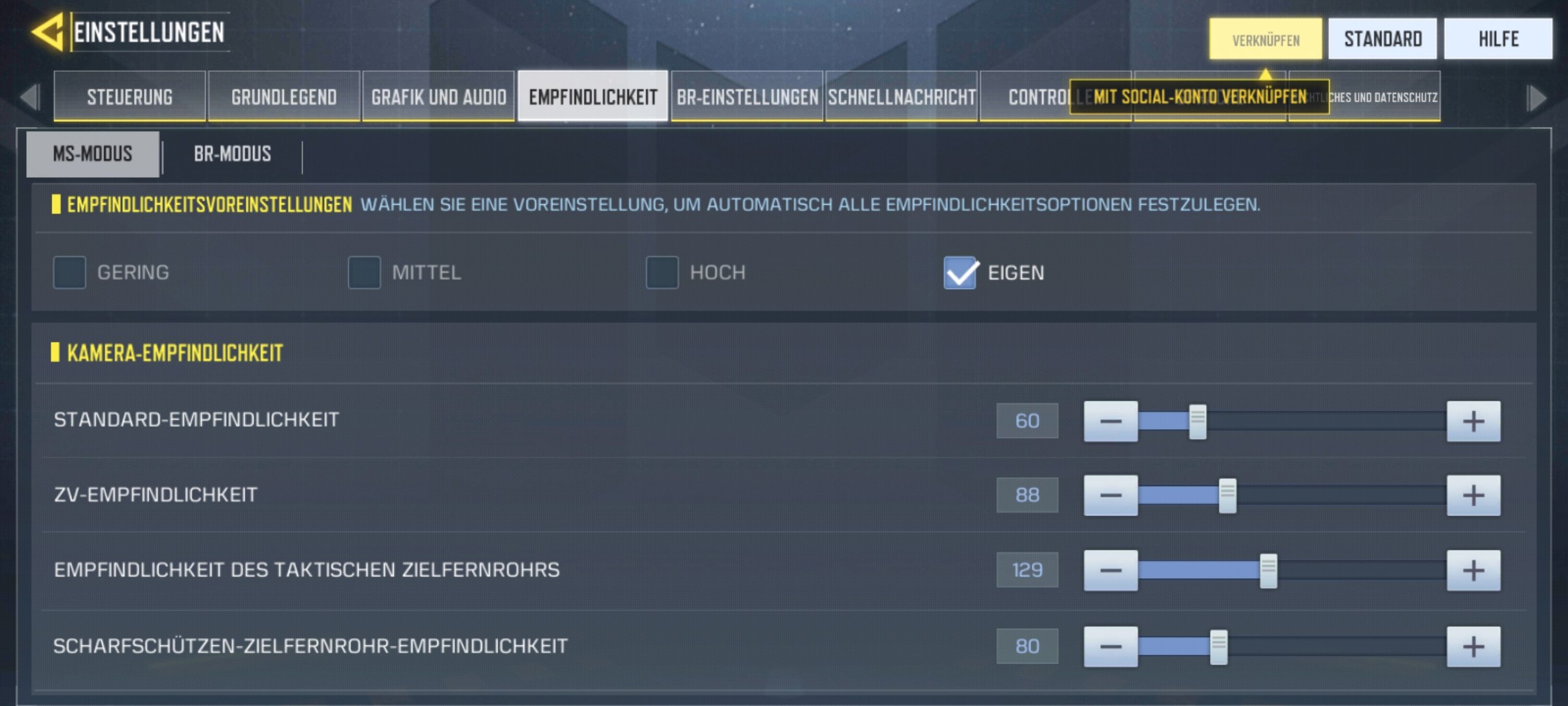
Why is this useful? The camera settings determine your movement and look around as long as you are not firing a weapon, such as while you are running. Having the right settings here is crucial for quickly getting opponents in your sights.
iFerg generally opts for lower sensitivity. This generally allows for more precise aiming, but is slower and requires practice. You should start with higher sensitivities and work your way down.
Generally, you should continuously adjust these settings to your gameplay feel. If the camera movement feels too slow or too fast, adjust the options up or down by a few points.
The setting also depends on how many fingers you play with. As a rule of thumb, you should be able to make a 180° turn with a swipe. YouTuber ExotikkGaming explains this in more detail in his video:
3. Sensitivity: The right fire sensitivity
What you should set:
- Standard sensitivity: 70
- ADS sensitivity: 88
- Sensitivity of the tactical scope: 120
- Sniper scope sensitivity: 79

Why is this useful? The fire sensitivity indicates how quickly you turn when firing a weapon. The settings should roughly match those used for the camera to maintain a consistent feel while looking and shooting.
The same applies to the camera. You aim slower but more accurately. If you feel the need to turn more quickly when aiming and firing, increase the sensitivity.
There’s no need to worry about the different scope sensitivities for now. You will need to unlock the corresponding scopes for many weapons anyway, for the new gunsmith feature, to attach them to the weapons.
If you find a scope you use often, you can adjust it the same way you would with regular sensitivities and customize it to your liking. Until then, they are not particularly important.
4. Sensitivity: The rotation mode
What you should set:
- Fixed speed
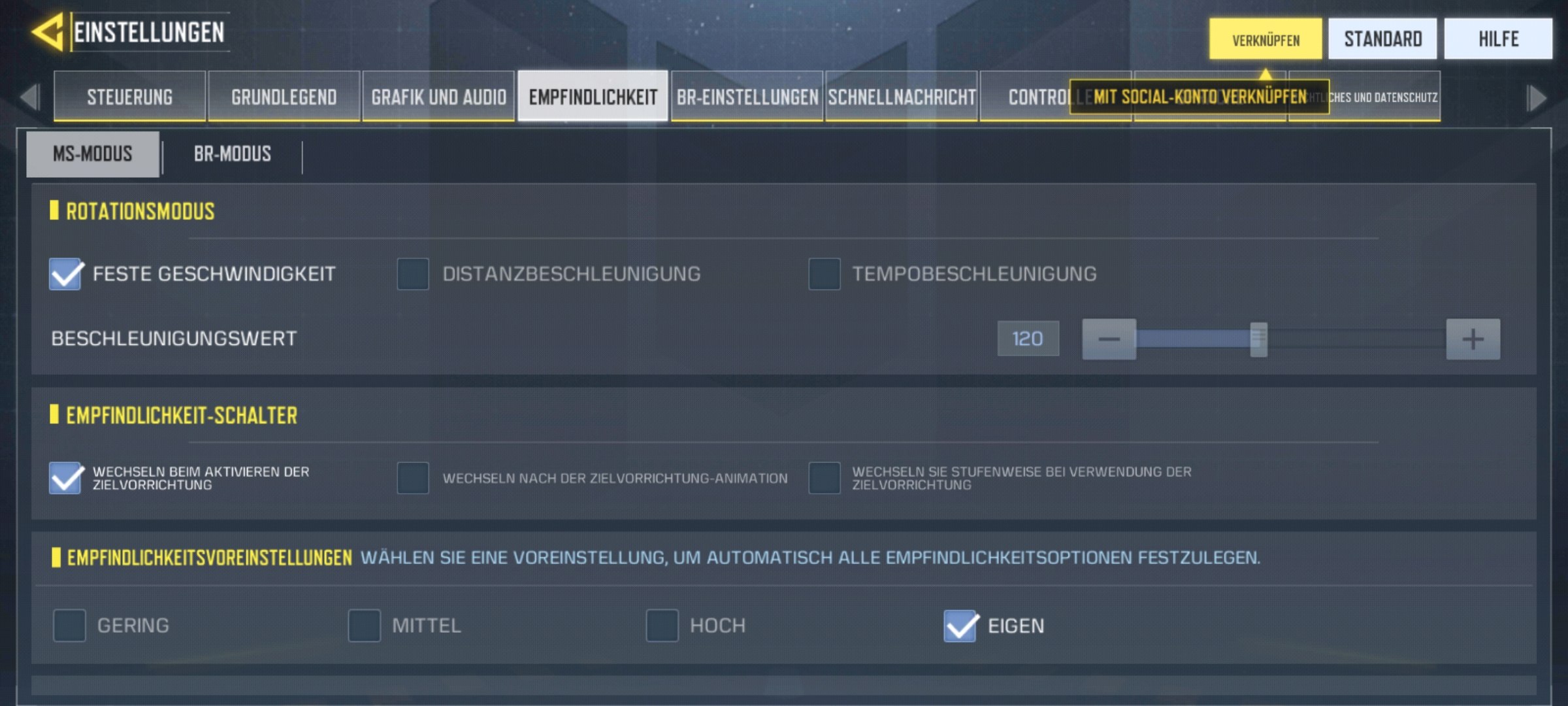
Why is this useful? This setting ensures you always have uniform movement when turning. This is important for better judging distances to the sides.
Alternatively, you can set the speed acceleration with an acceleration value of 140. This makes you faster when looking around after a short time, but also less accurate when aiming.
5. Controls: Custom firing mode
What you should set: You will find these settings under the advanced mode in the controls. Check “Custom” and tap the gear next to it to adopt the following settings:
- Assault rifles: Hip
- SMGs: Hip
- Shotguns: Hip
- LMGs: Hip:
- Sniper rifles: ADS
- Pistols: Hip

Why is this useful? With this setting, you control the firing yourself and do not switch to ADS mode by pressing the fire button for the corresponding weapons. This is important for all automatic weapons.
This prevents opponents from running behind you while you have to switch to aim while firing or are even forced to look around in aim mode. This takes significantly longer than from the hip.
Hipfire is thus extremely helpful with the corresponding weapons and is often precise enough at medium to short ranges to get the kill.
Since its release a year ago, CoD Mobile has continued to improve, but with these settings, it plays even smoother. Have you had success with them yet?

Your opinion is important to us!
Do you like the article? Then let us know!