

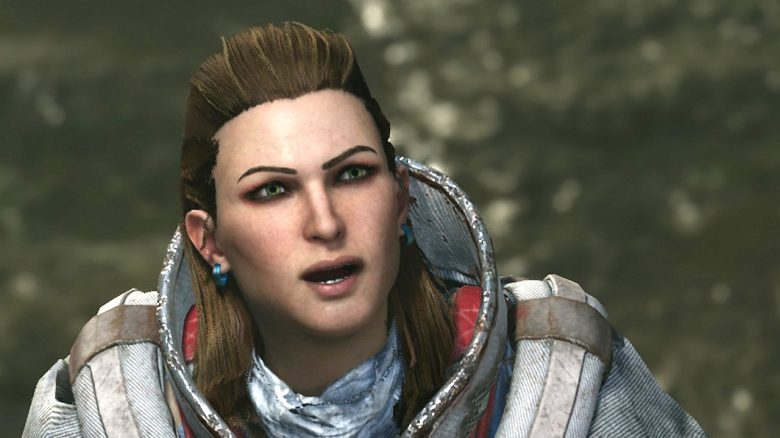
Outriders offers plenty of ways to enhance your gaming experience to your liking. On PC, you can adjust the graphics to ensure even weaker cards deliver smooth gameplay. Here you will find settings for better performance and smoother gameplay.
What settings are available? In Outriders, you can change many options to suit your preferences. Here you will find adjustments for:
- Graphics
- Framerate (FPS)
- Gameplay
With minor tweaks in the right places, you can get a lot out of each of these areas without sacrificing too much quality. Some issues can also be fixed this way.
What do the settings do? The goal is to improve both the FPS and provide a generally smoother gaming experience. This includes better cutscenes, more enjoyable gameplay, and improved graphical representation without sacrificing performance.
You can make a lot of settings in Outriders. MeinMMO shows you five of them that improve the game on PC.
The best graphics settings for more FPS
These settings deliver the best FPS: In the options menu, you will find the “Display” and “Display (Advanced)” sections. Make the following adjustments:
- Window Mode: Fullscreen
- Activate FPS Limit: off or 239
- Limit Mouse to Window: off
- Field of View (FOV): 80
- Motion Blur: off
- Quality Preset: Custom
- Effects Quality: Medium
- Texture Quality: High
- Shadow Quality: Medium
- Anti-Aliasing: off
- Post-Processing Quality: Medium
- View Distance Quality: Low
- Foliage Quality: Low
You will hardly miss any notable visual details with these options. View distance and shadows, for instance, are rarely noticeably different in Outriders; textures are significantly more important. You should be able to get over 100 FPS even with a GTX 2080 and similar or older cards.
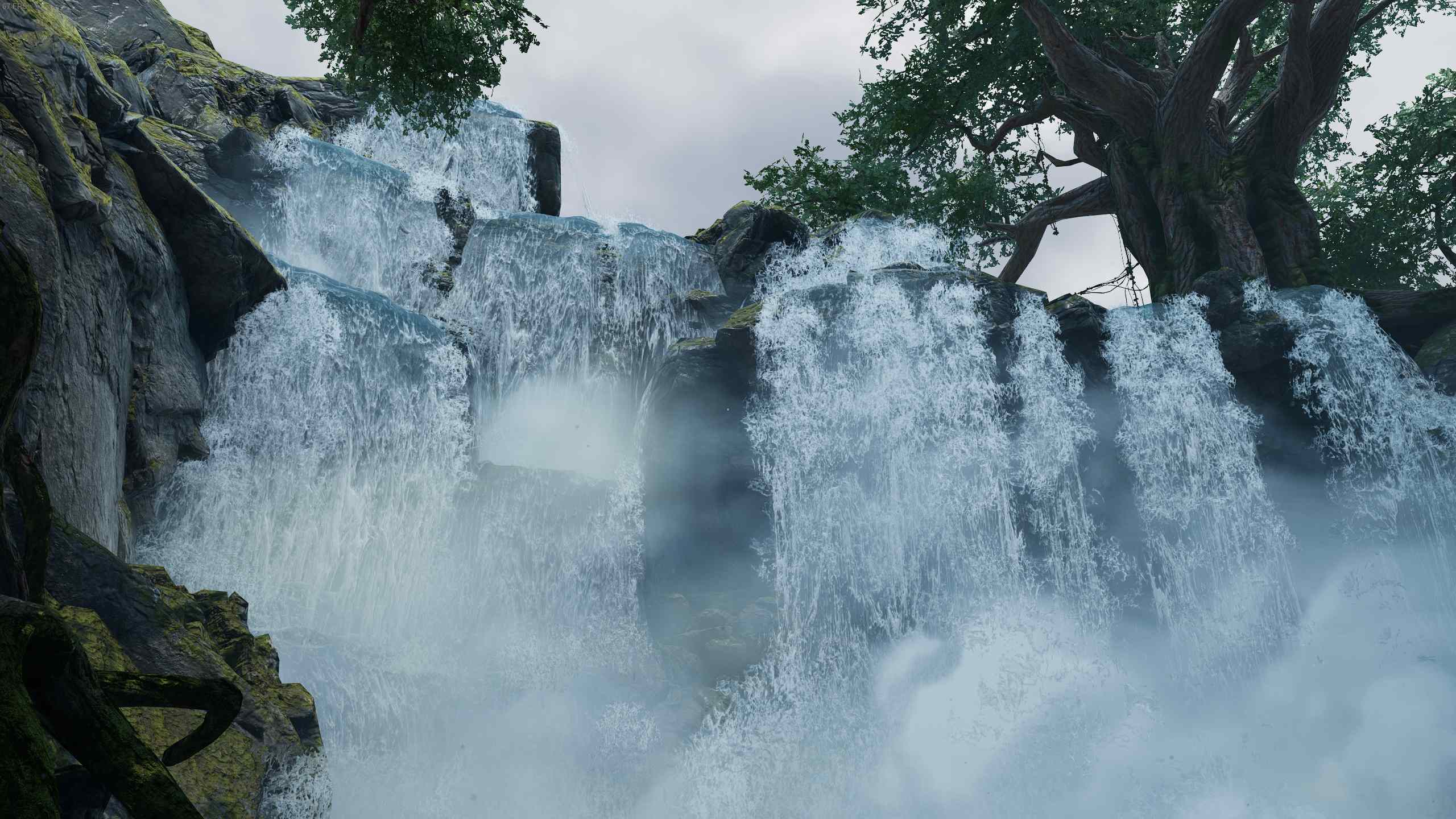
If you have a stronger card, such as a new 3080, you can also increase the details. Start with effects and textures and then work your way through the options.
What else can I change? You can disable VSync if you have trouble hearing shots. Some users experienced the problem of not hearing shots from enemies, and disabling VSync helped in this case. This was also the case in our test.
You should adjust the brightness if you are in a particularly bright or dark room. However, the setting is subjective, and you need to find your own optimal value.
By the way, there can be a bug in Outriders where you cannot hear enemy shots. In this case, disable VSync and the FPS limit to bypass the issue until it is fixed.
DirectX 11 and 12 against stuttering
DirectX is a graphics interface that every PC gamer likely uses, even if they don’t know it directly. Some time ago, the latest version, DirectX 12, was released.
However, it often causes problems, as DirectX 12 does not run smoothly for some users. It results in stuttering in the game, almost like micro-lags, but continuous.
Outriders prompts you at startup via Steam to choose whether to use DirectX 11 or 12. If you notice stuttering, simply switch versions – it doesn’t matter which direction. This can help.
The issue is supposed to be fixed or is already fixed. Outriders is getting its first major patch and stuttering with DirectX is one of the issues being addressed.
Better and prettier cinematics without shaking
Here’s how to improve cinematics: To achieve better cutscenes, you need to adjust two settings:
- Cinematic Camera Stabilization: 1.00 (under “Gameplay”)
- Cinematic Max. FPS: 120 (under “Display”)
For stabilization, you can start at 0.25 and then work your way up if you lose immersion due to a too steady camera. With 1.00, the shaking in cutscenes is almost completely gone.
Why this is useful: Outriders frequently interrupts gameplay with cinematics where characters interact or landscapes are shown. There have been complaints about camera control since the demo, and scenes are limited to 30 FPS by default.
The image shakes constantly as if someone with a shaky hand and handheld camera is filming everything like in an amateur film. The effect is quite nice and fits the harsh post-apocalypse, but it can cause motion sickness or nausea for some players.
The shaky cutscenes were one of the main criticisms of the Outriders demo.
Nvidia DLSS – Performance or Quality?
If you have an Nvidia graphics card, you can enable DLSS in the display options (“Deep Learning Super Sampling”). This allows your graphics card to constantly adjust while playing to how your settings work optimally for your needs. You have five options here:
- Ultra Performance
- Performance
- Balanced
- Quality
- Off
Focusing on performance gets you more FPS out of your game, while quality makes everything look nicer. We recommend the settings “Balanced” or “Performance” if you’re playing with the graphics options mentioned above.
In general, DLSS helps to achieve smoother and prettier gameplay. However, focusing on performance may cause details like hair to suddenly look a bit messy. It’s best to experiment to find out which setting you prefer.

Auto-Loot threshold set to “Common” for better looting
In the gameplay options, you will find the setting “Minimum Rarity (Auto Pick-Up)”. This setting is set to “Epic” by default. We recommend changing this threshold to “Common”.
After all, Outriders is a loot shooter, and you can make money or dismantle loot you don’t need immediately. You can pull strong mods from even rare (“blue”) items, and the crafting system is particularly well done in Outriders.
You can even dismantle loot on the go if you’re carrying too much. With the “H” key, you can pick up all loot in the vicinity above the minimum rarity. You can reassign this key in the “Controls” section of the menu.
If you want better loot, you need to increase the world tiers. There is also an option for this in the gameplay menu: Automatically set max world tier. Set this option to “On” and you will always play at the maximum possible world tier.
Although the game will become harder, you will also collect stronger equipment. And to reach further tiers, you will have to play on harder difficulties anyway. You can find more about this in our guide:
Here’s how the 15 world tiers work that make Outriders really tough

Your opinion is important to us!
Do you like the article? Then let us know!