

Battlefield 2042 allows for many optimizations – both in terms of your system’s performance and your own gameplay. These 5 settings help you to get more FPS, locate enemies better, and hit them more accurately.

What settings are we talking about? The options menu in Battlefield 2042 is very extensive. Many of these settings may only make a small difference in your gameplay, but together they have a big impact.
This guide tells you how to optimize your performance in Battlefield 2042. We also explain how you can improve your entire gameplay with small adjustments in the options. This includes your aim, how well you can see and hear other players, and how smoothly your character controls.
We have compiled 5 settings with tips on how to adjust them to stay one step ahead of the competition. If we do not mention a setting, we recommend the default settings.
1. Graphics Settings
1.1 Graphics Presets (PC)
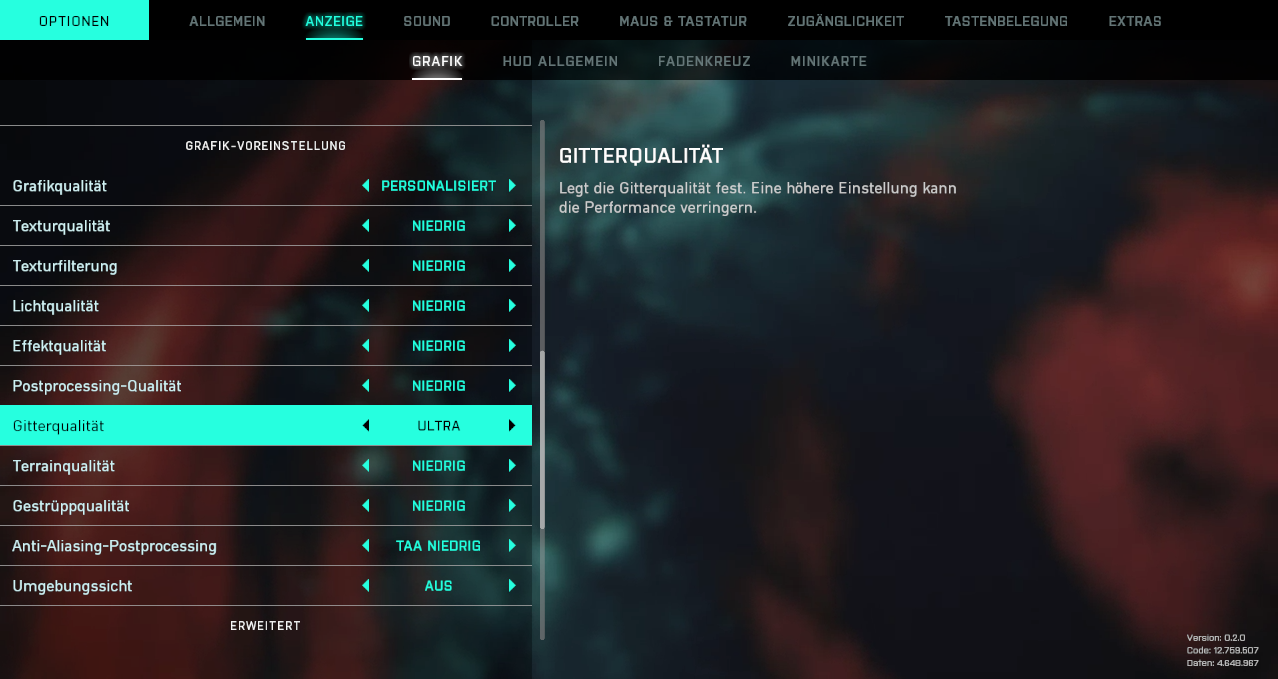
What do these settings do? Battlefield 2042 was a technical disaster at release for many players, regardless of whether your PC meets the system requirements. To counteract this as much as possible, we recommend reducing all graphics settings to the minimum. It may not look spectacular, but it runs smoother. For multiplayer, this is extremely important, as the FPS can determine whether you or your opponent dies.
The only exception: mesh quality. You should set this as high as possible, as it helps you to better recognize enemies from a distance. This is especially important on the gigantic maps in the game.
Recommendations:
- Graphics Quality: Personalized
- Texture Quality: Low
- Texture Filtering: Low
- Light Quality: Low
- Effect Quality: Low
- Postprocessing Quality: Low
- Mesh Quality: Ultra
- Terrain Quality: Low
- Foliage Quality: Low
- Anti-Aliasing Postprocessing: TAA Low
- Ambient Occlusion: Off
1.2 Advanced Graphics Settings (PC)
What do these settings do? These settings can provide a smoother gaming experience but are not available to every player. If you have a newer Nvidia graphics card, you have access to DLSS and Reflex Low Latency, which we recommend. If not, you’ll have to rely on Dynamic Resolution Scale.
If your image appears too blurry due to these settings, you should adjust them. Depending on your tolerance, you can even turn them off.
Recommendations:
- Dynamic Resolution Scale: On (if no DLSS)
- Dynamic Resolution Scale Target Frame Rate: 100 %
- DLSS: “Ultra Performance” or “Performance” (if available)
- Raytracing Ambient Occlusion: Off
- NVIDIA Reflex Low Latency: Enabled + Boost (if available)
- Future Frame Rendering: Off
- Number of High-Fidelity Objects: Low
2. Cinematic Effects
What do these settings do? There are a few artistic effects in the options menu intended to make the game look more cinematic. These include effects like motion blur, camera shake, or film grain.
Recommendations:
- Motion Blur: 0
- Chromatic Aberration: Off
- Film Grain: Off
- Vignette: Off
- Lens Distortion: Off
- Camera Shake: 50 % (in the “General” or “HUD General” menu)
Since we play Battlefield as a multiplayer game and not watch a movie, these effects should be turned off immediately – as in every game. Also, because Battlefield 2042 has no campaign, only your performance counts, not the graphical realism. These effects often hinder your visibility. Therefore, we definitely do not want to activate them.
3. Field of View
What does the setting do? This setting enlarges your visible area. These settings are available on next-gen consoles and PC.
Your field of view settings (English: Field of View or FOV) are generally underestimated in terms of how important they are for your aim. Therefore, you should find a good setting here.
It applies:
- The smaller the field of view, the faster the rotation speed feels.
- With smaller fields of view, your character’s movements also feel slower.
- The smaller the field of view, the larger enemies appear on the screen. This can help with aiming.
- With smaller fields of view, it’s more likely that you’ll miss enemies.
- The larger the field of view, the slower the rotation speed feels.
- With larger fields of view, the game feels noticeably faster. Especially the perceived speed of your character is significantly higher.
- The larger the field of view, the smaller enemies appear on the screen, which can make aiming more difficult.
- Larger fields of view give you more overview of the game, which can be especially important in close combat.
3.1. Field of View on Foot and in Vehicle
Recommendations:
- Field of View: 58, 70, 78 or 89
- Vehicle Third-Person Field of View: 50, 58, 70 or 78
Why are these numbers different from Call of Duty: Warzone? Battlefield 2042 measures the field of view vertically, thus using completely different numbers than, for example, Call of Duty or Overwatch. These games measure the field of view horizontally.
The recommended values correspond approximately to the following field of view values when measured horizontally:
- 58 in Battlefield ≈ 90 in Call of Duty
- 70 in Battlefield ≈ 103 in Call of Duty
- 78 in Battlefield ≈ 110 in Call of Duty
- 89 in Battlefield ≈ 120 in Call of Duty
Why are the values for vehicles different? The values apply to third-person and therefore have a different range of values to choose from. For example, 89 is not available. Choose the same value as in the normal field of view, if it is available.
Fans of Fortnite should also try the value 50. It corresponds approximately to the field of view from Epic’s third-person shooter.
3.2. ADS Field of View
Recommendation:
- ADS Field of View: Off (Console), On (PC)
We recommend turning this setting off on consoles and turning it on for PC. When this setting is disabled, the zoom effect is larger – this is particularly helpful when playing on the couch.
However, since PC players generally sit closer to the screen than console gamers, they do not need the large zoom effect. Larger zooms make aiming more difficult because the recoil feels larger. Also, adjusting hand movements between zoom levels is more challenging, especially with a mouse.
3.3. Minimap
Recommendation:
- Minimap Visibility – On Foot: 80-200
A higher minimap visibility helps every soldier, but especially snipers, to be less surprised by enemies.
4. Sound Settings
What do the settings do? Battlefield 2042 offers a small selection of audio settings, which are very important for your gameplay.
Recommendations:
- Music Volume: 0 % or 25 %
- Audio Mix: 3D Headphones
In the audio options of Battlefield 2042, it is important to lower the music volume. Otherwise, the music might cover important audio information.
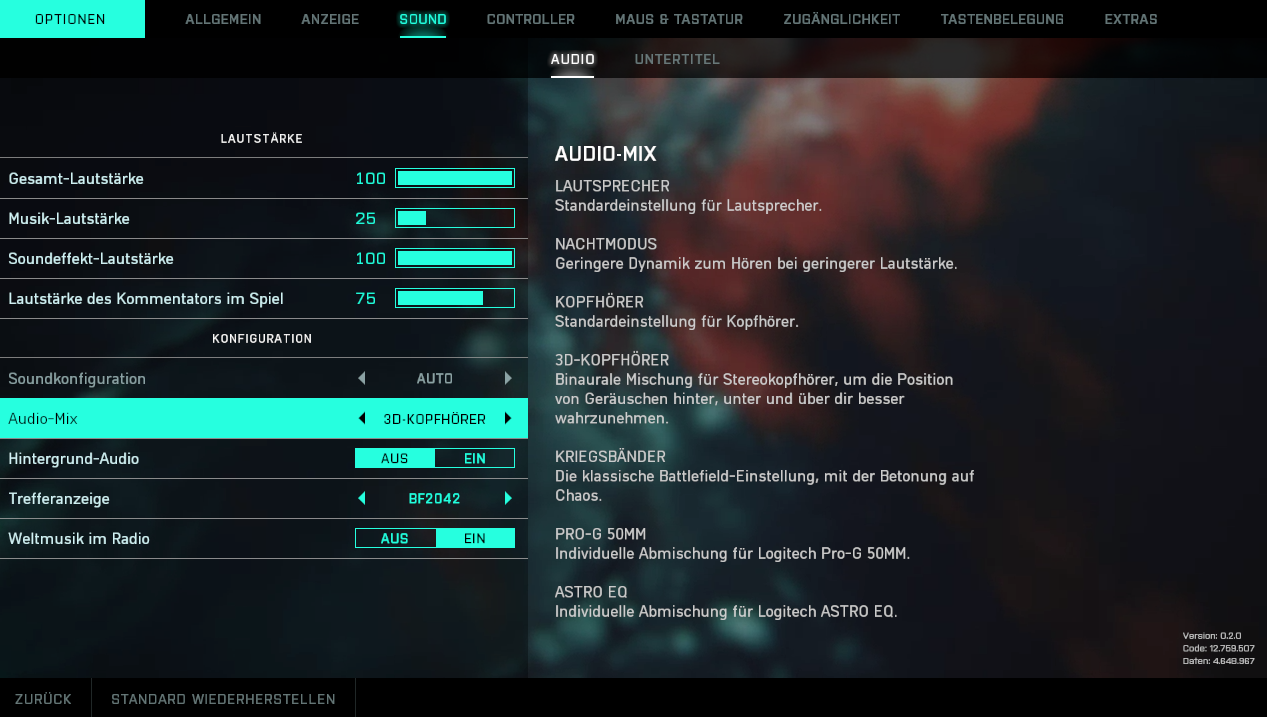
We recommend using the 3D Headphones audio mix, as it works with all stereo headphones and makes it much clearer where the sounds are coming from.
5. Controls (PC and Console)
What do these settings do? These options help you aim better at your enemies and move smoothly across the map. These settings apply to both controller and mouse & keyboard.
Recommendations:
- Unified Aiming (Soldier): On
- Coefficient: 0, 133 or 178
Which coefficient is right for me? Depending on your weapon preference and play style, a lower or higher setting can greatly enhance your gameplay. Experiment a lot here, and ideally, try a setting for at least an entire game.
- 0: This gives the lowest perceived difference in sensitivities for small aim movements. This helps especially with tracking aim, i.e., completely automatic fire. However, there are disadvantages with this setting against enemies that suddenly appear at the edge of the screen.
- 133: This setting is a good all-round value and is suitable for both tracking and fast reaction shots with semi-automatic weapons and snipers.
- 178: This setting is very popular among snipers and others who want to shoot quickly at distant heads. However, it may be too difficult to control for machine gun enthusiasts.
For Controller:
- Buttons (Soldier): Alternative
This setting swaps the button assignments for the melee attack and the crouch button. This makes crouching on the right stick, which helps the mobility of your character.
For Mouse & Keyboard:
- Raw Input (Mouse): On (under Mouse & Keyboard – Global)
This setting is important because it ignores your Windows mouse settings. This prevents you from having poor mouse acceleration in Battlefield 2042.
- Throttle Up: Space Bar (Under Key Bindings – Pilot)
It’s difficult to turn with the jet using the mouse. The space bar can help here as it makes turning maneuvers smoother. But don’t forget to remove the space bar from “Fire.”
It is important to emphasize that all settings are a matter of taste. Depending on your goals, preferences, strengths, and weaknesses, one setting may help you more than another. This also applies to weapons – sometimes your favorite weapon is just not in the meta.
The earlier you start to find out your own preferences, the faster you will have an advantage over opponents who do not follow these tips.
If you still want to know which weapons are meta, we recommend the article: 3 weapons that will dominate you at the release of Battlefield 2042.

Your opinion is important to us!
Do you like the article? Then let us know!