


The MMORPG The Elder Scrolls Online (ESO) offers you the opportunity to change keys and settings to your liking. MeinMMO author Larissa Then reveals which settings have made life in ESO easier.

In The Elder Scrolls Online you can adjust your settings according to your individual preferences on both PC and the consoles PS4 and Xbox One.
This includes key bindings for the interface, your character, your house, and more. There are also various settings for combat and outside of combat.
In this list, you will find 15 key bindings and settings that I have set up on every character and without which I would no longer manage in ESO.
Included are important settings for the movement of my character, but also fun features that I still do not want to miss. It should also be mentioned that I play on PC and the key bindings on the console may differ.

Key Bindings in Controls
The first 4 settings refer to my key bindings. You can find these under the Controls tab.
1. Dodge Roll: The most important key binding for smooth gameplay for me was changing the key for the dodge roll. I like to play my Nightblade as a stamina DPS, where I dodge a lot and roll around.
Therefore, I have assigned the dodge roll to my first of 6 thumb buttons. Which race pairs well with such a stamina DPS can be found in our guide to the best races for every playstyle.
It is also important with the dodge roll to turn off the double tap option for dodging in the gameplay settings. I even tried dodging by double tapping for a while.
However, I feel that this restricts my mobility and sometimes it just doesn’t work. And that, despite having tried different settings for the double tap speed. So I prefer to have it readily available on my thumb button.
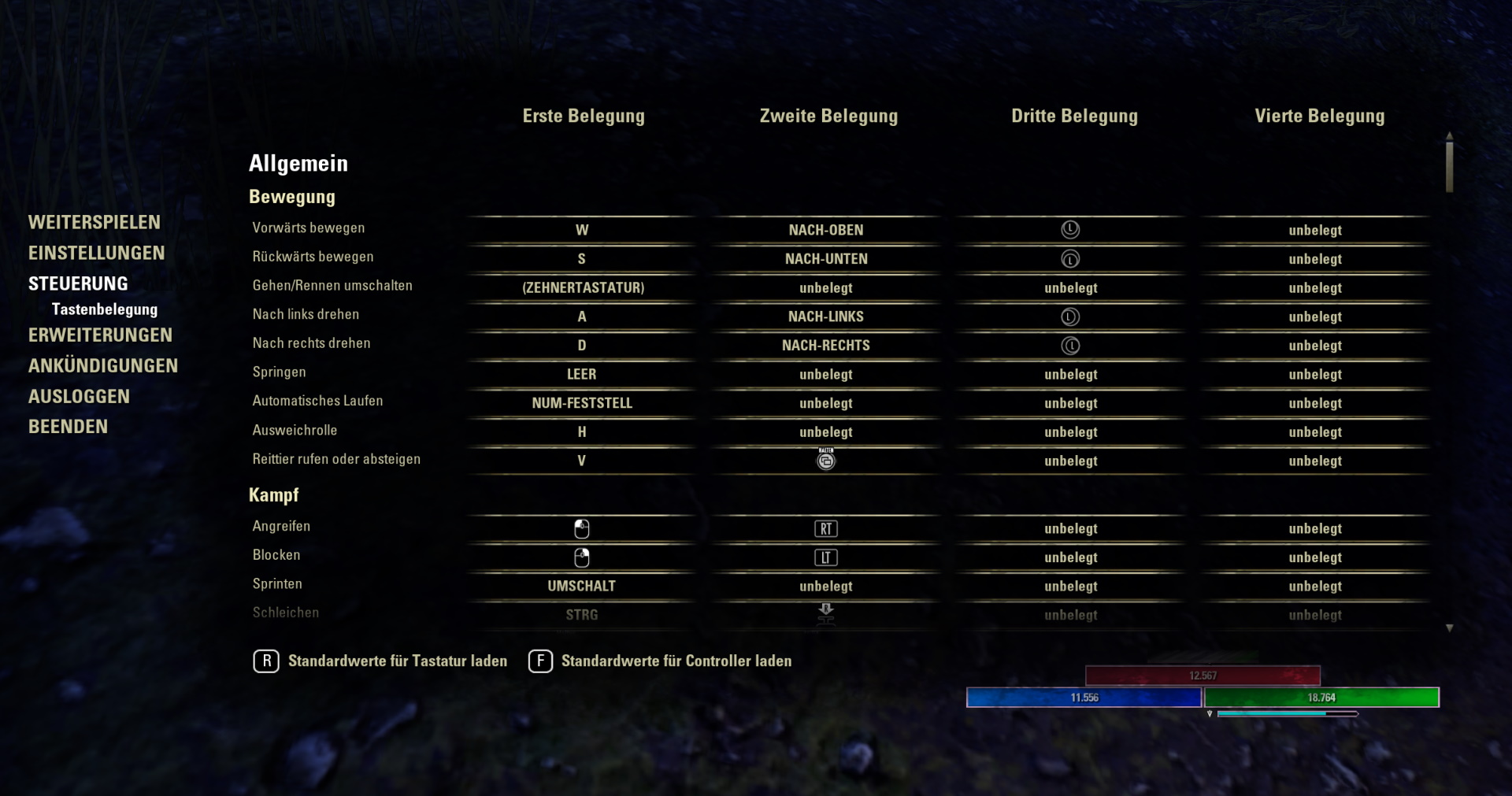
2. Auto Run: As the name of the setting already suggests, this allows you to run automatically. I use this feature very regularly to spare myself the constant pressure on W.
Since I was so used to it from WoW, I put auto-run on the Num key of my number pad. Originally, it was on MT4, which I couldn’t use at all.
3. Toggle Walking/Running: I chose this setting more for fun. Toggling between walking and running is a matter of roleplay for me. This way, your character can stride elegantly.
Originally, this key is unassigned. In true WoW fashion, I have my RP walk set to the slash key of my number pad.
4. Hide User Interface: Another actually unassigned setting is hiding the user interface. I enjoy taking screenshots of beautiful landscapes, fun poses, or simply for work at MeinMMO.
Therefore, I have assigned this option to the letter Ä. It has no other function, so I don’t mess up other settings. This way, I can click to turn off all bars for my character or quests and quickly slide in a screenshot.
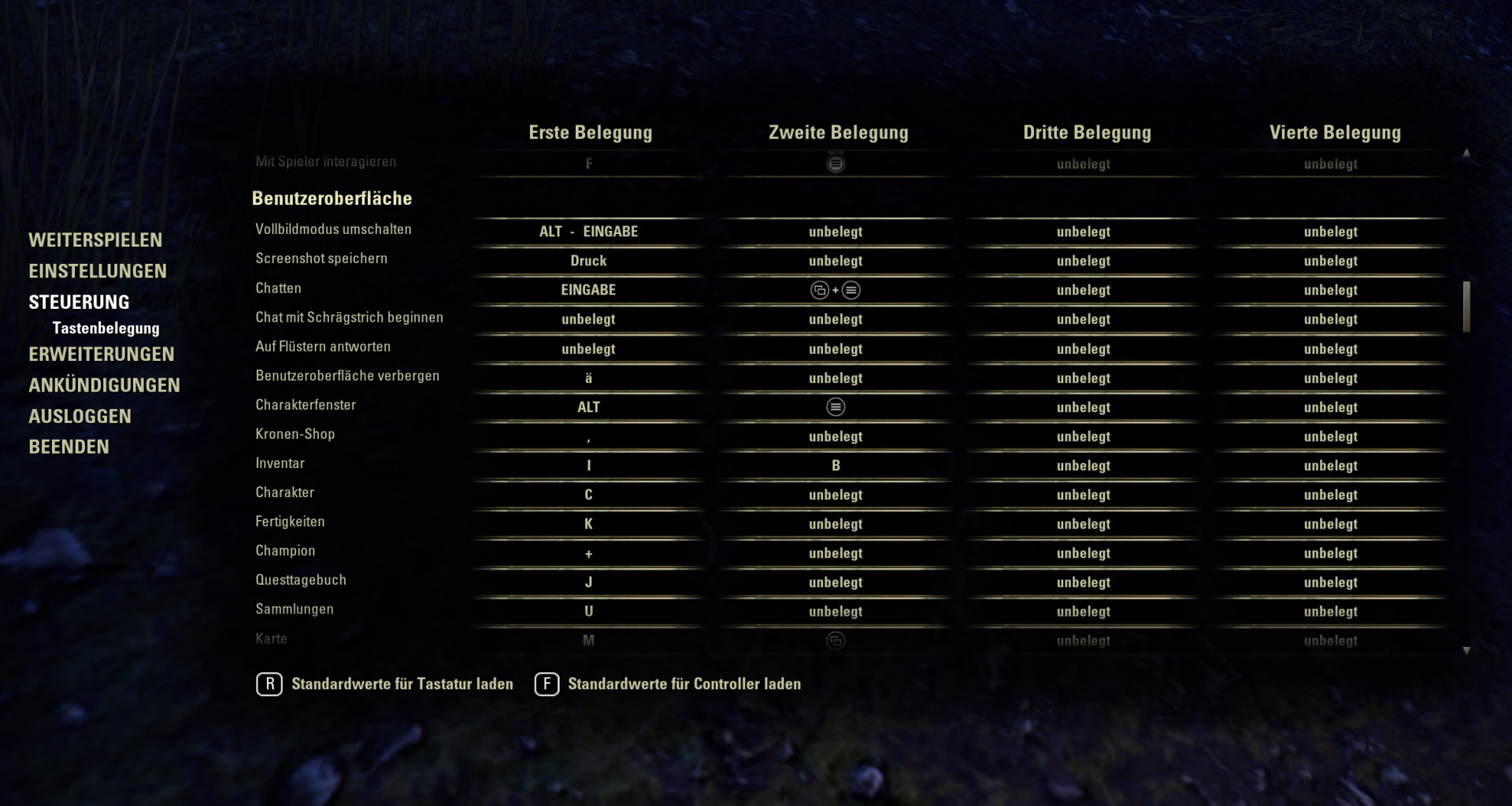
The other keys I have actually left as they were. I manage well with the interaction and other movement of my character.
Gameplay in Settings
However, I have changed some options in the settings that greatly ease my life. Firstly, the following 5 under gameplay.
5. Combat Hints On: I find it extremely useful to turn on the combat hints. This shows effects on your enemies that announce or clarify upcoming actions or states.
This way, you miss nothing that you could have reacted to – and you save yourself some incoming damage.
Right next to it, you will also find the aforementioned option to turn off double tapping for dodging. You can also set the colors for enemies and others according to your own discretion. For my part, I, however, use the preset colors.
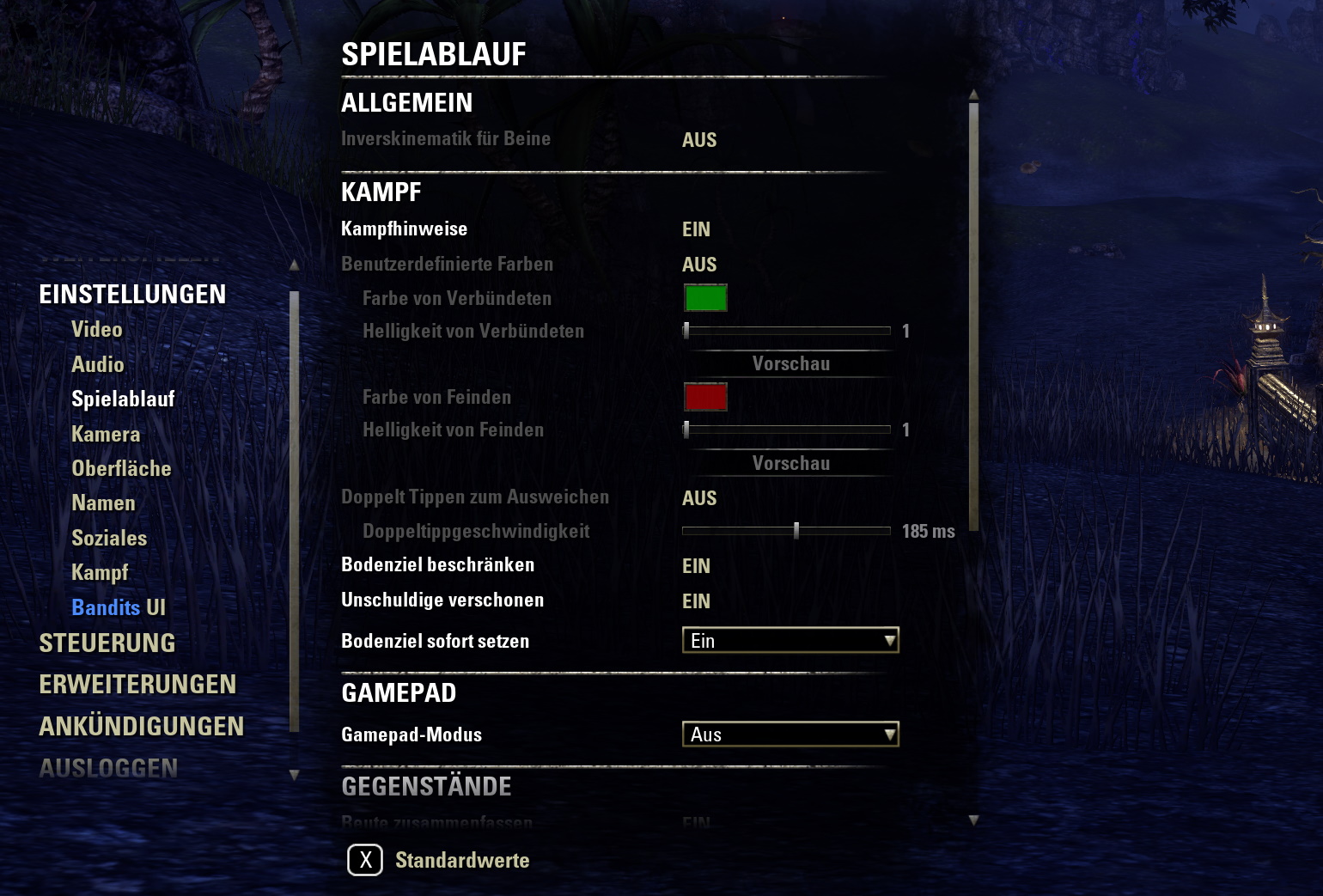
6. Spare Innocents On: Another very useful setting is “Spare Innocents”. When you set this up, you can avoid making silly mistakes with NPCs.
Especially at the beginning, it can happen that you attack something you didn’t want to at all. In the worst case, a bounty lands on you and you have to run to avoid losing gold.
7. Set Ground Target Immediately On: Especially for working with my bow, I use a lot of ground effects. Usually, you click the ability and then have a marker where you can place it. With a second click, you then place the attack.
If you now set “Set Ground Target Immediately”, you save yourself that second click and, therefore, valuable time. For smooth gameplay, this setting is simply essential for me.
Of course, you have to ensure that the ability is already at the desired location when activated. So your mouse needs to be where you want to place the ground effect.
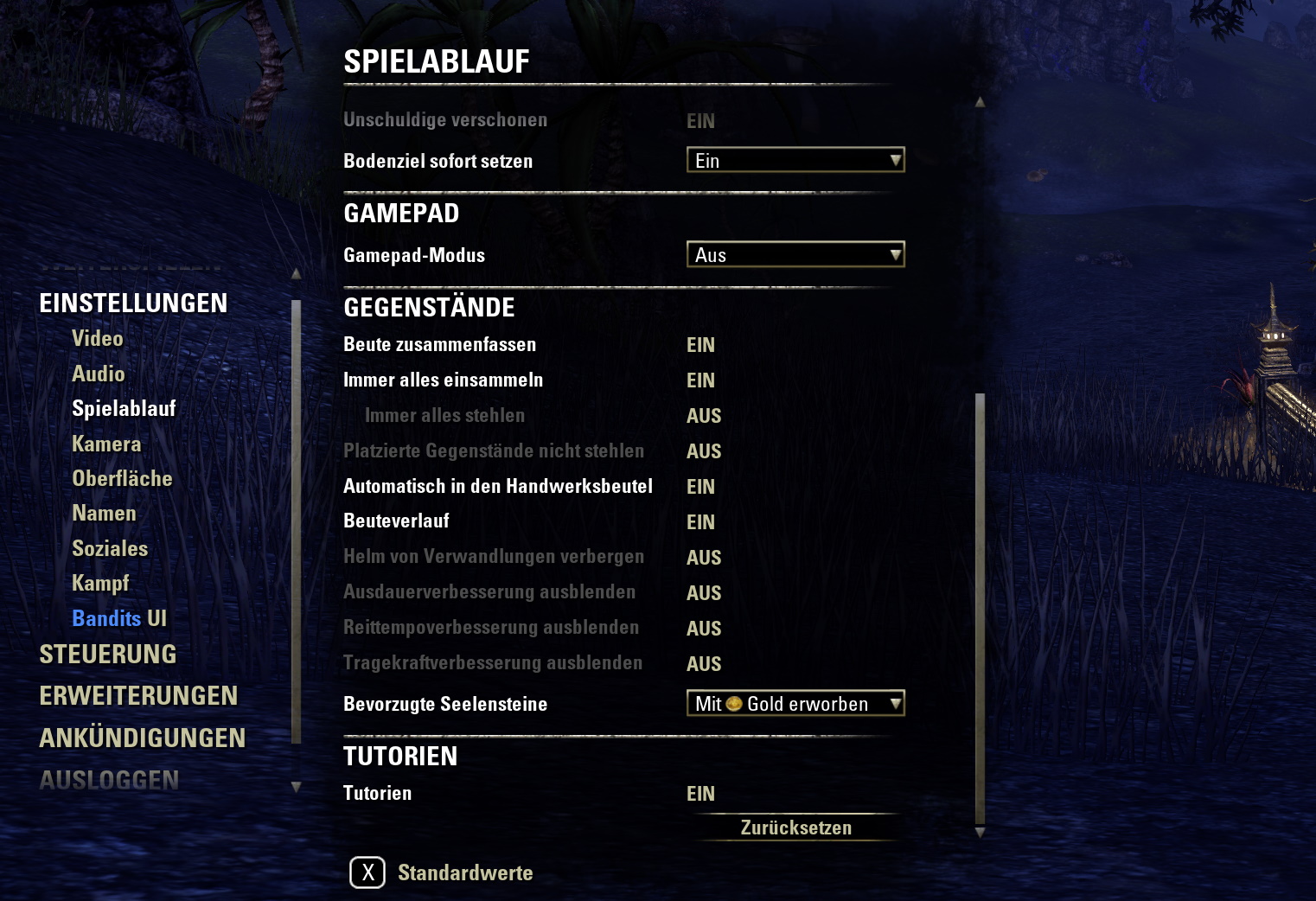
8. Tutorials On: The fine thing about tutorials. For my part, I still like to have them turned on, simply out of habit.
Especially for new players, I would highly recommend the tutorials, as they always provide useful tips and usually avoid confusion. We from MeinMMO have compiled 10 beginner mistakes and how to avoid them for new players.
However, those who find the tutorials annoying later on can disable them under gameplay settings.
9. Always Collect Everything: I cannot play without Auto-Loot, so I activated “Always Collect Everything”. This way, everything is automatically looted as soon as I click on the loot.
However, especially without ESO+, this can be really annoying as your bag fills up quickly. Additionally, I would leave the option “Always Steal Everything” turned off. This can quickly land you a bounty if you’re not careful.
Combat in Settings
Besides the gameplay settings, there are also useful options under the combat tab. The 5 most important to me are as follows:
10. Resource Display: When it comes to resources, I prefer a numerical display. This way, I know exactly how much stamina or magicka I have left. Especially in conjunction with my ability management, I find this essential.
In the past, I set the resource display to “Numbers Only”. Nowadays, I have the display set to numbers automatically, as I use the BanditsUI addon. This is one of the 7 addons I can’t imagine playing ESO without.
11. Tips in Combat On: The tips in combat are again more of an option for newer players. However, I still find it very useful as it shows helpful tips about combat mechanics. I have this set to automatic so that it only shows when it makes sense.
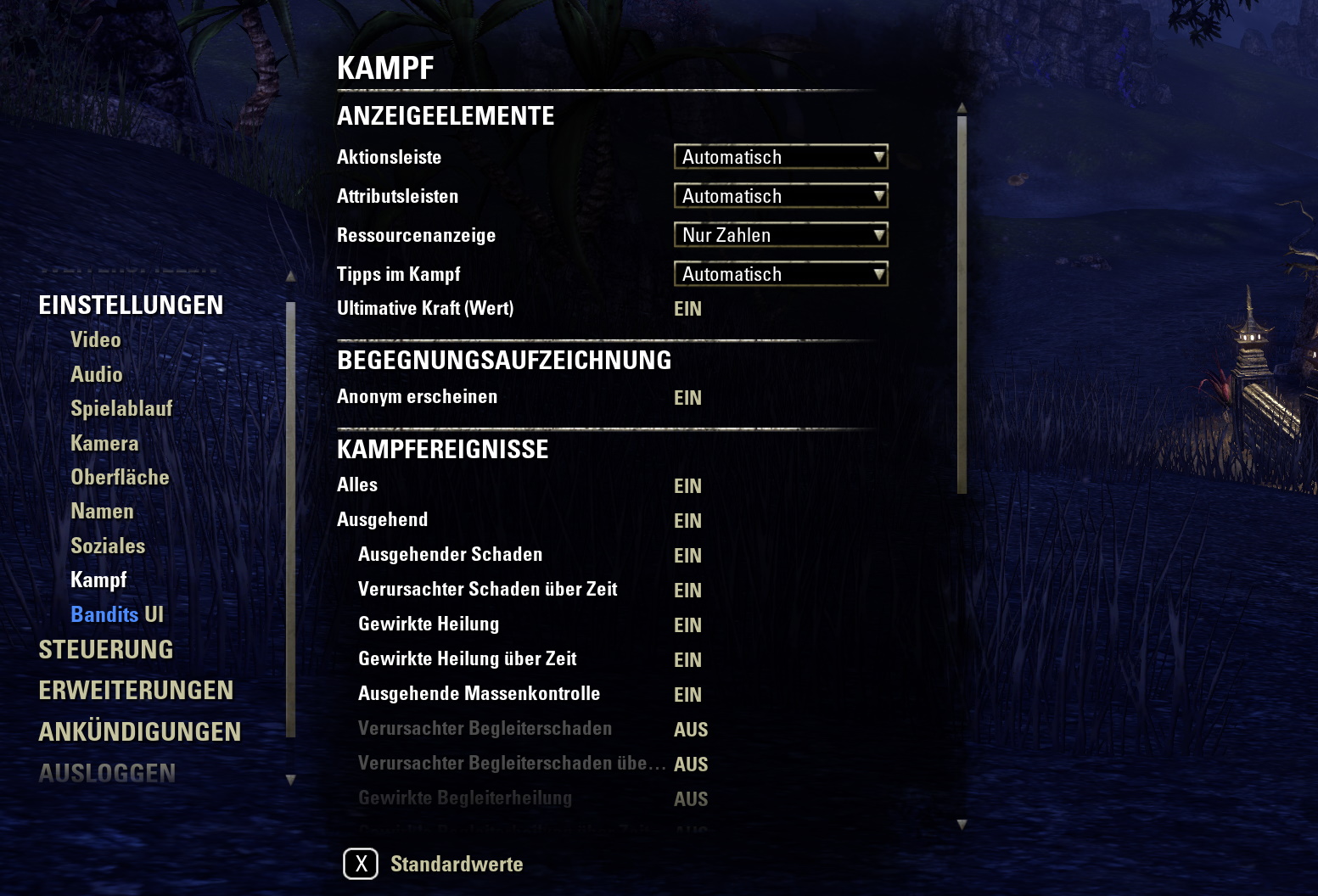
12. Ultimate Power (Value) On: I also like to see my ultimate power for my ultimate ability displayed in numbers. This way, you have a tangible value for when your ultimate can be used again.
I feel that this makes me more flexible in combat. This way, I can better gauge when I can deal significant damage or healing.
13. Combat Events: Under combat events, you can turn on the display of damage and healing. This way, you can always see how much damage and healing you are dealing and how much comes in.
Additionally, you can also display crowd control incoming and outgoing here. This way, you have a better overview of stuns and other influencing effects.
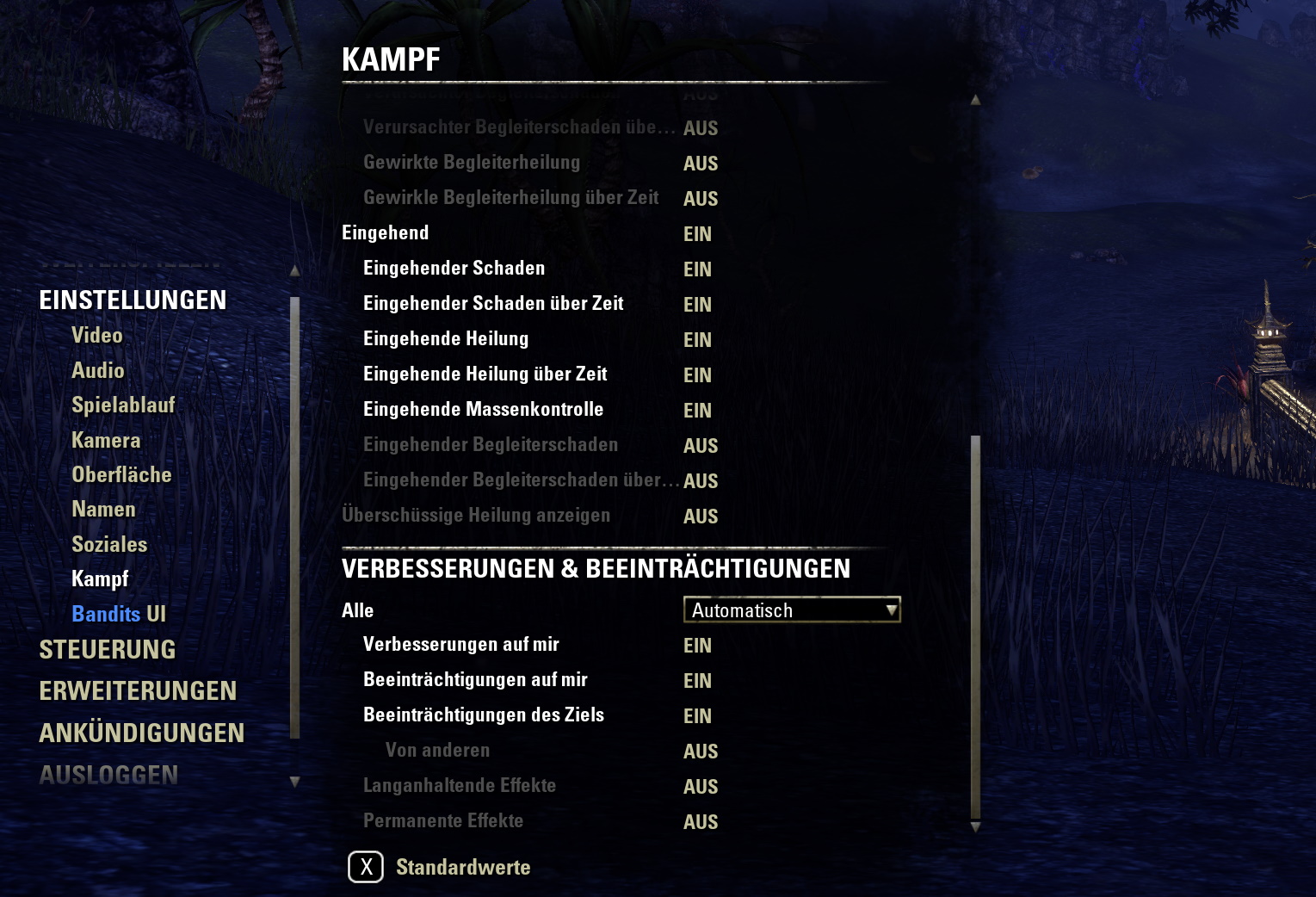
14. Improvements and Impairments: The settings under improvements and impairments go in a similar direction. There, you can display which buffs and debuffs are on you and your opponent.
This buff tracker can be very useful, especially when trying out a new build. However, I turn off the long-lasting and permanent effects, as that is too much input for me. I am only interested in acute buffs and debuffs.
15. Word Filter Off: One setting is still found under the social tab. If you keep the word filter on, you have censorship for swear words and such. However, I find it too annoying and prefer to live with the expressions. How you handle that is up to you.
Now you know which settings are vital for me in ESO. Feel free to leave a comment about what you have personally adjusted and why! And for those of you wondering what is currently happening in ESO, you can check out the New Year’s event and farm the last Indrik.

Your opinion is important to us!
Do you like the article? Then let us know!