

To ensure that you always enter the battle in Call of Duty: Warzone with the optimal conditions, here are the best settings for your fight for victory.
As soon as the Pacific update is online, we will check the settings again and add new options if necessary.
What is this about? The default settings when you start Call of Duty: Warzone are not optimally tailored to the fast-paced gameplay of Battle Royale. Although it depends on your preferences, there are several settings that you should tweak. These include:
- Visual filters for better visibility
- Movement settings for faster actions
- Control settings for safer handling
- Audio settings: Adjustments for better detection of nearby enemies
- Control options for mouse and controller
With a few adjustments, you can gain an advantage over players who make no changes. In such a large and chaotic Battle Royale like Warzone, even the slightest advantage can help you win.
Settings in Warzone that you must make
Let’s start with essential settings that you should definitely change, or you will have a noticeable disadvantage:
- 1. Motion Blur: OFF
- 2. Environmental Motion Blur: OFF
- 3. Mini-Map: Square, no rotation
- 4. Audio settings: Depth Boost / Home Cinema
What about Motion Blur? In the “General” menu, you will find the option for “Motion Blur.” This is a visual filter that adds a blur effect to your image.
Set the motion blur to 0.00, as such cinematic filters in your image are not really useful at all.
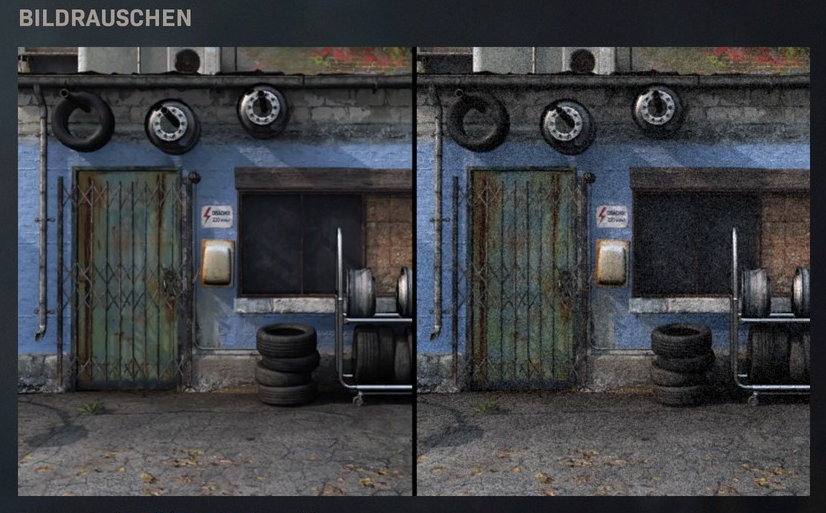
What should I do about Motion Blur? Turn it off! Just like with motion blur, you will get a filter applied to your image here, but only when you move.
This filter distorts your image and makes it harder to recognize enemies while moving or turning. You can find this setting under “General” as well. Here you will find “World Motion Blur” and “Weapon Motion Blur.”
What can I do with the Mini-Map? Since the Update 1.17, you can change the Mini-Map from “Circle” to “Square”. This gives you a nearly 20% larger map.
Also very helpful for orientation when you get calls from teammates: Disable the rotation of the Mini-Map. This way, you will always see exactly which direction you are moving on the Mini-Map. You can also find this option under “General”.
What do other audio settings do? This pertains to the footsteps and movements of nearby enemies. By focusing the audio output on the frequency bands responsible for the enemies’ footsteps, you can hear the enemies better as they sneak around you.
Set the “Audio Mix” in the “Audio” menu to “Depth Boost” or “Home Cinema”. A deeper analysis of the audio settings can be found here.
Settings for small advantages that can make a difference
The following settings should be considered as they can provide small advantages. However, these settings also require a little adjustment.
- 5. Use/Reload Behavior: Contextual
- 6. Slide Behavior: Tap
- 7. Automatic Weapon Swap when out of ammo: Enabled
- 8. Automatic Forward: Enabled
- 9. Automatic Parachute Deployment: Disabled
What changes with the Use/Reload Behavior? With this small setting, you can loot faster, use doors, and perform other actions more quickly. To use or pick something up, you will only need to “Press” instead of “Hold”.
However, it can be a bit of an adjustment, especially if you have been playing with the default setting for a while. You will find this option under “Controller” – for players on PC, “Reload” and “Use” are generally already on different keys.
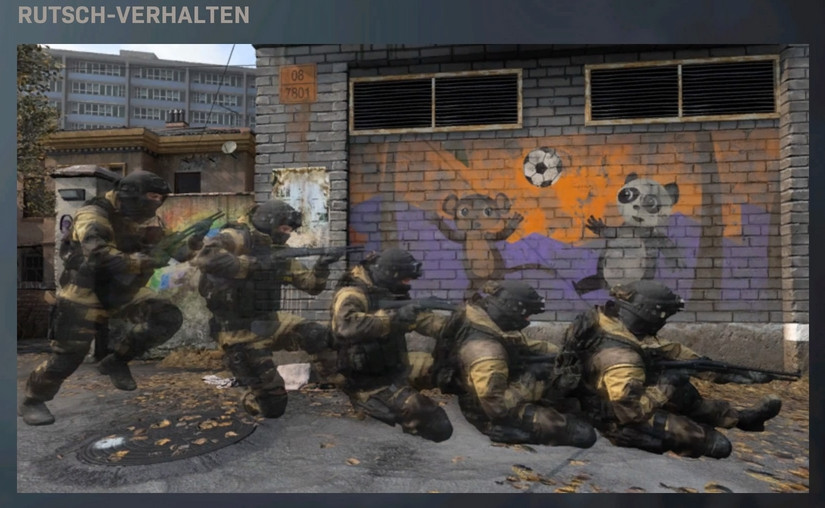
How does the Slide Behavior change? Similar to the Use/Reload Behavior, you adjust the control here from “Hold” to “Press”. When you press the “Crouch” button during a sprint, you will directly slide. This saves time and feels right. This setting also belongs to “Controller” or “Keyboard & Mouse”.
Also, pay attention to your keybindings on PC. “Prone” and “Slide” are assigned to 2 different keys.
Why should the auto-weapon switch stay enabled? You save a little time when switching weapons if your entire bullet reserve is exhausted.
This setting is already enabled by default and should remain so. You will find it under “Controller” or “Keyboard & Mouse”. If you have a different one of the best weapons in Warzone as your secondary weapon, you can often take down your opponent.
What does Automatic Forward provide? “Battle Royale” players may be familiar with this setting, as several competitors of Warzone offer this option.
If you press “Forward Run” twice quickly, your character will automatically continue running. This allows you to relax your fingers briefly while you look at the map or discard something from your inventory without stopping. Depending on the system, you will also find this setting under “Controller” or “Keyboard & Mouse”.
What does disabling the parachute deployment do? If you always open your parachute manually, you can reach your target much faster when you want to get to a point near the starting plane. However, it takes a bit of practice to get the timing for opening right. It should happen as close to the ground as possible.
When landing, you can wait until just before hitting the ground to open the parachute. Find a balance between the risk of a painful impact and the safety of landing unscathed.
Especially at the beginning, you should practice in the preparation rounds or start a Heist match to test the mechanics for a few minutes.
Special features of input devices and platforms
Warzone supports crossplay and cross-progression and connects different input devices, which offer different settings.
If you play with a mouse, for example, you don’t have to worry about the vibration function. Here are a few settings that are not universally applicable but depend on the platform, your preferences, and input devices.

10. Controller Settings
- Vibration
- Triggers
- Button Mapping
- Aim Assist
How should I set the vibration? Disable this option. The vibration function is a nice feature for controllers but can also be disruptive. If you don’t want to miss out on the feedback, it doesn’t make a huge difference. However, in some situations, the shaking while aiming can distract you, causing you to miss the crucial shot.
What can I do with the triggers? Map the fire/aim buttons from the back triggers to the front ones. The buttons are quicker to press as they have a shorter travel distance.
This saves you a tiny bit of time when firing and aiming. You can change this under the menu item “Controller” in the first section “Button Mapping Presets”. You will see the setting above the controller graphic. You don’t need to change the “Button Mapping Presets” for this.
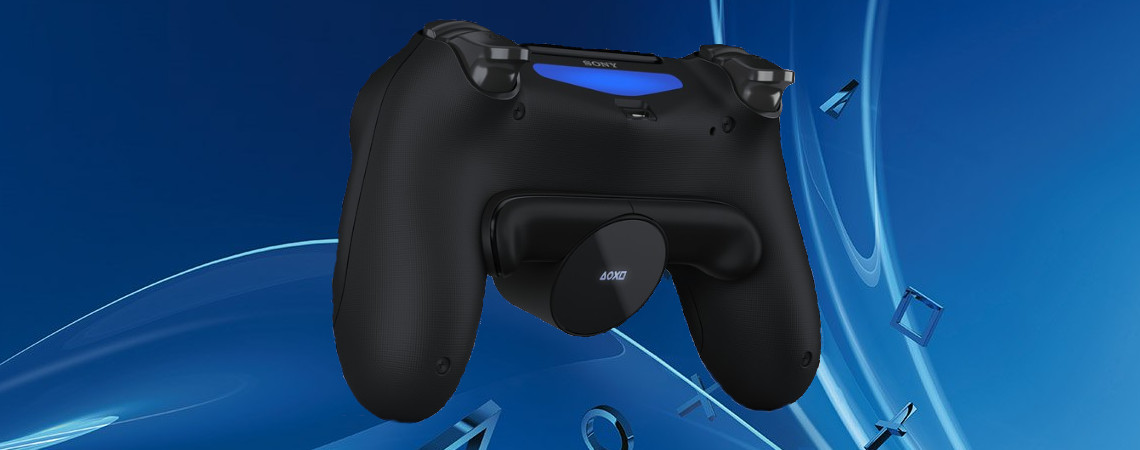
However, if you have buttons on the back of your controller, do not switch the triggers. It will be much less comfortable if you fire with the front buttons.
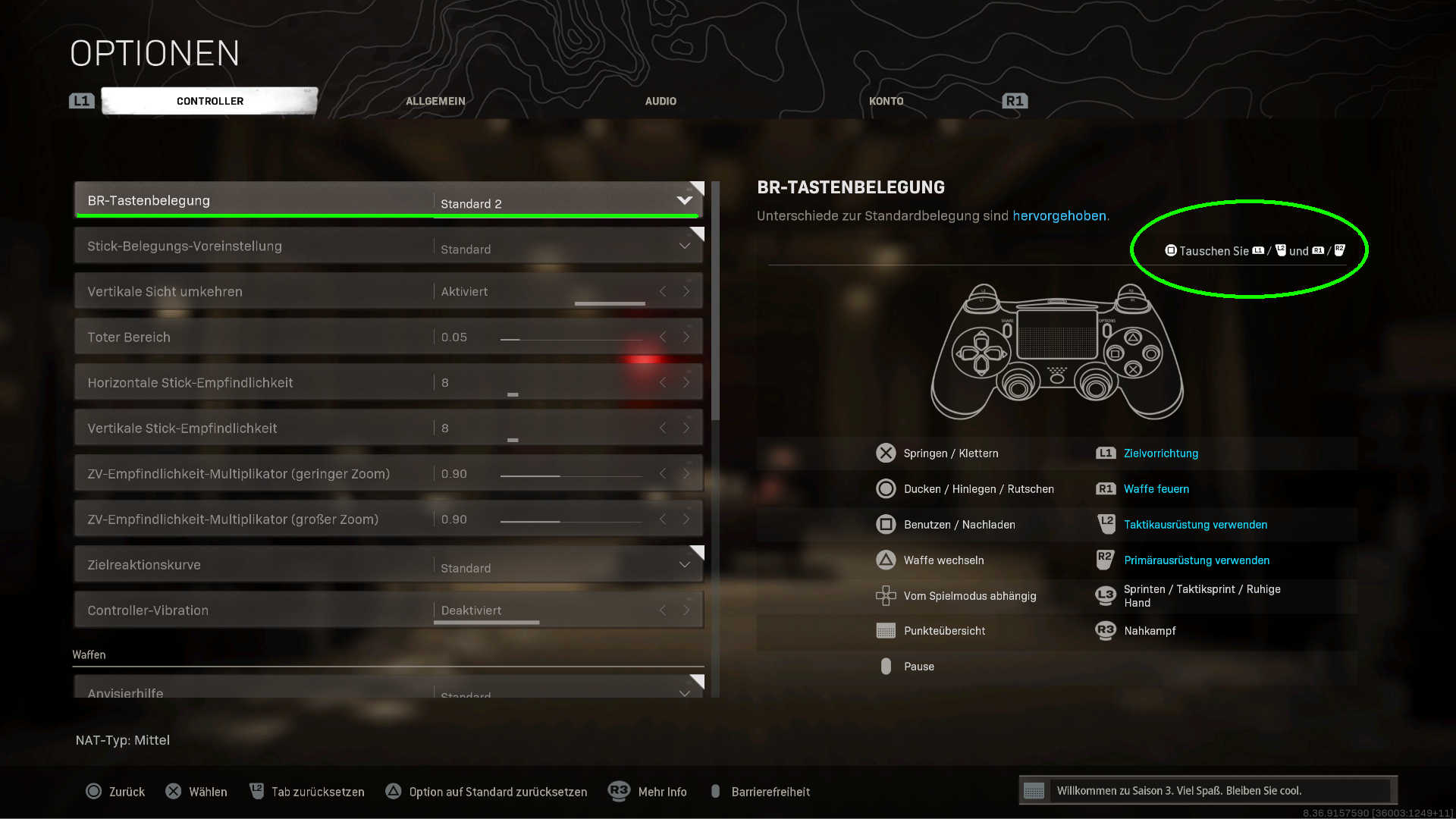
What is the best button layout? This is something everyone has to decide for themselves, but the rule is: The less you take your thumbs off the sticks, the better. Because every time your thumbs are doing something else, you can’t react immediately. Especially for actions like:
- Reload
- Jump
- Crouch/Slide
There are controllers that have buttons on the back, which solve the issue. For PS4 controllers, you can even get an attachment that adds some extra buttons on the back. But even without special hardware, you can make changes here:
- Tactical preset – Swap melee with crouching/prone/sliding
- This way, you assign crouching to the right stick and swap the less frequently used action “Melee” with the more often used action Crouch/Prone/Slide.
- Bumper Jumper (tactical) preset – Here you also swap melee for crouching and additionally “Tactical Equipment” with jumping. You then jump/climb with one of the triggers.
What should I do with the aim assist? Players with a controller receive aim assist, which mouse users cannot use. There are 4 settings here that you should use depending on your play style. The default is strong, but if you want to understand how aim assist works, check it out here:
11. Mouse & Keyboard Settings
- Button Mapping
- Field of View
How should I set the buttons? Check out which commands you can assign to the mouse or easily reachable buttons. If you have been using the default setting so far, there is definitely room for optimization here.
You can, for instance, assign primary or tactical equipment to “Mouse Wheel Press” – or get a mouse with extra thumb buttons. Unlike the controller, you have the option to configure each button as you like.
What is the Field of View? If you play on PC, you can adjust the “Field of View”. This enlarges the visible area directly. You can see much more of your surroundings, but the image does distort a little.
Especially sprinting and quick movements will seem faster to you, even though they are not. If you can get used to it, try setting the “Field of View” to the highest setting. But that’s a matter of taste. At least set the FoV a bit higher (90 or 100), and you will have an advantage.
12. Properly Set Input Device Sensitivity
- Sensitivity
- Aim Reaction Curve
- Mouse
- Controller
What should I do with my sensitivity? Opinions here vary widely. Some swear by high values to react quickly – others prefer low sensitivity for better aiming. Choose what feels better for you and consider the following points:
- Mouse – Pay attention while playing to the range of movement on your mousepad. Sensitivity should be set so that the longest movement you make with the mouse accomplishes a full turn of the character. So set it so you can turn around without having to readjust.
- Controller – Start high and slowly work your way down if this setting is too fast for you, or start low. If you then notice that your right stick crashes into the edges when aiming, you can go higher. Try to find the point where the stick rarely touches the corners while aiming.
- ADS Sensitivity – Try using a value just below 1 – for example, 0.9. This provides a little aim boost when you aim down sights.
Aim Reaction Curve
What can I adjust with the aim reaction curve? Here you can determine how input devices react to your commands. On consoles, you will find three selectable presets, whereas with a mouse, the settings can be adjusted a bit more individually. Have some fun experimenting here. You will find these options directly under the sensitivity settings.

What should I do with a mouse? There are three settings for mouse acceleration, filtering, and smoothing under this menu item. For unfiltered input, set the sliders to 0 and disable smoothing. This gives you direct control without any interference from the game.
However, sometimes it’s worth experimenting with some settings. If you have lower sensitivity, use acceleration. This increases sensitivity during fast mouse movements. If you have become accustomed to a certain latency in mouse movement, play around with smoothing and filtering a little.
What do controller settings do? Of the 3 settings “Standard”, “Linear”, and “Dynamic”, the last two are recommended, depending on preferences. “Linear” is the most direct input method, while “Dynamic” introduces a slight delay. Standard is the slowest, so you should definitely try one of the other options.
Be careful with older controllers! Since the dead zones of the sticks almost completely disappear with “Linear” and “Dynamic”, worn models can move the crosshair without any contact or exhibit a little movement lag. For the best settings, you can also find a dead zone guide on our site MeinMMO.

Your opinion is important to us!
Do you like the article? Then let us know!