

6. ADS Sensitivity Modifier Higher than 1.0
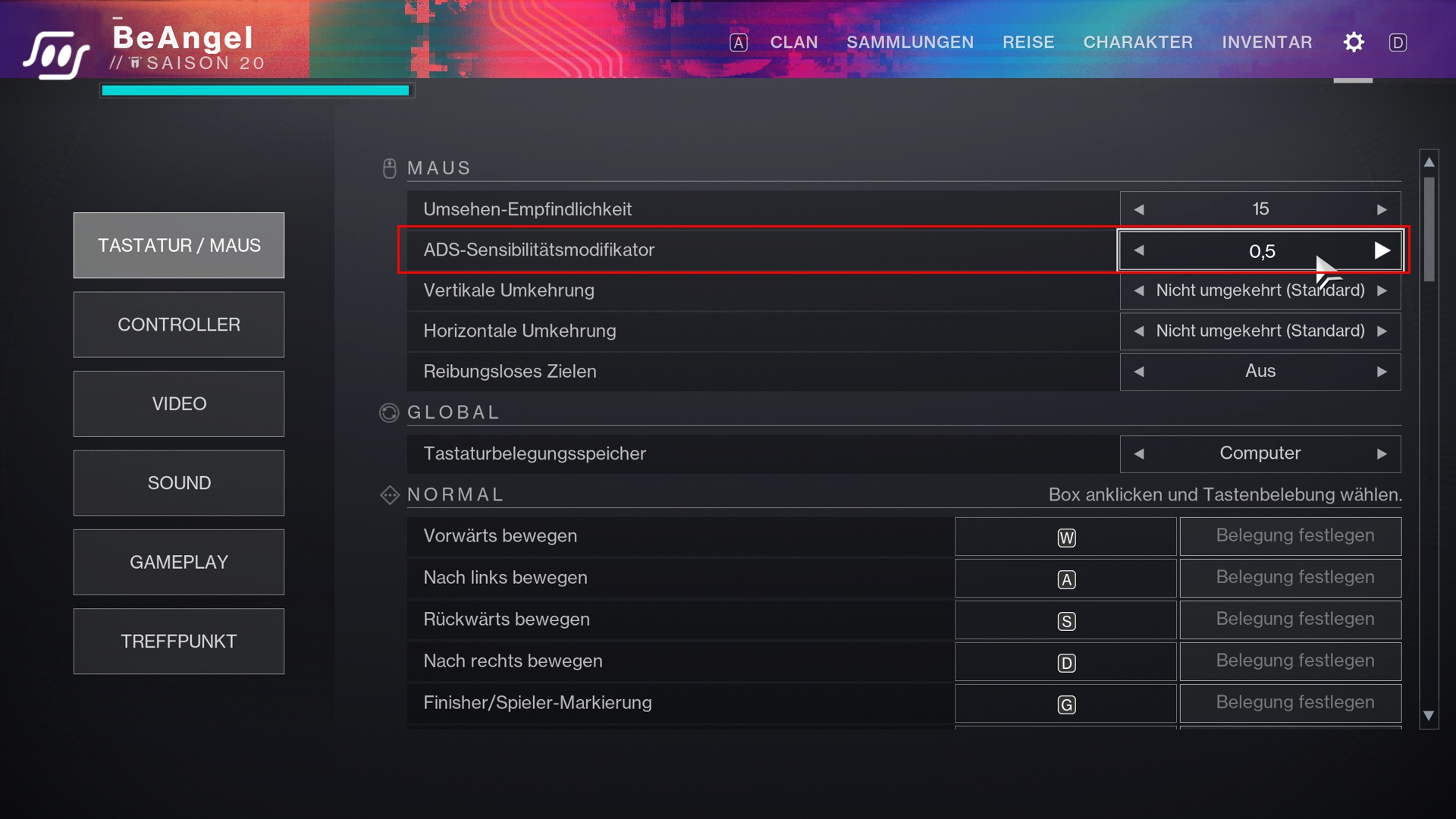
The higher, the more sensitive: The “ADS Sensitivity Modifier” is a setting for both the controller and mouse and keyboard. It affects how quickly the crosshair moves while you’re aiming down sights and thus influences the sensitivity when aiming.
ADS Sensitivity Modifier
- The setting you can choose in Destiny 2 ranges from 0.5 to 1.5.
- The default value is 1.0, meaning the sensitivity does not change.
- Settings above 1.0 cause movement and rotation to be faster than aiming.
- Lower values slow down sensitivity, which provides better accuracy.

The recommended range is therefore between 0.5 and a maximum of 1.0. If the value is above 1.0, the sensitivity when aiming down sights is higher, and this additional speed can make it quite challenging to hit a target accurately.
7. Depth of Field
Depth of Fieldis anything but sharp
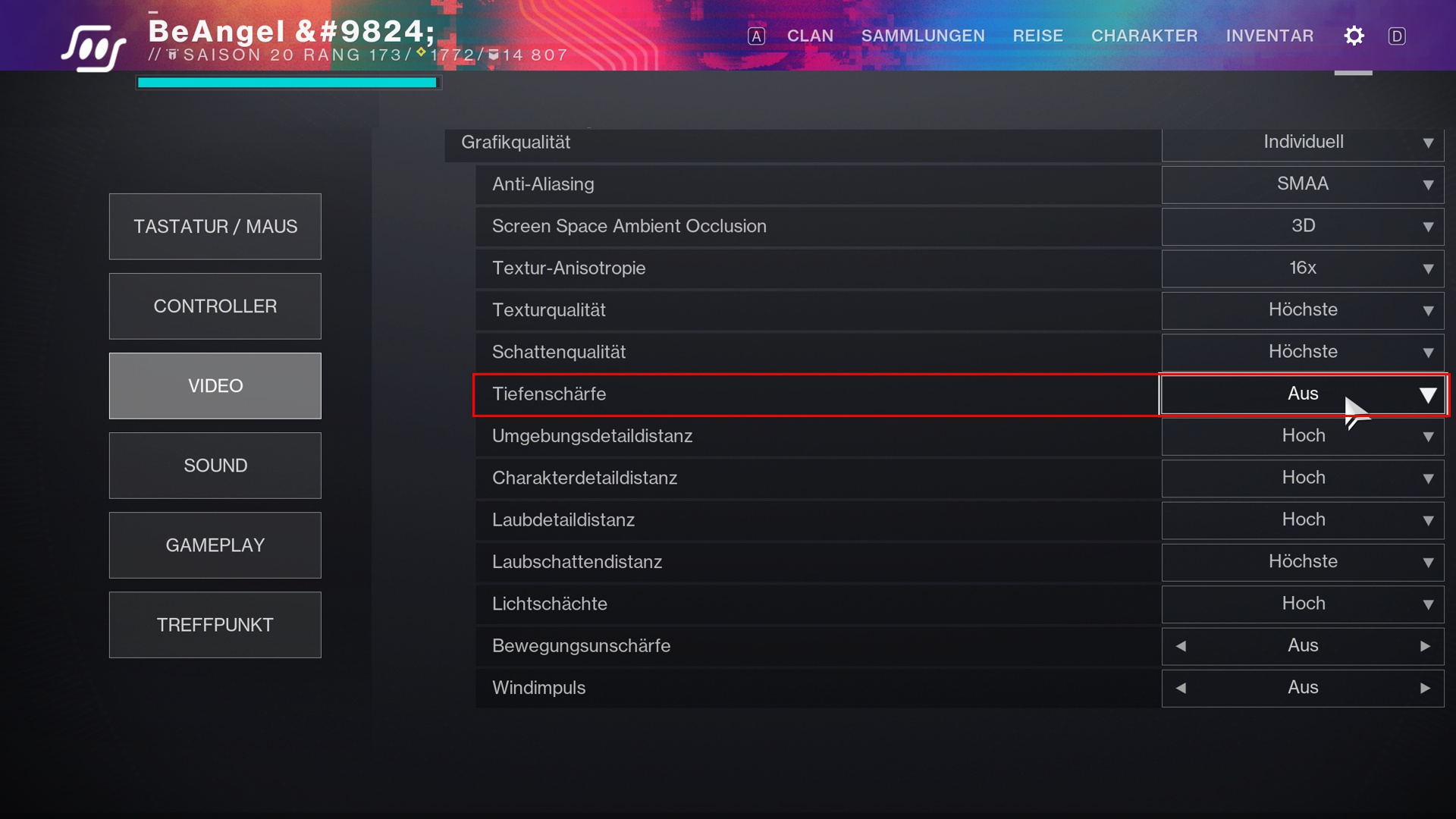
When everything else becomes blurry: The depth of field in Destiny 2 makes everything except what the game determines as the focus point appear out of focus. The option attempts to simulate the effect of the human eye focusing on different things at different distances.
You can perform the test yourself: Hold up a finger a few centimeters away from your face and focus on it. You will notice that everything else in the background automatically becomes blurry.
The depth of field in Destiny 2 does exactly that, and it doesn’t do you any favors.
- For instance, if you aim over a box at a target 20 meters away, the box will be blurry.
- Or if you aim down with a weapon, the edges of the screen will also become blurry.
- Moreover, this makes it harder to recognize things, especially since it doesn’t always work properly and can look strange.
This impairs your perception of the environment just like motion blur does, which is especially detrimental in PvP. So if you don’t want to take a fancy screenshot in Destiny 2, turn off the depth of field right away.
8. Gaze Centering
Gaze Centeringdisabled
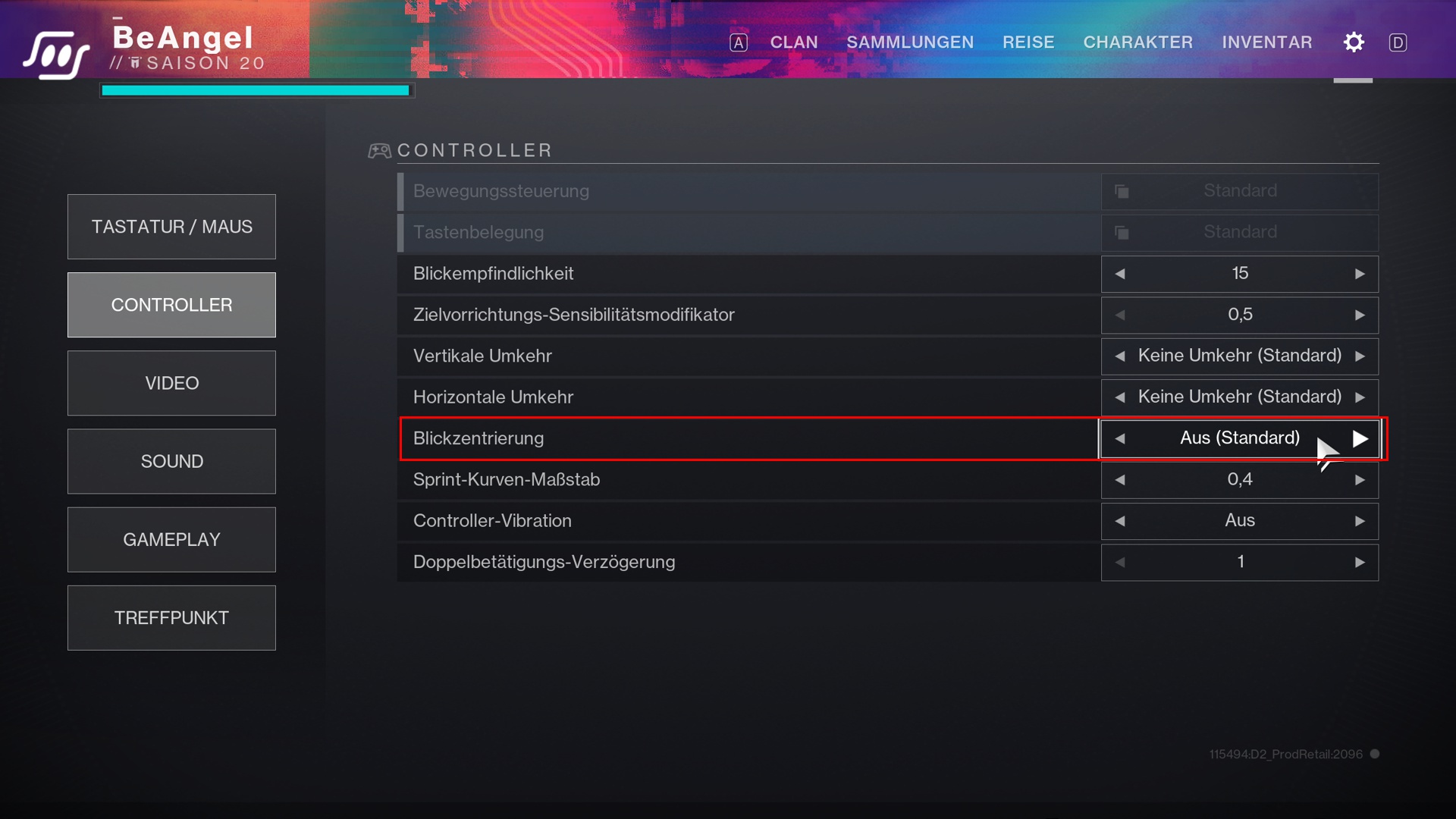
Look around yourself: Gaze centering is disabled by default in Destiny 2 exclusively for controllers, and you should keep it that way.
- Gaze centering ensures that when you walk forward, your character automatically adjusts to a height in line with the horizon.
- However, if you activate the option, your Guardian will also have a degree of autonomy that can disrupt the gameplay depending on the situation.
The recommendation is therefore to leave this function as is and to look around yourself without the game forcing you to look in a specific direction.
9. Wind Impulse
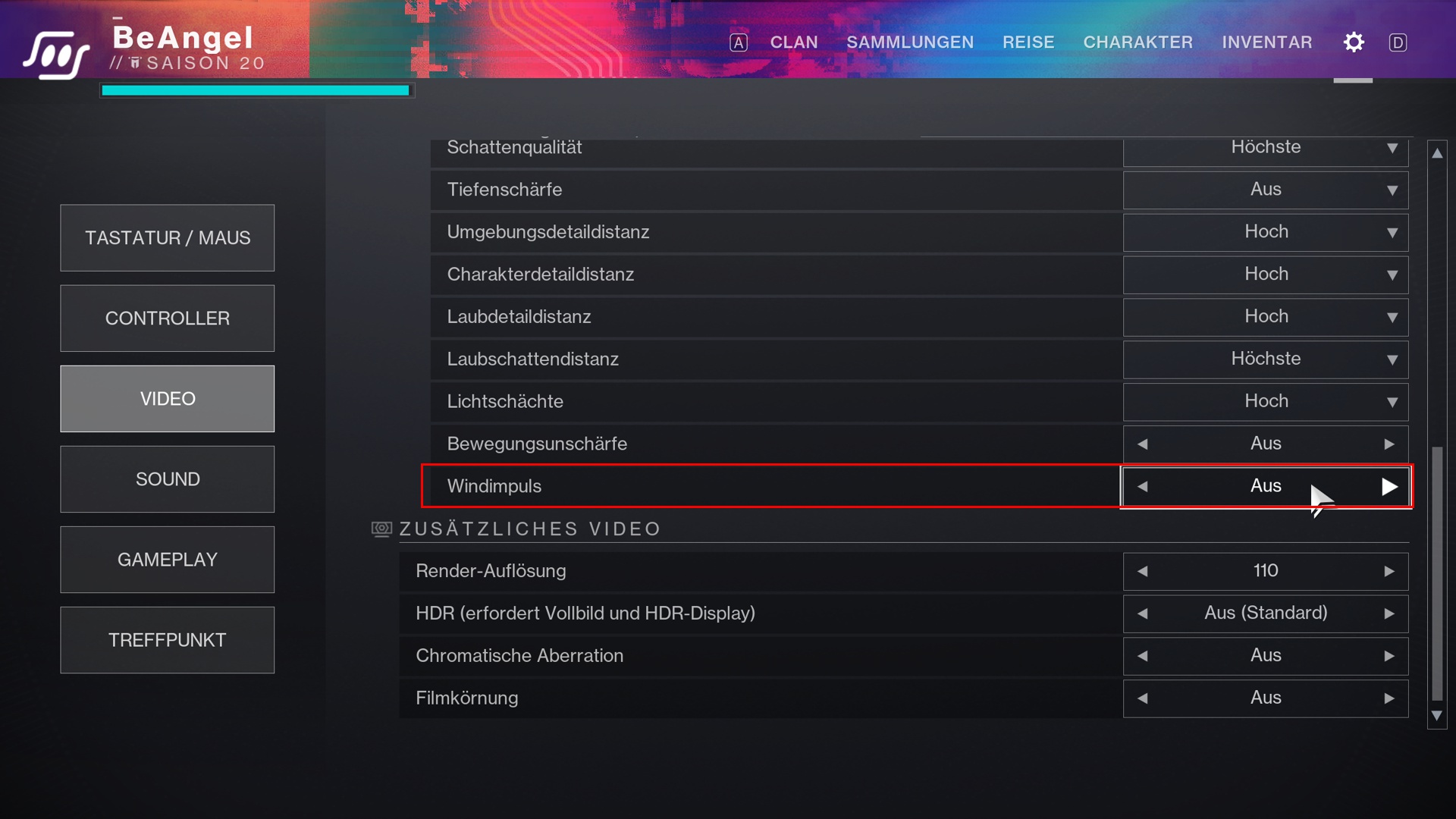
Wind Impulsemakes grass and bushes react to you
A blade of grass says Hello
: Actually, this option is quite cool in Destiny 2. The wind impulse makes it so that your surroundings, like bushes or grass, are influenced by the wind impulses you create.
Without wind impulse, bushes do not move when you throw a grenade at them. The effect therefore affects the environment and allows for a dynamic immersion in the world of Destiny.
- Unfortunately, wind impulse also causes some objects to move in an extremely unnatural and almost glitchy manner. This movement no longer appears to be a realistic response.
- Additionally, performance may slightly decrease when wind impulse is enabled.
The recommendation is, therefore, not to enable wind impulse.
10. Disturbing Shadows and Improved Pointer Precision
It can’t be done through in-game settings: The last tip is optional for PC players, and you must decide for yourself whether to use these.
On the one hand, you can completely disable shadows in Destiny 2. Some PvP pros never play without this setting. However, the change can only be adjusted directly in the Destiny 2 files.
- Under C:UsersYourUsernameAppDataRoamingBungieDestinyPCprefs, there is a file named “CVAR.xml”. There you have the option to set all shadows to zero. This will also remove all dark areas from the PvP maps in Destiny 2.
Then you need to mark the file as read-only, as it will otherwise reset with every restart of Destiny 2.
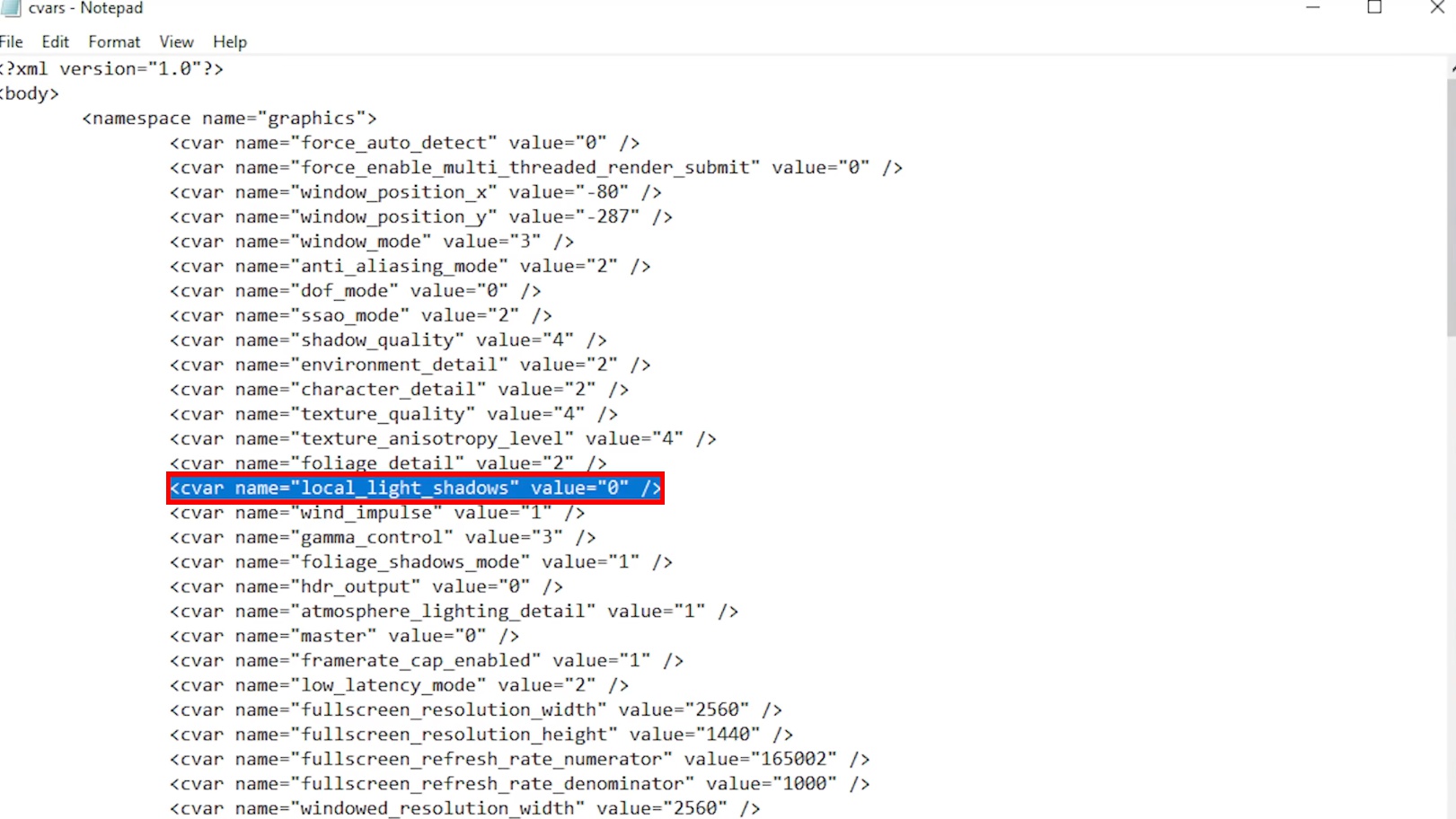
Bungie provides a guide on how to restore this file if you accidentally set strange values and it leads to unintended or faulty graphical behavior in the game.
Pointer acceleration is not good in Destiny 2: The second tip is improved pointer acceleration on PC. In Destiny 2, this does not improve anything, so it makes sense to disable it in the mouse settings of Windows.
This is basically the same as a target smoothing function that will massively affect your aiming accuracy and sensitivity.
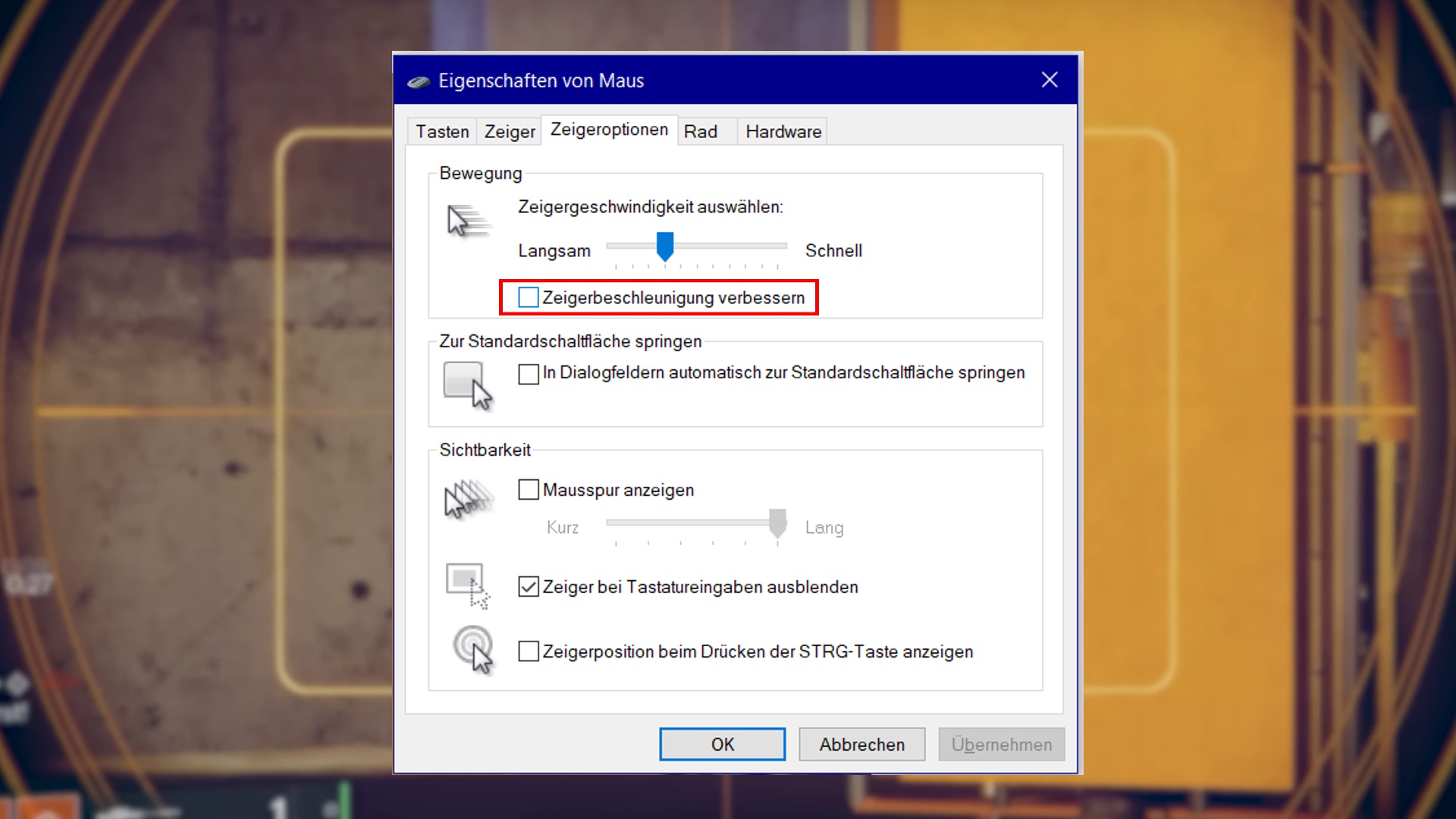
Improve Pointer Accelerationin Destiny 2 disabled
This is how you can disable the function:
- To disable the setting “Pointer Acceleration”, go to the settings on your PC via the Windows button and select
Devices
and thenMouse
. - Through the option in the upper right corner
Additional Mouse Options
, you will get into the menu shown above. In the tabPointer Options
, you will find the desired function “Pointer Acceleration” that you want to disable.
In summary, disabling these 10 settings in Destiny 2 is a simple but effective step to improve the gaming experience.
From increasing image quality to reducing visual distractions, these disabled options can make gameplay smoother and more immersive. If you want to focus on what matters and get the most out of Destiny 2, you should definitely turn off these settings.
What do you think about the proposed deactivations? Which settings have you perhaps already disabled for the stated reasons, and what other tricks do you know to improve the gaming experience in Destiny 2? We look forward to your opinions and further experiences that you can share with us in the comments.
If you are new to Destiny 2, check out these 14 tips from the most experienced players for your start in the loot shooter:
Destiny 2: Here are the 14 best tips for new players from our community

Your opinion is important to us!
Do you like the article? Then let us know!