


Destiny 2 is a loot shooter where players can customize a lot in the game settings. But what should you activate and what is better to avoid in order to elevate your Destiny 2 experience to the next level? A Guardian will tell you.

Wrong settings can spoil the gaming experience: As with any game, there are some settings in Destiny 2 that can negatively impact the gameplay experience.
- For example, there are settings that you should never activate because they make you worse in the game directly.
- Other settings are even enabled by default in Destiny 2, so you might not even realize that they can negatively affect your gaming experience.
A Guardian named ShadowDestiny has noticed that there are indeed many players who leave Bungie’s settings completely untouched.
In order to change that and allow everyone to elevate their Destiny 2 experience to the next level, we have listed here the 10 tips from ShadowDestiny for Bungie’s loot shooter that you should turn off.
What improves your gaming experience in Destiny 2
To achieve the best possible gaming experience, it is important to choose the right settings in Destiny 2. However, the sheer number of options can quickly overwhelm you, and you might lose track of what is truly helpful and what is not. Therefore, this article can possibly be a useful aid for every Destiny player.
1. Motion Blur
A smear that obscures your enemies: In Destiny 2, motion blur is enabled by default. It causes nearby objects to appear blurrier than distant ones, making some things in the game simply look smudged
. Or as ShadowDestiny phrases it: “It’s like telling the game: I want to see less on purpose.”
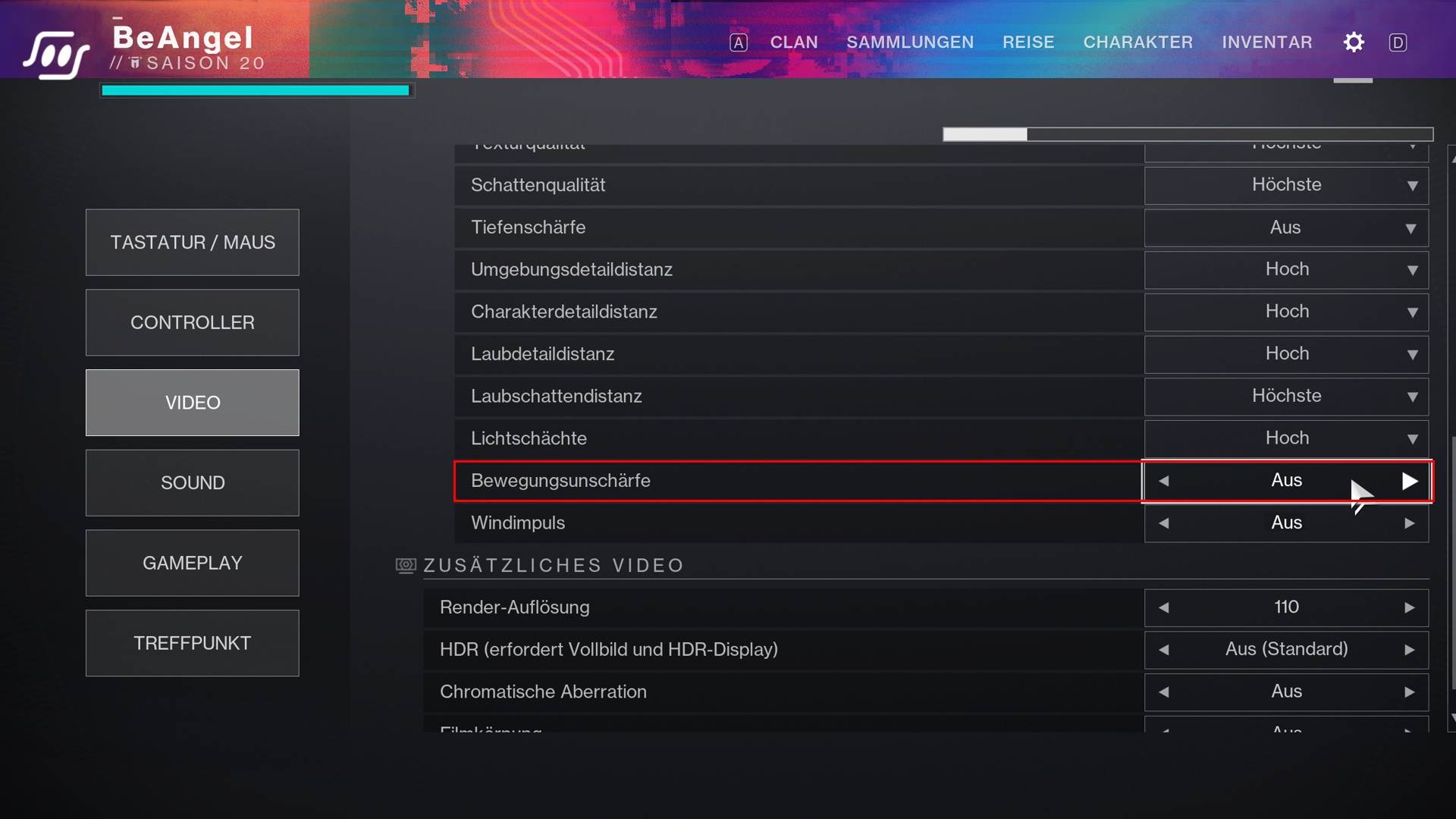
- If you keep motion blur enabled, your visibility will deteriorate so drastically that enemies will literally be harder to see.
- Moreover, this setting makes you slower and your shots less accurate because during quick turns, for example, when enemies appear behind you, it only becomes a disadvantage.
- This setting can also cause small targets to appear larger due to the blur than they actually are. You miss because you shoot at the blur rather than the actual target.
In games where reaction time and precise aiming are not critical, this may not be a big deal. But not in a first-person shooter like Destiny 2. Therefore, you should disable motion blur immediately, even if it makes extremely low frame rates more bearable.
2. Smooth Aiming
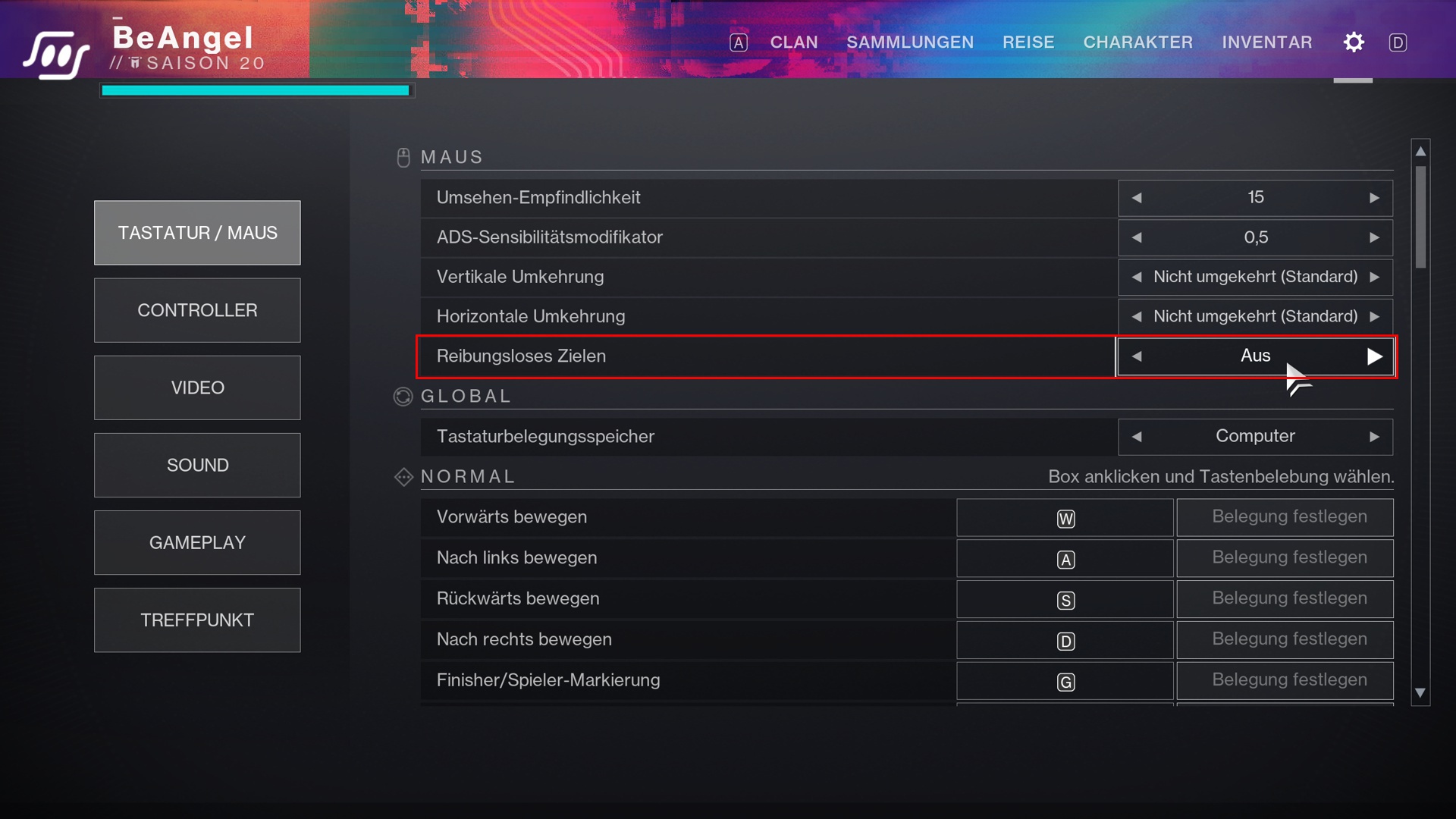
Sounds good, but it isn’t: The phrase “Smooth Aiming” sounds enticing to many, which is why it is often activated. It is a mouse acceleration that makes using the mouse as a cursor smoother. Targets are gradually and evenly accelerated instead of responding immediately to inputs.
Some players are used to it and say it feels better when the feature is activated. That’s true. The camera movement looks a bit smoother. However, you are not helping your muscle memory.
The recommendation of experienced shooter players is to keep this option turned off, as it complicates developing the muscle memory for Destiny 2 and other first-person shooters. So, in the long run, it would make you worse.
3. Controller Vibration
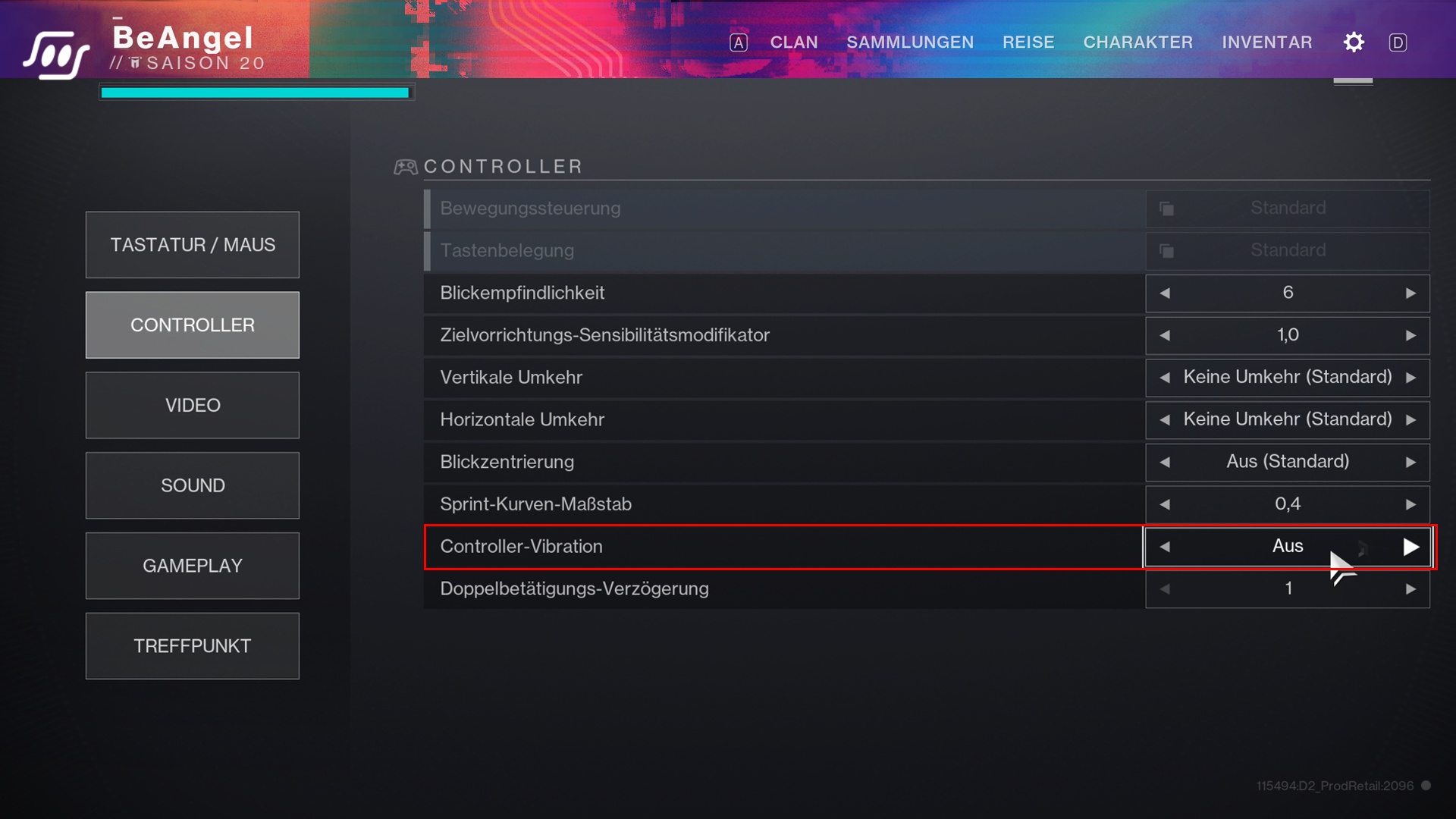
A matter of preference: With the next setting in Destiny 2, “Controller Vibration” the deactivation is only a recommendation. Especially in Destiny 2, there are many players who do not want to play without this immersion, as it helps to be more aware in the game. Others, on the other hand, find the vibration distracting.
- For light PvE activities, controller vibration can be quite useful in Destiny 2.
- However, vibration can also lead to you “gripping the controller to death”, reducing its lifespan and causing your hands to tire after a while.
- This setting also drains the battery quickly and interferes with aiming, as the hands literally shake because of it.
If you want to perform well in Destiny 2, the recommendation is to turn off controller vibration. After all, many things in Destiny 2, like the radar, health bar, and individual sound effects, are more than adequate to keep an eye on the game.
4. Vsync
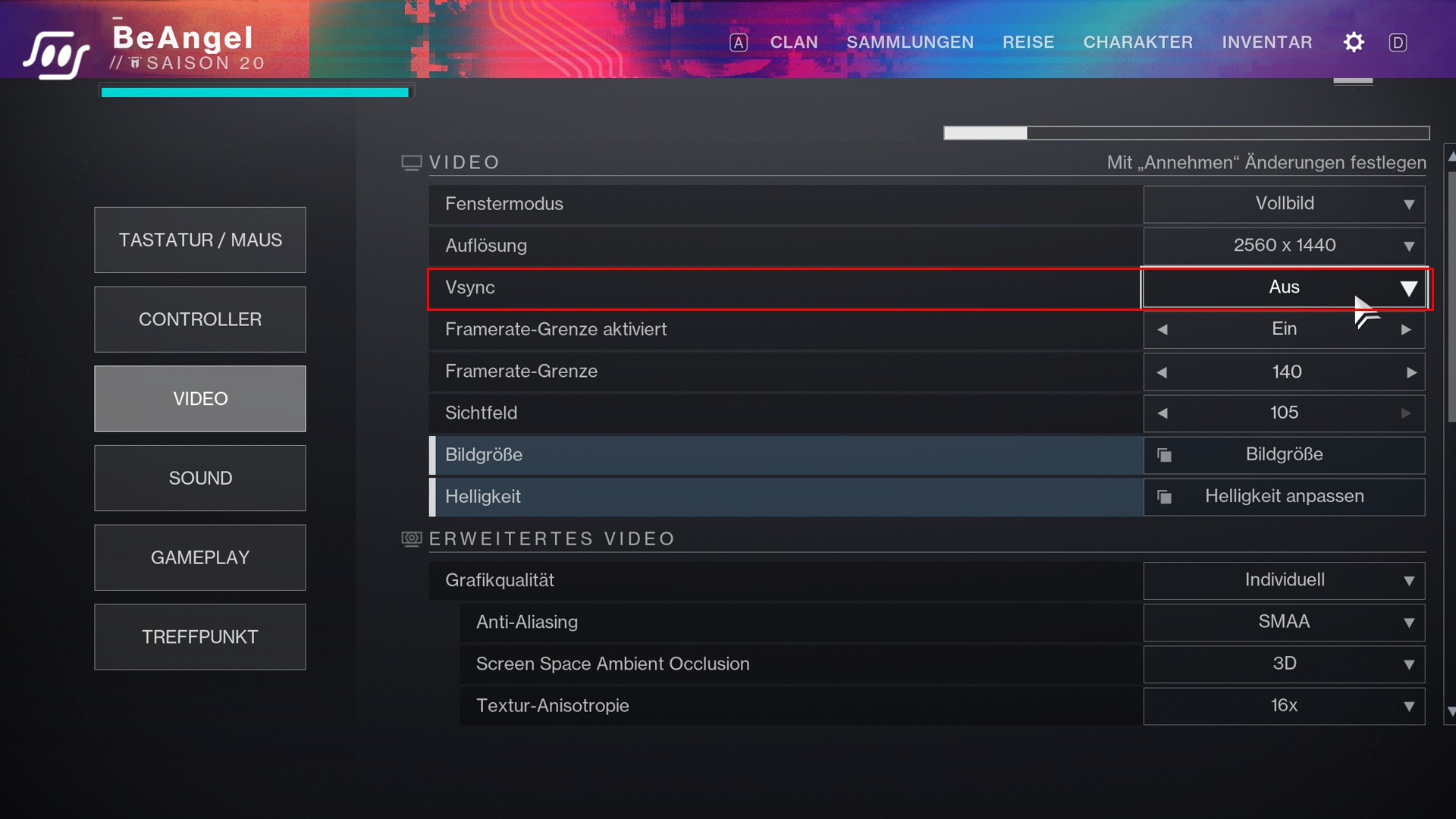
Vsyncshould be disabled if there are no issues
Only sensible with rendering issues: “Vsync” is a setting that synchronizes your graphics card’s frame rate with the Hertz of your monitor. If video output and display are not synchronized, it can sometimes cause stuttering, tearing, or screen tearing, which results from a large discrepancy between the FPS generated by the graphics card and the refresh rate allowed by the monitor.
The best way to solve this problem is to ensure that video and display have matching refresh rates.
- Unfortunately, however, Vsync also leads to a significant delay in input, making Destiny 2 feel unresponsive and sluggish, especially in fast PvP situations.
- Enabling it essentially slows down your graphics card to guarantee synchronized frames.
So, unless you experience annoying frame tearing issues and don’t care about the additional input lag, it’s best to turn Vsync off.
5. Film Grain and Chromatic Aberration
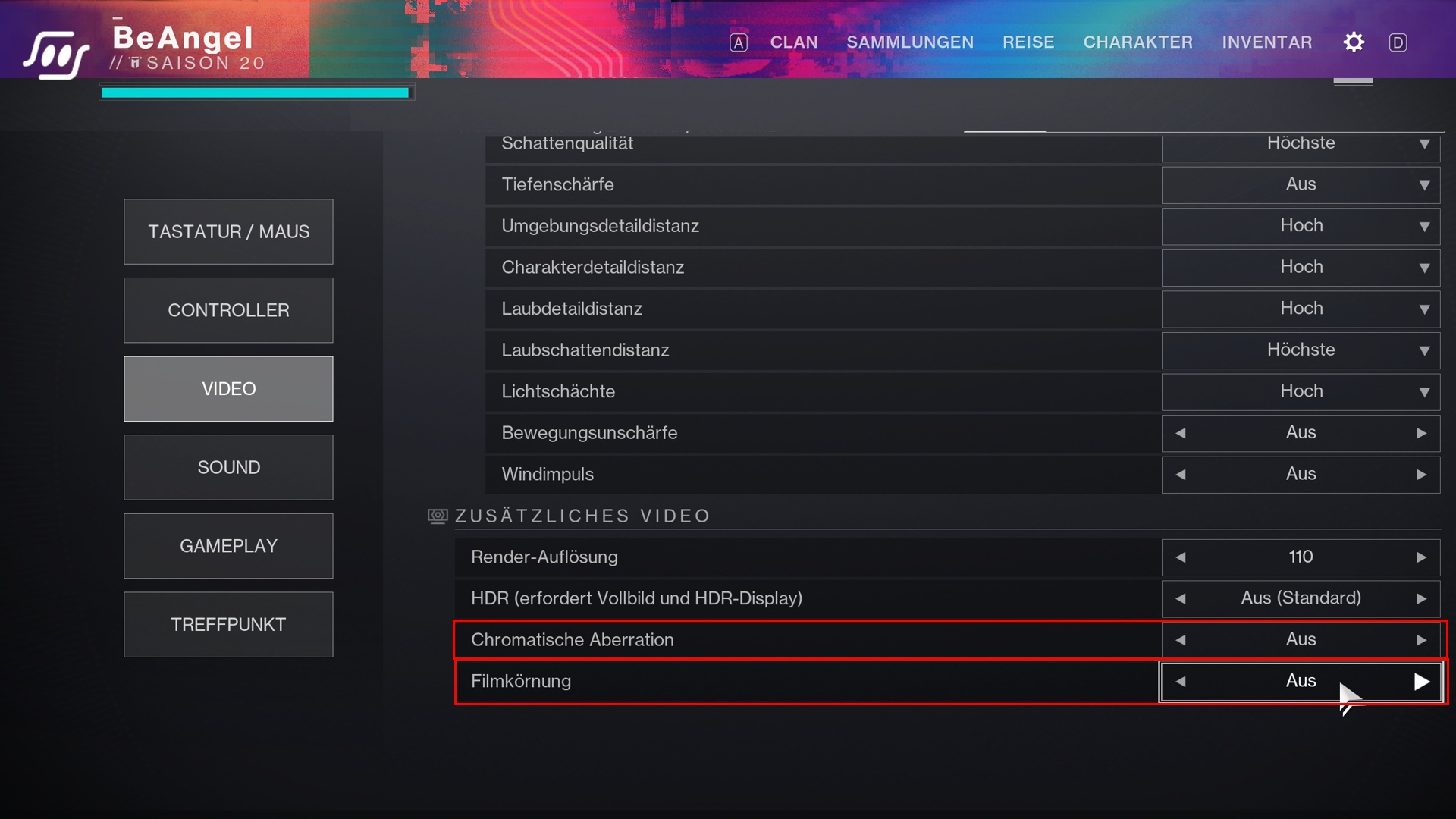
Film Grainand
Chromatic Aberration
No disadvantage – but not pretty: Film grain is also known as image noise. It is a subtle visual effect, especially typical of old films, that overlays a blurry filter over everything in Destiny 2. Similarly, the setting “Chromatic Aberration” originates from defects in old-fashioned films.
- Film grain intentionally adds visual noise to everything you see.
- Chromatic aberration is an image distortion that attempts to convey the illusion of depth, but in reality, it’s like watching a 3D movie without 3D glasses.
If you activate these settings and zoom in, you can easily see the additional grain on the screen. While that may not be a disadvantage, it also doesn’t look good.
By turning both off, you will have a much clearer visual experience in Destiny 2.
On the next page, we will tell you why motion is not always good and how to optimize sensitivity in Destiny 2 for better accuracy.

Your opinion is important to us!
Do you like the article? Then let us know!