

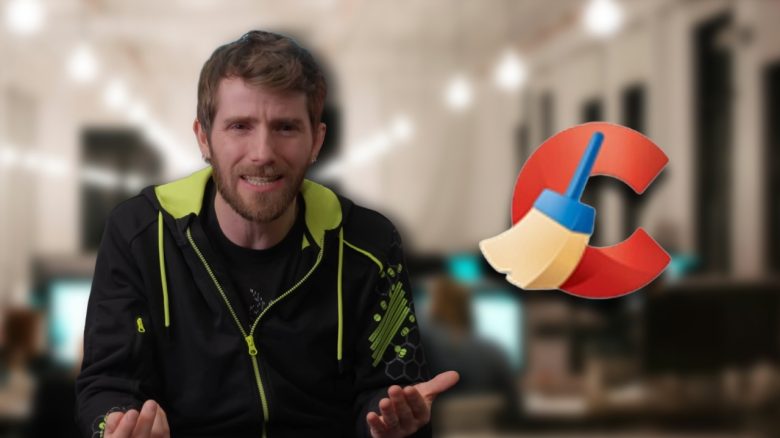
Most computers come with the pre-installed operating system Windows. However, many companies add extra applications on top. Why this can lead to problems is demonstrated by a well-known YouTuber in a self-test.
How did the expert test it? Linus Tech Tips examined the effects of additional software on a brand new PC in his YouTube video from March 8, 2026.
For the test, the expert is said to have used a pre-configured mid-range PC from Dell, which was tested four times under Windows 11:
- Once with only the pre-installed apps from Dell.
- The second time with additional programs like Norton, CCleaner, and Avast Antivirus.
- The third run is said to have included gaming software like Razer Synapse, Armory Crate, and MSI Center.
- In the last attempt, he is said to have cleaned the PC and avoided bloatware.
The result is, according to Linus, surprising and shows that gaming performance is only impaired when using a lot of additional software simultaneously. In Cyberpunk 2077, at WQHD resolution, the third attempt with a lot of bloatware, compared to the cleaned and standard configuration, lost about 5-7 percent in performance. The FPS in the test is said to drop from about 79 to 74.
Many gamers are annoyed with the pre-installed bloatware from the Windows 11 operating system. So much so that some gamers are already considering switching, as Valve has already had the perfect solution for years.
Additional software loves to annoy
How does bloatware affect your PC? While the test shows that a PC’s gaming performance is not significantly impaired until dozens of programs are installed, it can have other effects on your system.
- The power consumption can, as shown in the video by Linus, increase almost double from about 35 to 61 watts when the PC is not actively used and idle.
- Start times can become significantly longer. Every application that starts with your device via autostart requires resources and prolongs the startup process. For example, the “cluttered” version of the computer in the video takes almost 2 minutes longer to boot.
- Pop-ups from programs such as Norton, CCleaner, and Razer can disrupt workflows or even appear during gaming sessions, momentarily minimizing your game and causing interruptions.
How can I remove or prevent unwanted programs? There are two ways to free your PC from bloatware:
- Use special installation media such as Tiny11 or Ghost Spectre for Windows 11: This allows you to choose which software you want to install and which not during the Windows 11 installation.
- Remove unnecessary programs yourself. You can do this using special bloat-removal tools like Winhance, which have been created for easy use by users.
- Alternatively, you can also use the autostart feature. To do this, open the task manager in Windows 11 and then click on the three lines in the upper left corner. Then select “Startup of Apps” and disable the automatic start of the desired software.
- In general, if you use external tools from Github or other sites, problems can arise, such as broken drivers or security risks when using software from unknown sources. The same goes for autostart: do not disable programs you need to start your system.



Many apps have features that are of different importance to each user. In the end, you have to decide for yourself which software you need and which slows down your PC “unnecessarily.” If you are unsure, we have already provided some recommendations for you: 7 tools and programs you should definitely delete from any gaming PC

Your opinion is important to us!
Do you like the article? Then let us know!