


You will soon be able to use Auto-HDR on PC. This is a feature of the Xbox Series X|S. MeinMMO explains what it brings and what PC players can gain from it.
PC players will soon be able to use Auto-HDR on Windows, making the graphics even prettier. This was explained by Microsoft on its own blog. This brings a feature to Windows PCs that only Xbox players could benefit from until now. HDR could already be used on Windows, but Auto-HDR extends the feature to games that have not supported HDR before.
What does Auto-HDR bring? HDR first of all provides deeper contrast, richer color brightness, and a broader color palette in an image. This visibly enhances the graphics:
- Shadows are darkened and intensified
- Lights are brightened and look richer
- Contrast between colors is increased
Auto-HDR brings the enhanced color richness to games with DirectX 11/12 that were not rendered in HDR. The system then “intelligently” calculates the contrasts and color depth. However, Auto-HDR does not provide the same performance as HDR.
This is also evident from Microsoft’s official example, which we are embedding here.
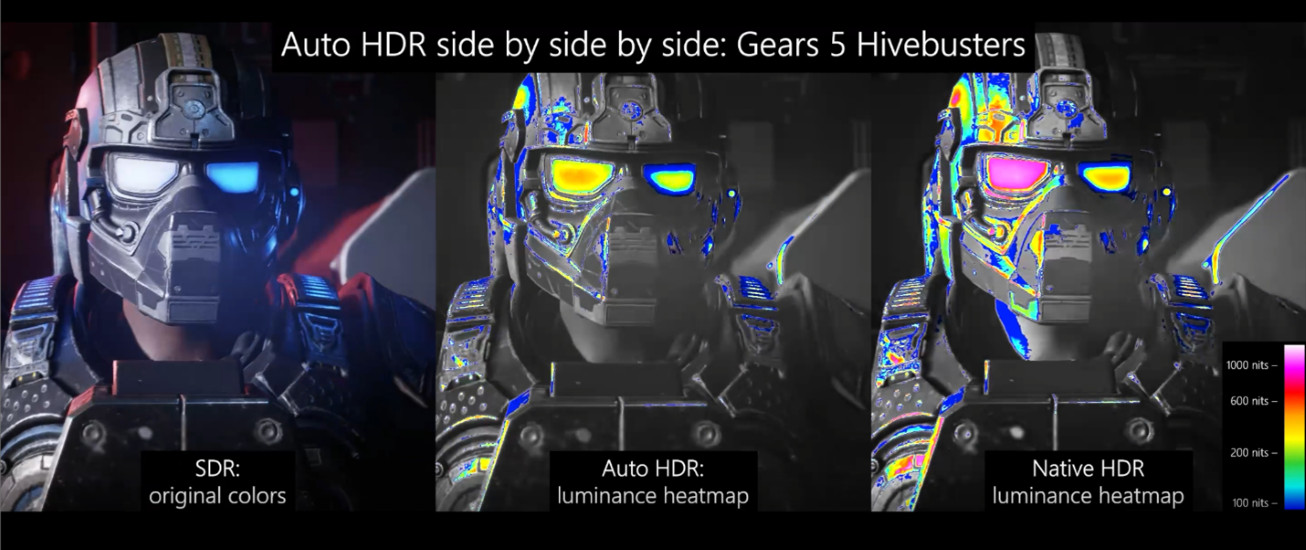
Auto-HDR offers more contrast and more color depth than regular color settings (SDR) but does not reach the quality of pre-rendered HDR.
High Dynamic Range (HDR) offers a significantly greater color depth (8 Bit – SDR only 6 Bit) and a wider dynamic range (up to 17.6 stops) than SDR (Standard Dynamic Range) with about 6 stops. Thus, HDR technically provides significantly more possibilities than SDR. Auto-HDR improves the contrasts of SDR with the help of AI.
What does it look like in the video? The differences become even more apparent when comparing SDR and HDR in a video. This was showcased by the YouTube channel The HDR Channel in a video about Last of Us, which we have embedded here for you.
Auto-HDR on PC – when can I use it?
How can I use Auto-HDR? To take advantage of this, you need an HDR-capable monitor. Additionally, games must have already been rendered with DirectX 11 or DirectX 12. Older games that only run on DirectX 9 are excluded from the benefits.
According to Microsoft, more than 1,000 games will benefit from the additional advantages.
When will I be able to use Auto-HDR on Windows? Currently, the feature is only available to those who are participants in the “Windows Insider Program.” Currently, this is only available in the Developer channel.
It will take a while before all users can benefit from it. A monitor with HDR is, of course, still necessary if you want to use Auto-HDR.

This is how you unlock the Insider Program: If you still want to use the Insider Program, you need to do the following:
- In the general settings, you need to provide “Optional Diagnostic Data” for Windows (Privacy and then “Diagnostics and Feedback.”)
- Then go to “Settings” and then to “Update & Security”
- Here you can use the “Windows Insider Program” and select the channel.
- Microsoft differentiates between Dev Channel, Beta Channel, and Release Preview (via Microsoft.com). The Dev Channel is only recommended for technically skilled users.
- You can switch channels at any time. Just keep in mind: If you want to switch from the Dev Channel to another channel, you need to perform a reinstall of Windows and set the Windows Insider settings up again.
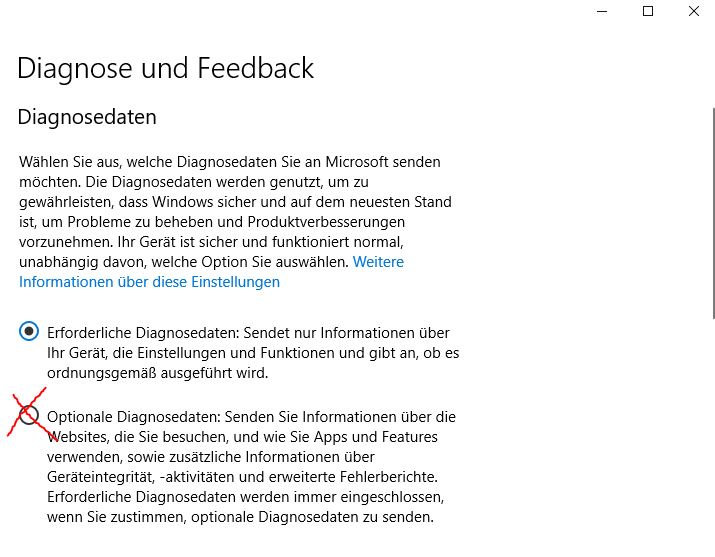
First, you need to provide “optional diagnostic data”. 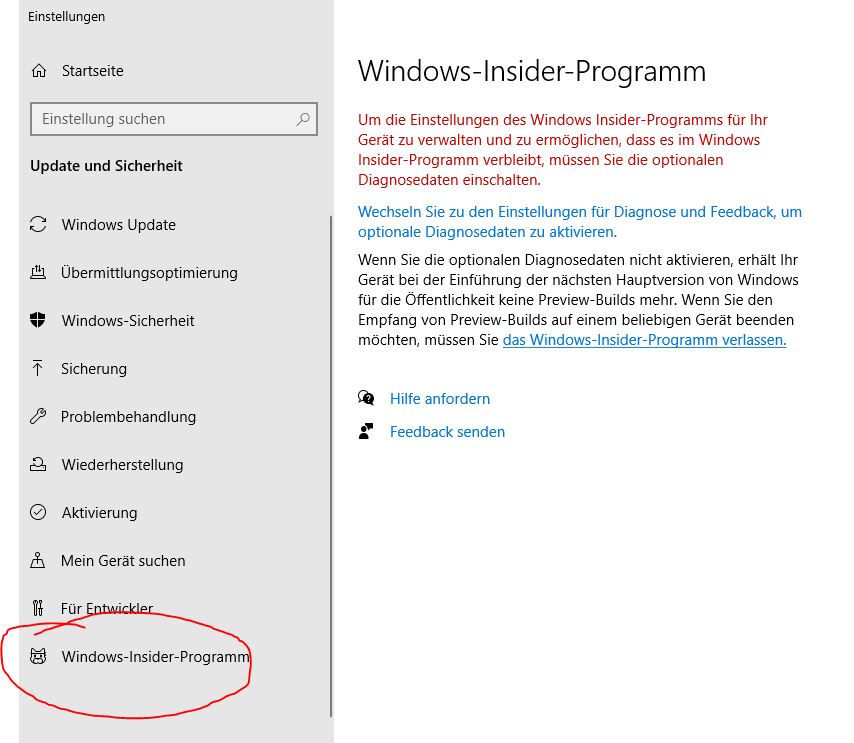
Then you can unlock the channel through the “Windows Insider Program”.
Games for weak PCs: Are you looking for games you can play on your weak PC? Here we present to you games for weak PCs from the Xbox Game Pass.

Your opinion is important to us!
Do you like the article? Then let us know!