

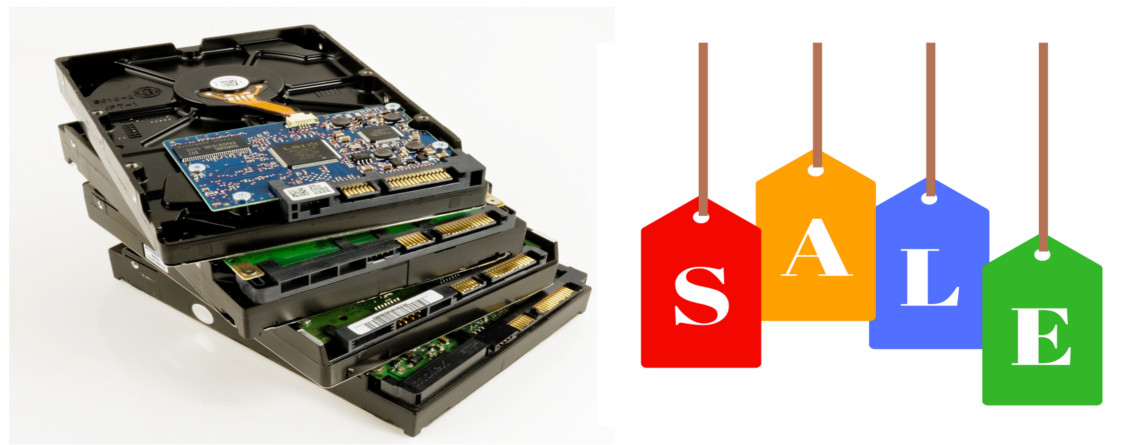
In the past, SSDs were very expensive. However, they are now available at very low prices. If you have always wondered what the difference between an SSD and an HDD is and whether it is worth buying an SSD right now, we explain it in this article.
They were once a rarity, but today they are almost everywhere: Solid-State Drives or SSDs. But when and for whom does it actually make sense to buy an SSD, and when is a conventional hard drive (HDD) still worth it? In the following, we explain to you…
- Why are SSDs actually so cheap?
- What is the difference between a conventional hard drive and an SSD?
- What are the advantages of an SSD?
- What are the disadvantages of an SSD?
- When does an SHDD provide a sensible alternative?
- What is an M.2-SATA and for whom is it usable?
- SDD vs. SHDD vs. HDD
- For whom is the purchase of an SSD worthwhile?
- Which SSD or SHDD is recommended?
Why are SSD prices dropping so much?
The major manufacturers like Samsung or Micron produce much more flash memory than the market can buy. Therefore, since the end of 2018, the prices for SSDs and flash memory have been falling. Some manufacturers are trying to reduce production.
Prices are expected to continue to drop further by the end of the year: In 2018, you paid around 250 euros for a 1-terabyte SSD, while in 2019, you will pay less than half for the same capacity.
The SSD is a large format USB stick
A Solid State Drive or SSD is a data storage device that roughly functions like a USB stick. Both rely on flash memory chips. The computer stores data on these.
Magnetic disk vs. flash memory chip: This is the biggest difference between an SSD and a conventional hard drive. Imagine a turntable: Just like with a turntable, there is a rotating disk and a read head in an HDD. A hard drive consists of a magnetic disk, and the head can also write data.
Slower and faster storage: The enormous advantage of SSDs is speed. If you use an SSD, your computer starts significantly faster than with an HDD. In addition, games like Destiny 2 can benefit from a fast SSD.
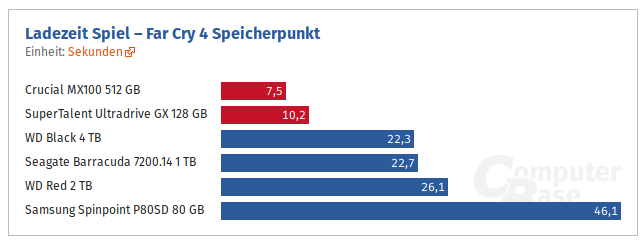
For example, in Far Cry 4, the enormous speed advantage of an SSD compared to a conventional hard drive is evident. However, note that more expensive SSDs are naturally faster than inexpensive entry-level models.
The boot process of a Playstation, on the other hand, is not influenced by this since the system is on the internal memory and not on the additional hard drive.
Durability: A difference that is often overlooked is the durability of hard drives. Here, HDDs generally have the advantage. But what is the reason for this? Conventional hard drives can theoretically write their data to the magnetic disk an unlimited number of times. In contrast, with SSDs, the flash memory wears out over time as individual blocks fail. Therefore, very cheap SSDs often have a significantly shorter lifespan than more expensive storage.
TBW stands for Terabytes Written and indicates the guaranteed total write capacity of the hard drive. With particularly cheap SSDs, the TBW values are usually significantly lower than with expensive drives.
What special features should be considered with an SSD?
What do I need to consider when using an SSD? Recovery from a broken SSD is significantly more complicated and difficult than with an HDD. A backup is generally advisable, especially with an SSD – particularly if valuable data is stored on it.
No defragmentation with SSDs: Avoid unnecessary write and delete operations and do not use defragmentation programs. Defragmentation originates from the era of classic hard drives, as data is written differently here. With flash memory chips, defragmentation is irrelevant and may even harm your SSD!
Advantages of an SSD
- Cheap price for performance boost compared to a new purchase
- More robust and shock-resistant compared to conventional hard drives, especially suitable for mobile devices
- Less noise
- High operating speeds
- Lower power consumption than HDDs
Disadvantages of an SSD
- Data recovery is significantly more difficult than with a conventional hard drive
- Shorter lifespan compared to HDDs due to flash memory
- In price comparison, SSDs are still significantly more expensive than HDDs
- Partially much cheaper flash memory of lower quality is available on the market
Are M.2-SATA-SSDs a special alternative?
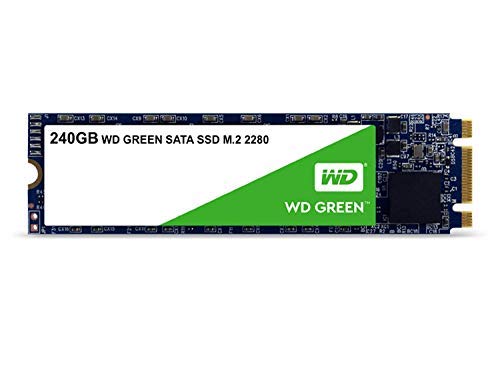
What is an M.2-SATA? M.2-SATA drives are smaller than conventional SSDs and use a special socket. The M.2 interface is compatible with both PCIe and SATA just like SATAe. An M.2-SATA does not require a cable and only needs the designated socket.
Who can use them and how?
Modern motherboards for desktop PCs now almost all offer an M.2-SATA socket. Even very cheap motherboards can feature this. However, you need to be careful with laptops. Check either in your manual, where all available sockets are listed, or look closely before purchasing: M.2-SATA sockets cannot be retrofitted.
- Desktop PC owners: Older motherboards can be upgraded with PCIe adapters for around 10 euros to use an M.2-SATA-SSD.
- Notebook owners: Check carefully if your device has the corresponding M.2 slot. Not all manufacturers include the appropriate interface, especially for budget consumer models. It’s best to consult the user manual.
Form and technology of an M.2-SATA
Different sizes for desktop and mobile: M.2-SSDs come in different sizes. The most common size is 22×80 millimeters. But be careful: Notebooks use smaller formats, with 22×42 millimeters being common.
SATA and NVMe: Especially the small M.2-SATA-SSDs use SATA. The normal sizes (22×80) generally use the significantly faster NVMe protocol. However, keep in mind that your motherboard must also have the appropriate interface. However, it is always worth spending a few euros more for the faster NVMe protocol if your PC supports it.
Who benefits from installing an SSD?
If you regularly transfer large amounts of data, then an HDD is generally the better choice. However, if you do not want to miss the high speed of the SSD, then either buy a high total write-capacity SSD or purchase an SHDD.
SHDDs as a secret tip for large amounts of data
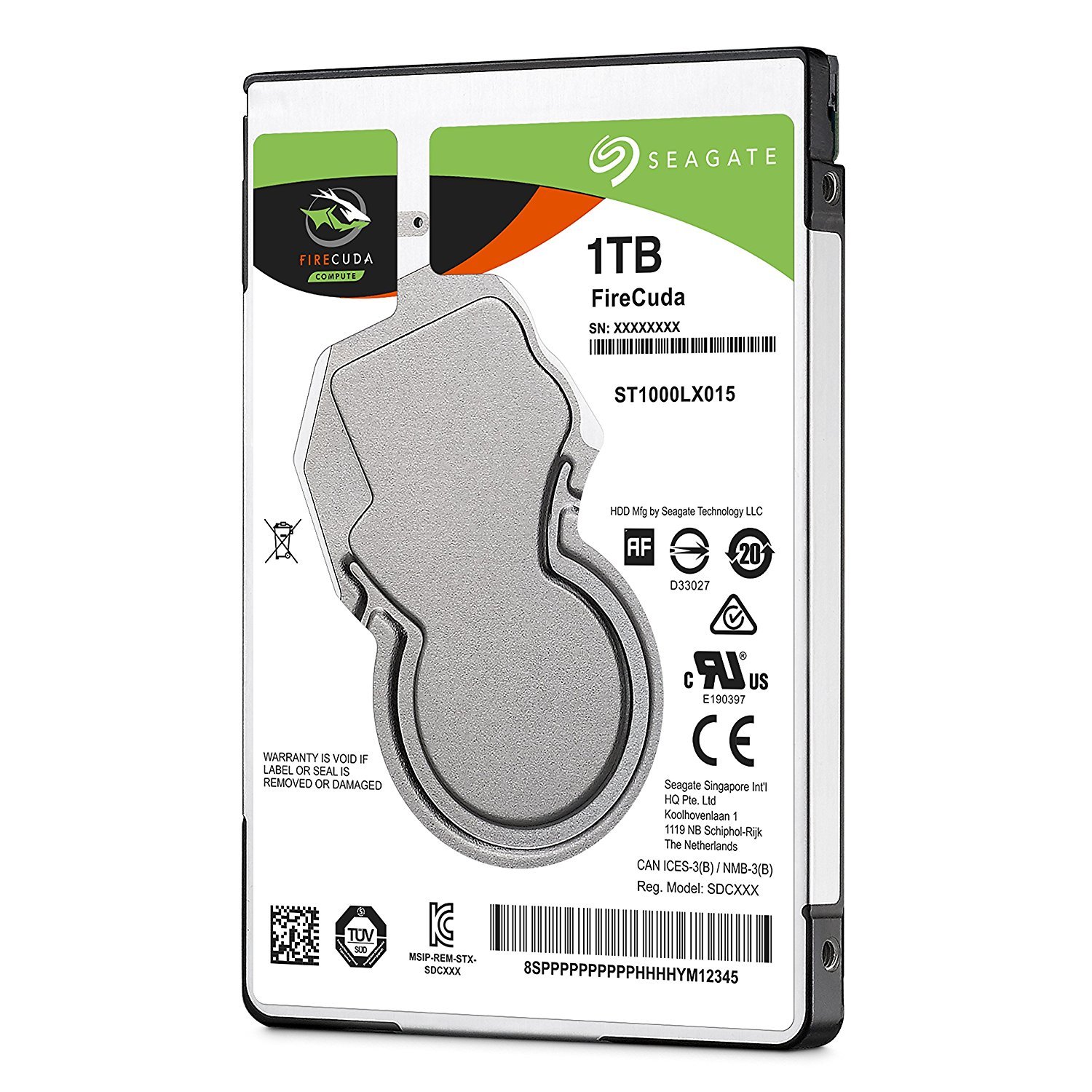
HDDs with flash memory: SHDDs are HDDs with a smaller portion of flash memory, on which frequently used programs are stored. An intelligent algorithm ensures that frequently used data ends up in flash memory. Another advantage: The flash memory relieves the magnetic disk, which positively affects its performance and noise level.
SHDD attempts to combine the advantages of HDD and SSD: With an SHDD, many programs start quickly, and you can store a lot of data without having to compromise on longevity. SHDDs are usually only slightly more expensive than conventional HDDs, which quickly makes them an attractive alternative.
- The operating system starts faster
- Programs are loaded faster
- Flash memory relieves magnetic storage, saving power, producing less noise, and keeping the hard drive cooler.
- Playstation also benefits from flash memory
SDD vs SHDD vs HDD
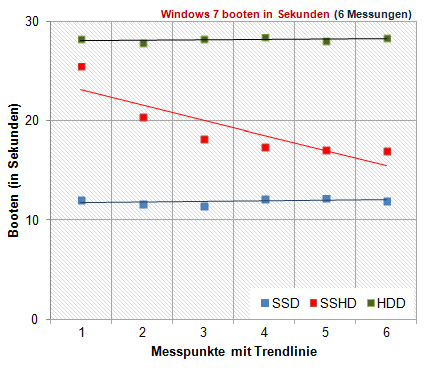
What do the tests say about the storage? With an HDD, your system takes the longest to start. The SSHD or SHDD takes several boot cycles before it writes important files into its flash memory. Therefore, boot times are significantly reduced after several boot cycles. The SSD performs the best here. Here, pure flash memory is present, without the mechanical “disadvantages” of an HDD.
240, 480 or rather 1 terabyte for an SSD?
How big should an SSD be? For SSDs, the rule of thumb is: The larger the capacity, the greater the increase in price. For mobile devices that only have one hard drive slot, large capacities are worthwhile.
If you own a desktop computer, 480 gigabytes of capacity is completely sufficient for the operating system, programs, and several games. HDDs still offer a better price-performance ratio in terms of capacity and durability – especially if your computer is stationed at home and never leaves the house.
Best option for the desktop: SSD as a complement
For gamers: The best option for a desktop PC is still an HDD with an additional SSD. The SSD usually contains the operating system and the most important programs. All other data are stored on the HDD. Games also do not necessarily benefit from being placed on an SSD. For movies, images, or MP3 collections, the speed of an HDD is usually sufficient.
For image and video editing: During image and video editing, a lot of data is copied. Especially with large images or very many editing steps, an SSD is put under more stress. Here, it might be worth investing in faster RAM rather than an SSD.
For mobile users: If you are often on the go with a laptop, then definitely buy an SSD! If your device only supports a hard drive or you do not want to give up a DVD drive, then buy a large storage. Currently, a one-terabyte SSD is also within a reasonable budget. Especially since laptops are subjected to movements and fluctuations while in use, an SSD is particularly recommended here.
SSDs in a PS4
When does a Playstation benefit from an SSD? The Playstation benefits from an SSD when the game has to write a lot of data to the drive. Check the minimum requirements on your game packaging: If a game only requires space in the megabyte range, then the game is loaded from the Blu-ray and not from the SSD.
Many download games with the PS4? If you mainly rely on download games here, then you will benefit from the fast write and read performance. A slow hard drive limits download speed since the hard drive can only process/write a certain amount at a time.
In summary: For whom does an SSD make sense?
- For gamers, an additional SSD for the operating system is worthwhile
- For mobile users, an SSD with a large capacity is sensible
- If you mainly play download titles on the Playstation, an SSD is also recommended
What should I consider when buying an SSD?
Cheap and affordable vs. expensive and durable: Very cheap SSDs usually offer significantly worse flash memory than the expensive products. Cheap SSDs often use TLC-NAND (Triple-Level-Cell): This allows the drives to provide high capacities at a low price, but durability and speed suffer.
TLC memory cells have the lowest durability: In TLC memory cells, a single bit is written three times. Hence “Triple-Level-Cell”. The problem: The higher the bit density, the greater the risk of individual flash cells failing, eventually resulting in a total failure.
3D NAND flash does not affect the quality of flash memory and simply means that the ratio between capacity and physical space is improved.
Prefer MLC and SLC memory: Here, a single bit is written only once or twice. Therefore, the memory is more expensive at large capacities than with TLC but also lasts significantly longer, as individual memory cells are not under such heavy load.
When buying, it’s best to look at which memory a manufacturer uses.
Which SSDs are currently recommended?
Performance winner – The Evo series from Samsung: Samsung’s standard SSD is slightly more expensive compared to competitors but offers by far the best flash memory and thus the best durability. If you want to check this or a larger SSD from Samsung, you can easily do so on Amazon at this link:
Good all-rounder – The MX and BX series from Crucial: The MX and BX series hardly differ from each other. The BX series offers a few additional features for a few euros more. Otherwise, both drives provide a decent option in the affordable entry segment.
Affordable entry – The SanDisk-Plus series from SanDisk: Compared to the competition, SanDisk offers the slowest flash memory and thus the lowest speeds for an SSD, which is still significantly above an HDD. However, hardly any SSD offers so much storage for so little money. If you just want a significant performance boost for little money, you can opt for the SanDisk-Plus series.
Hybrid drive as a combo solution: The hybrid drive from Seagate is an affordable alternative to the SSD and can also be easily installed in a Playstation. The Seagate drive offers 8 GB of flash memory. With the Compute and Gaming series, Seagate provides an affordable solution and another option for those who want to get more out of an SHDD.
Recommended M.2-SATA-SSDs
M.2-SATA-SSD for Desktop: The M2-Sata from WDGreen is a standard size of 22×80. It fits into any desktop PC. The M.2-SATA from WDGreen offers a very good price-performance ratio, but it is somewhat slower in writing than the competition. If you want something a bit better and have a larger budget, you can also opt for the EVO series from Samsung.
M.2-SATA-SSD for Laptops: If you have a laptop with an M.2-SATA socket, then you should check out the M.2-SATA-SSD from Transcend. This is a fast and very affordable M.2-SATA-SSD for laptops with the size of 22×42.
The smaller laptop sizes are somewhat more expensive than the normal M.2-SATA-SSDs. The Transcend model stands out mainly for its high write and read speeds.
If you need not only a new hard drive for your computer but also a new processor, then check out our report on the new Ryzen processors from AMD:


Your opinion is important to us!
Do you like the article? Then let us know!