

There are many malicious individuals on the internet targeting your valuable data. Malicious software is supposed to help them with that. With a simple trick, you can better protect yourself on Windows. MeinMMO explains what you need to do.
This is what it’s about: Windows already offers a protection system in its default settings with “Windows Defender” to protect you against threats from the internet. This mechanism is usually also activated. Just a few weeks ago, a faulty Windows update ruined the gaming performance.
In addition to the already installed “Windows Defender,” Windows offers you another way to protect against malicious software. With a hidden feature of Windows, you can protect yourself against a ransomware infection.
Particularly nasty variants first encrypt important data like pictures, documents, or databases to increase the pressure on the owner. Subsequently, the software demands a ransom of several hundred euros for the owner to regain access to their data.
This way, you can quickly and easily additionally secure pictures, documents, or videos in case you accidentally open a wrong email. MeinMMO explains what the protection is about and what you need to consider when activating the ransomware protection.
How to activate the free ransomware protection on Windows 10
Activate ransomware protection: Activating the additional protection mechanisms is not difficult. Microsoft has hidden the option well in the nested menus of Windows. MeinMMO explains here how you can activate the ransomware protection:
- First, go to the “Settings” in Windows. To do this, open the Start menu with the Windows key and select the gear icon.
- In the “Settings,” select “Update and Security,” and then “Windows Security. “
- Under “Windows Security,” you need to click “Open Windows Security.” A new window will open outside of the settings.
- In this window, you will find a dropdown menu on the left side. Here you select “Virus and threat protection. “
- Scroll down in this window. Here you will find the tab “Ransomware protection.” Click on the (blue) text “Manage ransomware protection.”
- In this menu, you can then turn on “Controlled folder access.”
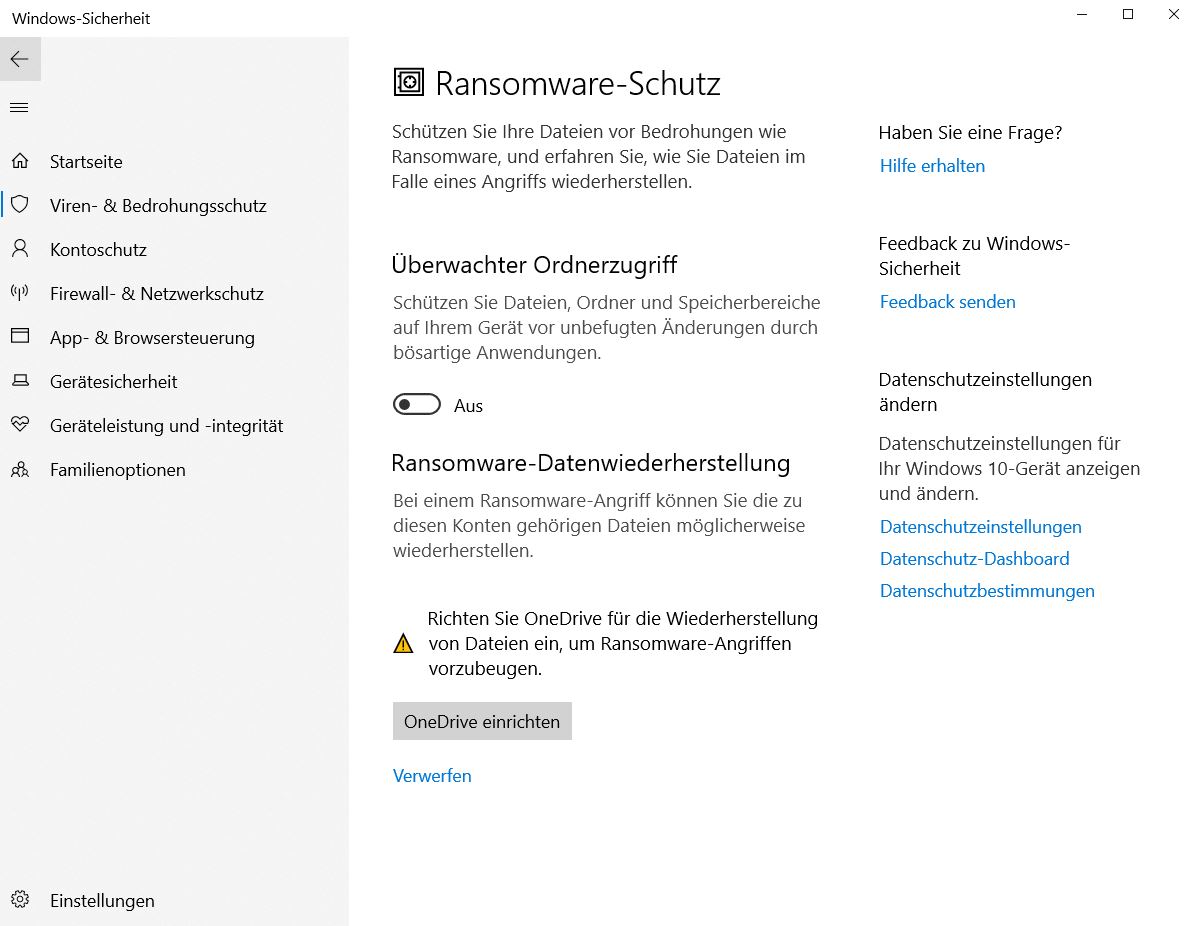
What exactly does the protection do? The default settings already protect certain folders from access. If necessary, you can also add additional folders that should be protected from access. If you activate controlled folder access, Windows will act like a doorman and report every access attempt.
The free ransomware protection for Windows 10 can also cause problems
Why is the protection not active? Microsoft doesn’t know beforehand which programs you will install on your system. Therefore, it is hardly possible to predict which programs will work with activated ransomware protection and which will not.
You will need to take some time and see which programs require access and which do not.
What you should keep in mind: This “protection” applies not only to malicious programs but also to games that store data in certain folders.
Many games store settings or save files in the “Documents” folder. Anti-cheat software also accesses certain file structures that are then recognized by Windows.
If the frequent notifications from your new doorman bother you, you can also grant permission to specific apps or programs so that they can access the protected folders. However, you should remember that with each exception, you also weaken the protection mechanism.
We would additionally advise you: You should regularly make a backup of important data such as pictures, videos, or work documents and secure them on an external medium like a USB stick.
This way, your data is safe even if you catch a virus or other malicious software.
Are you looking for more tips for your gaming PC? Here we present the best tips for a cooler gaming PC.

Your opinion is important to us!
Do you like the article? Then let us know!