

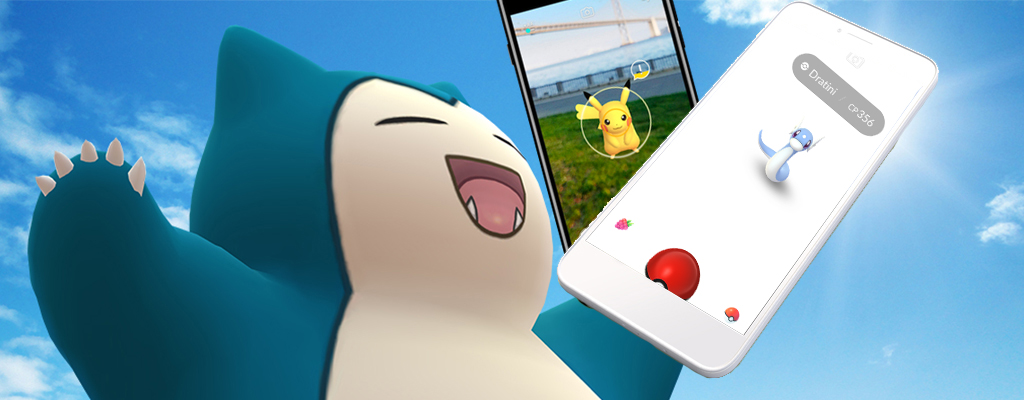
In Pokémon GO trainers are complaining about problems catching monsters. The AR+ mode is not working properly and only shows a white screen.
What is the problem? Several players have reported that catching Pokémon has been impossible since the new update. When they click on a Pokémon, a white screen appears along with a Pokéball at the bottom of the screen. However, a Pokémon is not visible. This is often related to the AR+ mode.
In our Facebook group for Pokémon GO, the problem has been mentioned multiple times. Now we will show you how to solve it.
Allow camera access or turn off the camera?
A setting on your smartphone may resolve the issues with catching Pokémon. We will show you how this works.
- Open your settings
- Look for your app permissions
- Allow Pokémon GO to access your camera
- Restart Pokémon GO and click on a Pokémon

If the above solution has not helped, then try the following:
- Continue to allow Pokémon GO to access your camera
- Download the “ARCore by Google” app from the Play Store
- Restart Pokémon GO
- Click on a Pokémon
- Toggle the AR+ mode on and off once
This should resolve your issues with catching Pokémon.

How to turn off AR+ mode
Many trainers also report that they cannot deactivate the AR+ mode. Often, this problem is related to the aforementioned issue and leads to a white screen.
Solution from Niantic: Niantic explains on Twitter that you should ensure that you have the latest version of Pokémon GO installed. This is at least version 0.123.2.
Community solution: Players from the community explain that the mentioned solution with access permissions works. Once Pokémon GO has access to your camera, the AR+ mode in Pokémon GO should be able to be deactivated.
Articles on the most important Pokémon of the 4th generation can be found here:
- The baby Pokémon from Generation 4
- The starters and their evolutions
- The ghost Pokémon of the 4th generation can be found here
- These Pokémon of the 4th generation can be caught now in Pokémon GO

Your opinion is important to us!
Do you like the article? Then let us know!