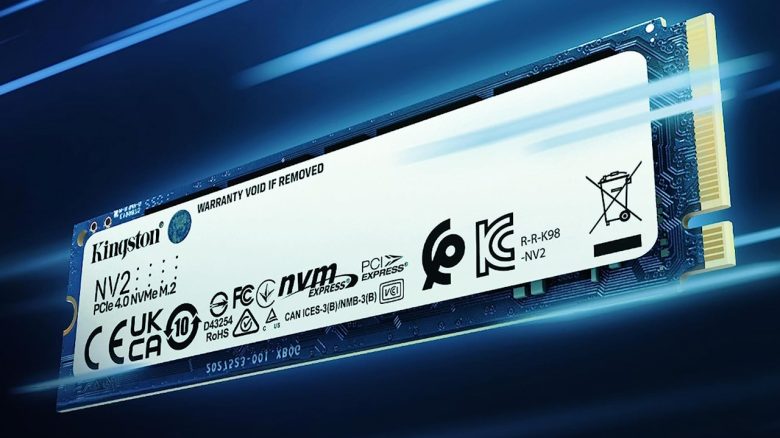
A gamer has upgraded his gaming PC with a new SSD. However, he cannot utilize most of the storage space. With a trick, he can “unlock” the rest of the hard drive.
A new upgrade for the home gaming PC is nothing unusual. Especially the storage space runs out quickly when one has many large games installed. A gamer has now expanded his storage, but then faced a new problem: He cannot use a large part of his SSD. Fortunately, the problem can be solved quickly.

Player needs to reallocate the remaining SSD
What exactly is the problem? The player himself explains on Reddit that he installed the SSD in his computer and can only use “88 GB” under Windows. So, about 900 GB are missing. This is of course frustrating when you cannot use nearly 90% of the newly purchased SSD.
In the comments, many users suspect that he cloned his old drive
onto the new device and forgot to expand the old partition.
Where is the trick? With built-in Windows tools, you can check what storage devices you have installed in your computer. The prerequisite is that all devices are properly connected to the computer. For a standard SSD, both the power and SATA cables must be correctly inserted, and an M.2 SSD must be properly seated in the slot.
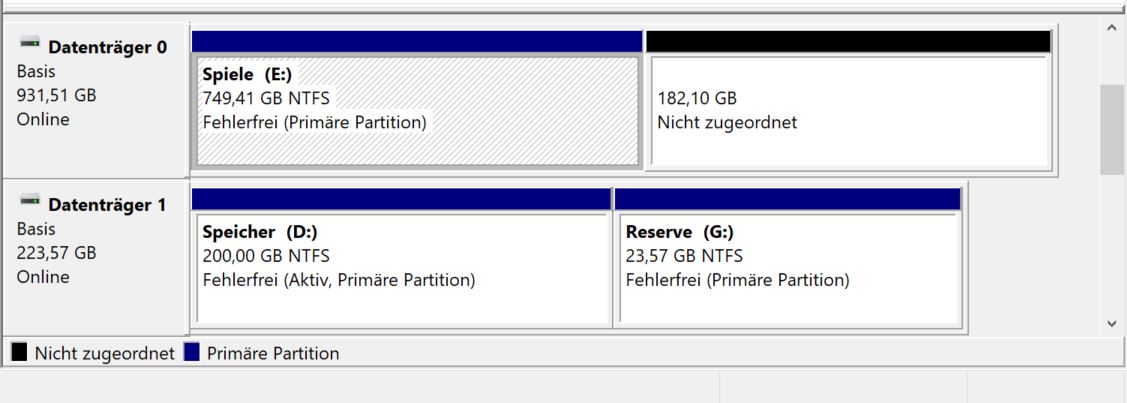
To check your installed SSD, search for disk management under Windows. A large window will open where you can see all the installed storage devices at the top and the details at the bottom. Here you can also see if individual areas are not allocated. Each partition on your medium is presented as an independent section (see the following image):
This is how you can allocate free space: If there is still free space, you can allocate it:
- If there is storage that Windows refers to as “unallocated,” you can change that with a right-click on the existing partition.
- Here, select “Extend Volume” and utilize the unused space.
- Then you will receive a menu where you can resize the storage of your partition in MB. Theoretically, you can use all the unallocated storage.


Caution with very cheap SSDs
Not always is unallocated storage the problem. For several years, many fake SSDs have been circulating, which are equipped with a counterfeit memory controller. The controller deceives the operating system into thinking there is 1 TB of storage. In reality, you only get a slow flash memory that delivers significantly less storage.
If you suspect a counterfeit, you can also quickly verify that yourself: Use the free tool “H2testw” and first test a part of the alleged storage. Base your test on the sizes of USB sticks: In a first test run, check 70 GB: If the test fails, then you know that your SSD only contains a flash memory of 64 GB. If the test is successful, double the amount of storage to test.
Gamer orders upgrade for his gaming PC on Amazon, receives significantly weaker product