MeinMMO explains how you can install, remove, or even swap a graphics card. Everything important that you should know is explained in our article.
In our article, we explain how you can remove a graphics card from your computer and how you can install a new graphics card. If you only want to install a graphics card and not remove one, jump directly to the second section:
Remove a graphics card in 6 easy steps
If you want to install a new graphics card in your computer, you must first remove your old graphics card. We explain step by step how you should proceed to remove a GPU from your PC.
- Disconnect your computer from the power supply and unplug the cable from the power supply at the back if possible. Then you should ground yourself by touching an unpainted spot on a radiator, for example.
- Next, open the side panel of your PC case. You will need either a screwdriver or just your hands. This varies for each case.
- Remove all power cables connected to the graphics card. If the graphics card does not have a separate power connector, skip this step.
- Now unlock the PCIe slot lock on the motherboard. This is the long slot on the motherboard where the graphics card is inserted. Depending on the size of your graphics card, the lock may be partially under your graphics card. Push the latch all the way down, otherwise, there is a risk of damaging the graphics card when removing it.
- Use a screwdriver to remove the screw(s) that hold the graphics card in the slot of the case.
- You can now take out the graphics card. You should place your graphics card in its original packaging or store it safely in an anti-static bag.
Install and swap graphics card
In principle, installing a new graphics card is not very complicated. You need a graphics card, a computer, and usually a Phillips screwdriver for the installation.
- First, disconnect your computer from the power supply! If you are assembling a new computer, make sure that the PC is also not connected to the power supply. Then you should ground yourself, for example, by touching an unpainted spot on a radiator.
- Open your case and look for a long PCIe expansion slot. Depending on the motherboard, you will find either one or two of these. The short slots are not needed for your graphics card. In the following image, you can see where these may be located. Motherboards look different, but the arrangement is always the same.

- In the next step, you need to unlock the expansion slot. To do this, push the lever down on the (usually) right side.
- At the level of the expansion slot, you usually have to remove slot covers from your PC case so that the graphics card can be mounted. Depending on the size of the graphics card, you need to remove 1 to 3 slot covers.
- Now, insert your graphics card vertically down into the PCIe slot of the motherboard until you hear a click. The lock of the PCIe slot on the motherboard should automatically engage, then the graphics card is properly seated in the slot.
- If your graphics card has additional power connectors, connect these connectors to the PCIe power connectors of the power supply. These cables are usually labeled. Make sure to connect the power cables correctly and that all pins are aligned correctly. Otherwise, you risk a short circuit!
- Once you have connected your graphics card, you should also secure it to the case. You do this with the screws from the slot covers that you removed, using a Phillips screwdriver.
- Now you can close your case.
- Finally, you need to connect your graphics card to your monitor with an HDMI or DisplayPort cable. Additionally, you need to connect your computer to the power supply.
- Now start your computer: Ideally, you will immediately see a picture and see Windows or your installed operating system. In this case, your graphics card was correctly recognized.
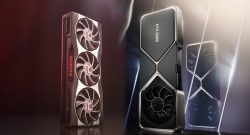
Graphics card installed – the next steps
This is what you should do next: Once you have installed your graphics card, Windows automatically searches for the default driver on the first start so that your graphics card works.
For full functionality and access to exclusive features such as DLSS or FSR, we recommend that you install the official graphics card software. You can get this directly from the manufacturer’s website:
- Software for Nvidia graphics cards
- Software for AMD graphics cards
- Software for Intel graphics cards
Important: If you have swapped your graphics card and changed the manufacturer, for example, from Nvidia to AMD or vice versa, you must first uninstall the old software. This is especially recommended with the free software DDU (“Display Driver Uninstaller”).



Are you looking for the best graphics card for gaming in 2025 or just a good upgrade for your gaming system? MeinMMO presents you with the best and recommended graphics cards for gamers: The best graphics cards in gaming for every budget in 2025 ranked.