

Windows 11 was officially released today, on October 5, 2021. But how do you install Microsoft’s new operating system? MeinMMO presents the upgrade to you.
What is Windows 11? With Windows 11 comes the latest version of Microsoft’s Windows operating system. Microsoft wants to convince future users of Windows 11 with numerous innovations and improvements. Microsoft has changed quite a bit in the design of the popular operating system.
Meanwhile, the upgrade to Windows 11 is officially available. We at MeinMMO explain to you how to upgrade your system to the new operating system as quickly as possible.
Should I really upgrade to Windows 11? Are you unsure whether you should upgrade to Windows 11 or if you should wait a little longer? Then check out our checklist here on MeinMMO. Here we present you with reasons and ideas on why the upgrade might be worth it for you or when you should rather wait:
Who can upgrade? Microsoft has already enabled the upgrade for its own Surface devices and hardware from partners. If you own such a device, you can get the upgrade directly through Windows Update.
All other users can also download the upgrade through Microsoft’s official tool. Microsoft itself recommends waiting for an upgrade via Windows Update.
Windows 11 Upgrade – These are the requirements
You need this for the upgrade: The following things are required for the upgrade to Windows 11 to function:
- You have a valid Windows 10 license and Windows 10 is installed on your computer.
- Your device meets the hardware requirements for Windows 11. The requirements are at least a dual-core processor, 4 GB of RAM, 64 GB of storage, TPM 2.0, and DirectX 12.
- Windows 10, version 2004 or higher must be installed on your computer for the upgrade to work.
- You need at least 9 GB of free disk space to be able to perform the upgrade.
- You also need the Windows 11 Upgrade Assistant. You can get this small tool directly from Microsoft (via microsoft.com).
- In the best case, check if there are already official drivers for Windows 11 for your device. You can install these directly after the upgrade.
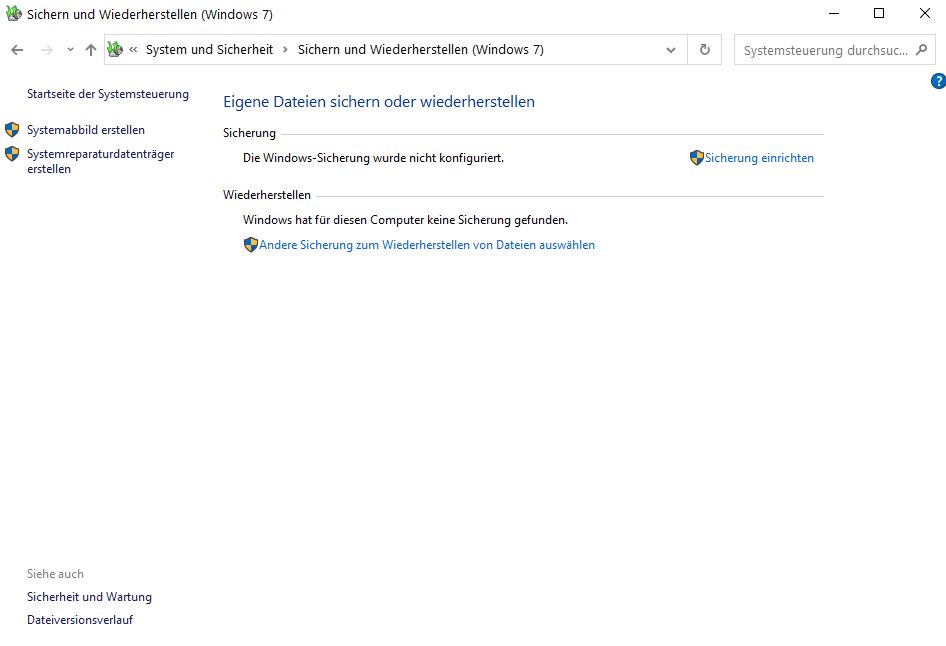
Are you worried that something could go wrong during the installation? Then create a backup of your Windows 10 beforehand. For the impatient, this can also be done with the official built-in tools. For this, go to “System and Security” in Windows 10 and then select “Backup and Restore (Windows 7).” Here you can set up a backup.
Windows 11 Installation – It’s that easy
Here’s what you need to do: The installation for Windows 11 is not very complicated. In this guide, we explain how to install Windows 11 in the fastest way:
- Before the upgrade, you must run the PC Health Check tool. Afterwards, you can also use the Upgrade Assistant. You can get the PC Health Check App directly from Microsoft (via microsoft.com).
- Start the Windows 11 Upgrade Assistant. You can find the assistant here (via microsoft.com). The tool requires administrator rights, or the installation will fail. The file is about 4 megabytes in size.
- The tool will now test again whether your hardware is compatible with Windows 11. You don’t have to do anything here; the tool does it automatically.
- After the check, you must accept the license terms. Here, click on “Accept and Install”.
- The tool now downloads the upgrade file in the background. After downloading, you must click on “Restart Now” and your computer will restart. Backup your open data beforehand!
- After the restart, the installation proceeds automatically. If you are upgrading a laptop, make sure to connect the device to a power source!
After a successful installation, you can also try out many features that Microsoft aims to impress gamers with in Windows 11.
After installation – What you should pay attention to
After installation, you need to make all important settings. We also recommend installing important drivers and software for the processor and graphics card. Both Nvidia and AMD have already released new software for Windows 11.
What do you think of Windows 11? Do you like the new operating system? If you are still unsure whether to upgrade, our checklist contains all important points regarding Windows 11:
Windows 11 starts today – Who is it worth changing for? The quick check

Your opinion is important to us!
Do you like the article? Then let us know!