

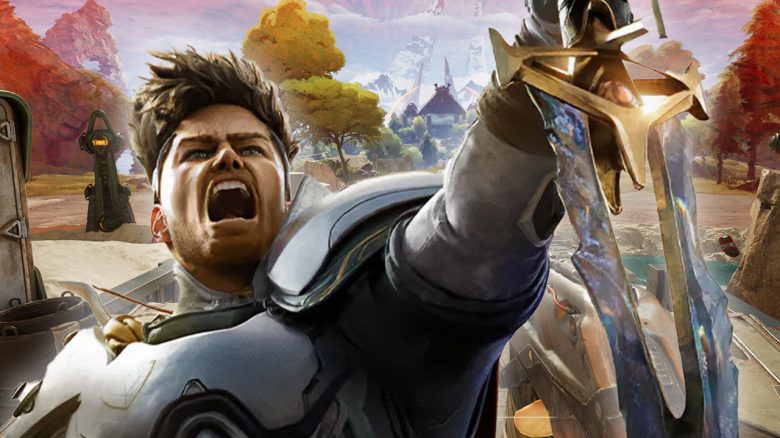
To play Highguard, certain prerequisites must be met. It is also necessary to enable Secure Boot, as it is part of the precautions against cheaters.
Why do you need Secure Boot to play Highguard? Secure Boot or simply the German term “Sicherer Start” is a prerequisite to play Highguard.
Secure Boot is a security feature of Windows 10 and 11 that ensures that only software signed by trusted sources is executed during startup. Secure Boot provides features and tools that make it easier for publishers and developers to combat cheats.
Any attempt to start Highguard without Secure Boot will produce an error message and prompt you to enable it. However, activating Secure Boot is not that easy. How to activate it and what else you need to know about anti-cheat measures can be found here.
If you buy a new PC with Windows 11, Secure Boot should already be enabled. When upgrading from Windows 10 to Windows 11, you will also be prompted to activate Secure Boot.
Activating Secure Boot for Highguard – Here’s how
How to activate Secure Boot on your PC: To activate Secure Boot on your PC, you should follow these steps:
If you are unsure, it is better to consult an expert or customer service before incorrect settings cause problems and potentially render your PC unusable.
Please also note: Each BIOS looks different as each manufacturer uses a different design and structure. Sometimes names and terms may vary slightly depending on whether you are using an AMD or Intel motherboard.
Activating Secure Boot
- Press the Windows key and type “Change advanced startup options” in the search bar
- Look for the Advanced Startup field and select Restart now to reboot your PC and activate advanced startup
- Select Advanced at startup and then click on UEFI Firmware Settings
- You are now in your BIOS. Look for the “Boot” tab. If you cannot find it, press F9 and enter the term in the search
- Enable Secure Boot under the corresponding option
- Then look for the OS Type option and change it to UEFI mode if necessary
- Go to the Exit tab and select Save Changes and Reset
Your PC should now restart and have Secure Boot enabled. Sometimes, it may be necessary to restart again for the feature to be fully activated. If you need visual assistance, EA has a video on their YouTube channel for Battlefield 6 that you can watch for support.
If you are unable to perform certain steps or make settings, please urgently contact the appropriate support before trying other things to avoid errors and damages.
Check the prerequisites for Secure Boot
If you cannot activate Secure Boot, you can follow these steps to see if you are missing a prerequisite.
Check if Secure Boot might already be enabled
- Press Windows key + R and open the “Run” window
- Type msinfo32 and confirm the input
- Select the System Summary option
- In BIOS mode, it should say UEFI, and in Secure Boot State, it should say
“On”
Secure Boot disabled? Check the BIOS mode
- If Secure Boot is turned off, proceed as follows:
- If the BIOS mode is set to UEFI, you can proceed with activation
- If the BIOS mode is set to Legacy, check if the Windows system disk is set to GPT (GUID Partition Table), otherwise change it
- If Secure Boot states that it is not supported, check the manual of your motherboard manufacturer for any related information or contact their support
Check if the Secure Boot requirement TPM 2.0 is enabled
- Press Windows key + R and open the “Run” window
- Type tpm.msc and confirm the input
- Check under Status if it states that you can use TPM
- If so, verify that the Windows system disk is set to GPT (GUID Partition Table), otherwise change it
- If TPM is not available, contact your manufacturer to find out how to enable it
Is the Windows disk set to MBR or GPT?
- If it states GUID Partition Table (GPT), you don’t need to do anything further and can activate Secure Boot in the next step
- If it states MBR, follow these steps:
- Press Windows key + R and open the “Run” window
- Type cmd and press Ctrl + Shift + Enter
- Ensure that it shows Administrator in the command prompt
- Enter mbr2gpt /validate /disk:0 /allowFullOS and press Enter
- For disk:0, enter the number that was displayed in the disk management screen in the Volumes tab
- Then in the same window enter mbr2gpt /convert /disk:0 /allowfullOS and press Enter
- For disk:0, enter the same number that was displayed in the disk management screen in the Volumes tab again
- The Windows disk should now be set to GPT
You may be prompted to switch the firmware to start the BIOS in UEFI mode. Usually, you can change this in the BIOS settings. If in doubt, consult a professional or your manufacturer’s support.



Highguard has just launched, but we can already share our first impressions. MyMMO editor Cedric Holmeier dived into the fray right at release and can now firmly say: After a round in Highguard, I say: You can now turn off 3 shooters
- Press Windows key + X
- Select Disk Management
- Locate the disk where Windows is installed (usually C:)
- Right-click on it and select Properties
- Then click on Hardware and then again on Properties
- Click on the Volumes tab and look for the Partition Style option
- If it states GUID Partition Table (GPT), you don’t need to do anything further and can activate Secure Boot in the next step
- If it states MBR, follow these steps:
- Press Windows key + R and open the “Run” window
- Type cmd and press Ctrl + Shift + Enter
- Ensure that it shows Administrator in the command prompt
- Enter mbr2gpt /validate /disk:0 /allowFullOS and press Enter
- For disk:0, enter the number that was displayed in the disk management screen in the Volumes tab
- Then in the same window enter mbr2gpt /convert /disk:0 /allowfullOS and press Enter
- For disk:0, enter the same number that was displayed in the disk management screen in the Volumes tab again
- The Windows disk should now be set to GPT
You may be prompted to switch the firmware to start the BIOS in UEFI mode. Usually, you can change this in the BIOS settings. If in doubt, consult a professional or your manufacturer’s support.
Highguard has just launched, but we can already share our first impressions. MyMMO editor Cedric Holmeier dived into the fray right at release and can now firmly say: After a round in Highguard, I say: You can now turn off 3 shooters
This is an AI-powered translation. Some inaccuracies might exist.
Your opinion is important to us!
Do you like the article? Then let us know!