

Do you want to manage the data of Steam games on your PC or move it to another hard drive? Then it’s best to use the storage management. Here you will get a guide on how to find the function, move data, and add new drives.
This is how you find the Steam storage management:
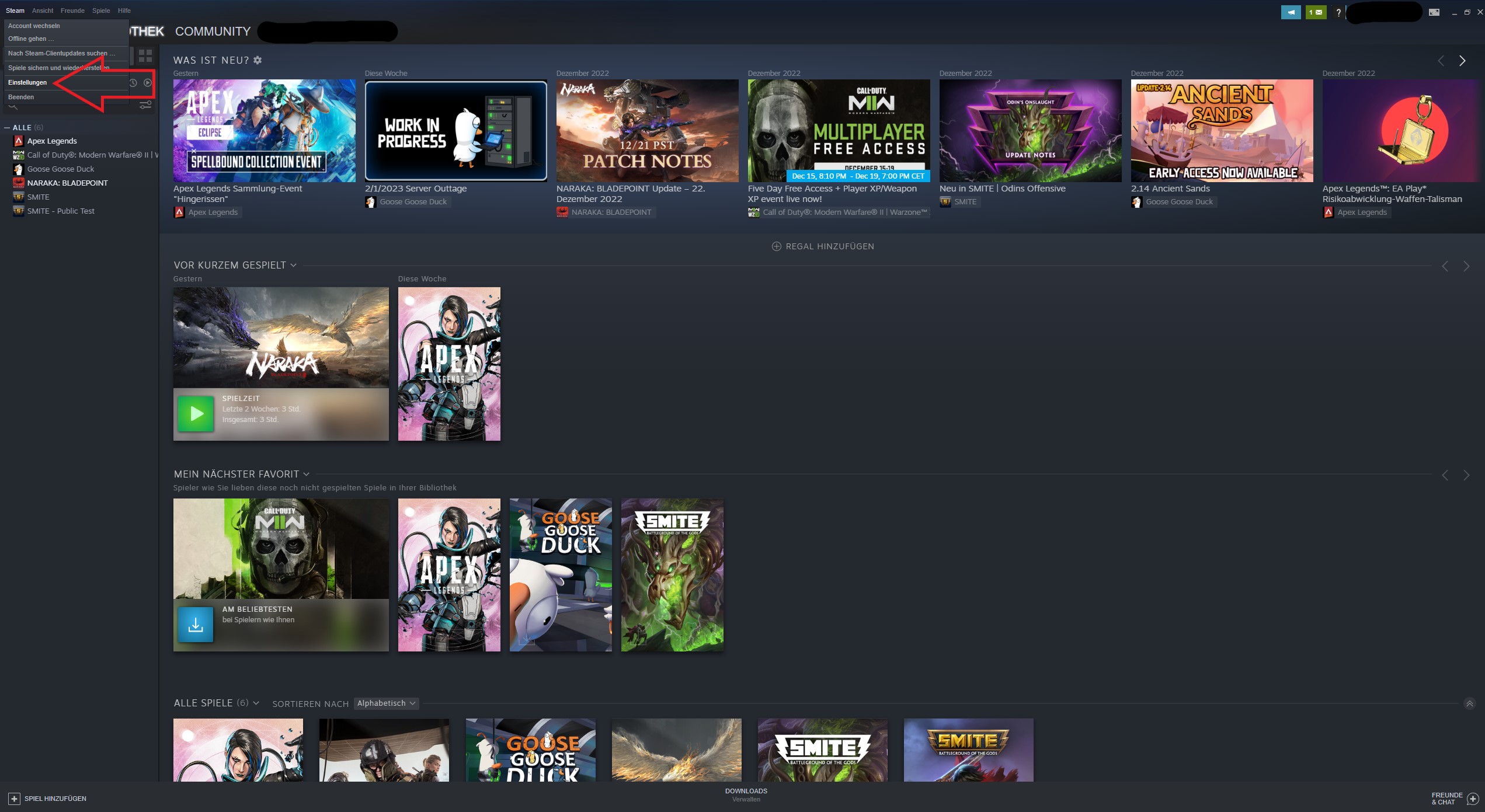
- Step 1: Open the Steam client
- Step 2: Click on “Steam” at the top left
- Step 3: Select Settings, a window will open
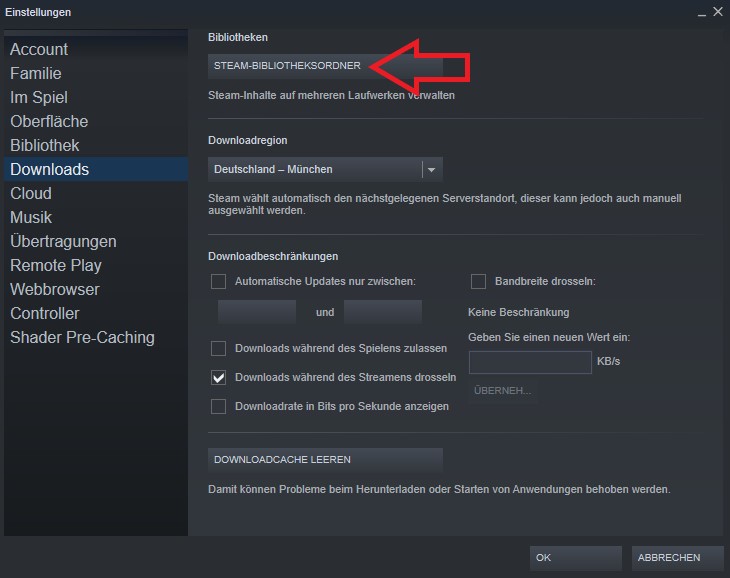
- Step 4: Click on Downloads there
- Step 5: Click on the button “Steam Library Folder”
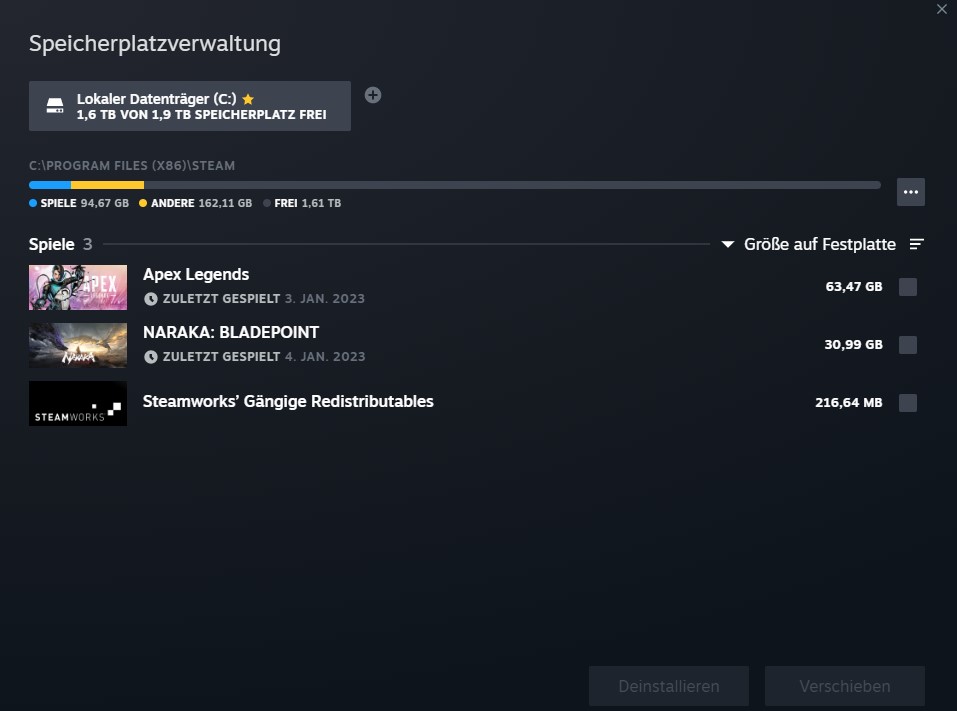
This will open the storage management of Steam. You can see how big your installed games are and where they are stored. Additionally, you will get the info of when you last played the games.
This is how you can move your Steam games
You need to select the game in the storage management that you want to move. Then click “Move” at the bottom right and choose the target drive where you want to transfer the game data.
This is how you add a new storage location
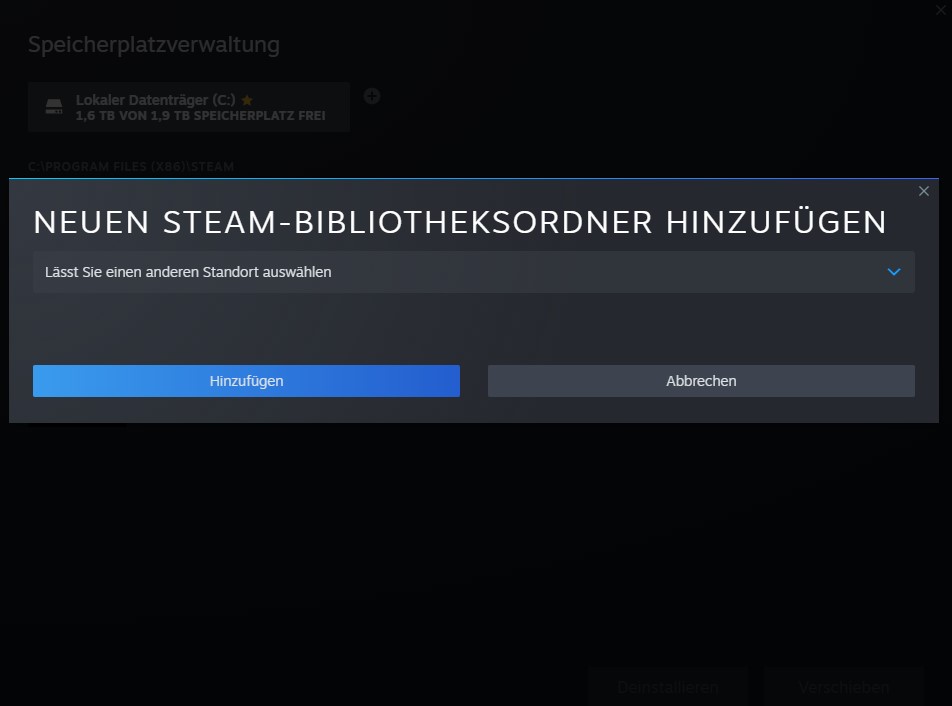
How do I add a new hard drive? If you do not yet see the hard drive in the storage management bar where you want to move the data, you can add it:
- Step 1: Click the plus next to your displayed drives
- Step 2: In the window, you can select your available storage locations
- Step 3: Then click “Add”
With this, you have added another storage location for your Steam games.
A small note: You can also remove drives by selecting them, clicking on the three dots, and then going to “Remove drive”.
What else can be done with storage management? Through storage management, you can also uninstall Steam games that you no longer want on your hard drive.
To do this, select the corresponding game in storage management and click the “Uninstall” button at the bottom right of the window.
Here you will find a guide on how to find your Steam ID.

Your opinion is important to us!
Do you like the article? Then let us know!