

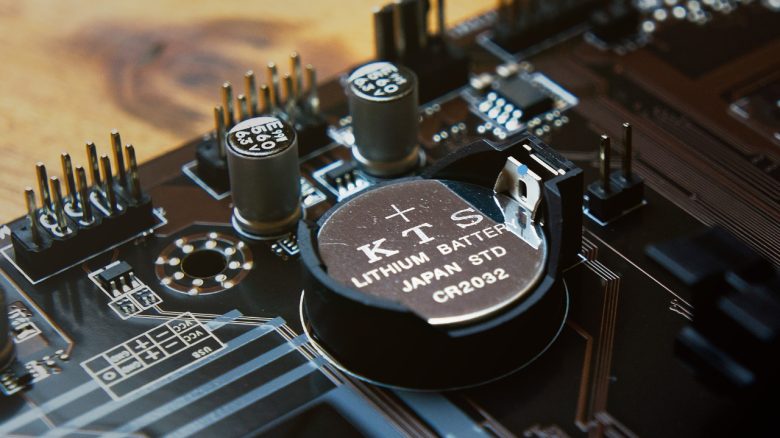
A gamer wanted to start his PC, but it just wouldn’t. Together with the community, he finds the problem and it’s smaller than he thought.
A gamer hadn’t been in the country for three months and had therefore unplugged his computer. Now he wanted to start his PC again after a long time, but nothing happened. The motherboard showed a memory error, but even after removing one stick, the problem persisted. Eventually, he turned to the community (via reddit.com).
Here, he was told that it could also be due to a small battery, the so-called ‘CMOS battery’ on the motherboard. After the user replaced it and left the memory out, the computer started again.
What kind of battery is this? The CMOS battery (in English: Complementary Metal Oxide Semiconductor) is usually a button cell mounted on the motherboard of your computer and is often quite inconspicuous. This small part ensures that hardware settings, date, and time are saved even when the power is turned off.
If the CMOS battery is empty, your computer can no longer store the data, and you get an error message, and the date is incorrect. In the worst case, a dead battery can also cause your computer not to boot the operating system anymore.
Besides a dead battery, there are plenty of other sources for a computer that won’t start.
What can you do if the computer won’t start?
In general, you should first remain calm and not rush things. Because with every panicked reaction, you only make the problems bigger in the end. If you do several things at once, you won’t be able to check later where the real fault was.
Check the CMOS battery: Normally, the button cell lasts 2 to 3 years and needs to be replaced afterwards. With a screwdriver, it’s pretty easy, and the costs are in the single-digit euro range.
Check the power supply: Check whether all cables are properly plugged into the computer or if you have turned off the power supply at the back at the power socket.
Check cables in the computer: In the next step, check whether all your cables in the computer are properly seated. This includes the cable for the processor and the large connector on the motherboard. Additionally, you should check whether the small cables from the case are seated correctly. If, for example, the small cables from the case are not properly plugged in, then the power button for the PC will not work.
Remove memory: Damaged, broken, or improperly seated memory can also prevent a PC from starting. First, remove one RAM stick and test whether the computer starts now. Then do the same with the second stick.
In the next step, you can test other slots on the motherboard. Gaming systems usually offer 4 slots for memory. Also, check the manual for your motherboard to see if the memory sticks are in the correct places.
Test the graphics card: Normally, your computer will also start even if the graphics card is damaged or broken. Without a graphics card, you won’t get an image at first, but the computer should start without any issues. However, a broken graphics card can also short-circuit the motherboard and prevent a start.
5 signs that warn you that your graphics card might die soon

Your opinion is important to us!
Do you like the article? Then let us know!