For CoD Warzone: The right graphics settings can have a big impact on your gameplay. If winning as many Battle Royale rounds as possible is important to you, you should try to get as many FPS as possible. MeinMMO tells you the best settings for that.
Update from May 3, 2022: We have updated the links and rephrased some sentences.
Call of Duty: Warzone has a very extensive settings menu. These settings often only make a small difference in the game but have a significant impact, especially during the intense gameplay on the new map Caldera.
What are FPS? Especially important for multiplayer shooters are your FPS (Frames-per-Second). They tell you how many frames your PC produces and displays per second. The more frames per second are displayed, the smoother the image is – and the easier it is to react and aim accurately in a shooter.
Below we will tell you the best settings for each item in the graphics options menu of CoD Warzone. These recommendations help you get the most FPS out of your PC. If you care more about the game’s visuals than the absolute maximum FPS, you can adjust these settings as needed.
The best graphics settings: Display
- Display Mode: Fullscreen (borderless)
- Because CoD Warzone runs on DirectX 12, borderless fullscreen is not a disadvantage at all (via Microsoft) – this was different under DirectX 11. Borderless fullscreen is much more comfortable with multiple monitors, but is never a disadvantage with DirectX 12.
- Display Monitor: Your best gaming monitor
- Graphics Card: Your (best) graphics card
- Refresh Rate: The maximum of your monitor
- Render Resolution: 100 % (if performance is poor this is also possible: 75 %)
- Dynamic Resolution: Disabled
- Target Frame Rate Dynamic Resolution: 60 (if Dynamic Resolution is disabled, this setting has no effect)
- Aspect Ratio: Automatic
- Vertical Synchronization (V-Sync): Off (On if your monitor does not support G-Sync or Freesync)
- Custom Frame Rate Limit: Custom
- In-game Frame Rate Limit: 2 less than the maximum refresh rate of your monitor.
- So for a 144hz monitor, you would take 142, for a 240hz monitor 238, and so on. Blurbusters explains this (via Blurbusters).
- This recommendation does not apply to 60Hz monitors. You should use ‘Unlimited’ with those.
- Custom Menu Frame Rate Limit: 60
- Custom Frame Rate Limit when Out of Focus: 30
- Brightness: Custom (use the configurator by clicking the small box with the arrow left of the brightness number)
- Display Gamma: 2.2 (sRGB)
- NVIDIA Highlights: Off
- NVIDIA Reflex for Low Latency: Enabled + Boost (must be supported by your graphics card)
Why these settings? These settings assume you are using a gaming monitor with “Variable Refresh Rate” (VRR, like G-Sync or Freesync). High-refresh-rate gaming monitors with VRR are an excellent investment for gamers who want to get the most out of their gameplay. MeinMMO has an overview of the currently best gaming monitors.
The best graphics settings: Quality
- Field of View: Custom
- Recommendation: 90, 103, 110 or 120. We have a detailed explanation of how to find the right setting for you in our Vanguard settings guide.
- Aiming Field of View: Affects
- Camera Movement: Least – 50 %
Details & Textures
- Streaming Quality: Low
- Texture Resolution: Low (for even more FPS: Very Low)
- Anisotropic Texture Filter: Low
- Particle Quality: Low
- Bullet Holes & Sprays: Enabled
- Tessellation: Disabled
- Dismemberment & Corpses Effects: Enabled
- Texture Streaming on Demand: Disabled
Post-Processing
- Film Strength: 0.00
- Image Noise: 0.00
- NVIDIA DLSS: Balanced (must be supported by your graphics card. For more FPS: PERFORMANCE or Ultra-Performance)
- Anti-Aliasing: Off (if your graphics card does not support NVIDIA DLSS)
- Depth of Field: Disabled
- World Motion Blur: Disabled
- Weapon Motion Blur: Disabled
Shadows & Lighting
- Shadow Map Resolution: Low
- Buffer Point Shadows: Disabled
- Buffer Sun Shadows: Disabled
- Particle Lighting: Low
- DirectX Raytracing: Disabled
- Ambient Occlusion: Disabled
- Screen Space Reflection (SSR): Disabled
Why these settings? If you value your own performance in a multiplayer shooter, you should also place great importance on the performance of your game. This means that the graphical quality should be set to the minimum acceptable – this gives you the most FPS.
How to see your FPS in CoD Warzone
How can I see my FPS? To see how many FPS you have in CoD Warzone, you need to enable an in-game display. It’s quite simple.
For that, enable the “Frames per Second (FPS) Counter” setting. You can find it in the options menu under the “Options” tab. In the “System” category, it is the very first setting.
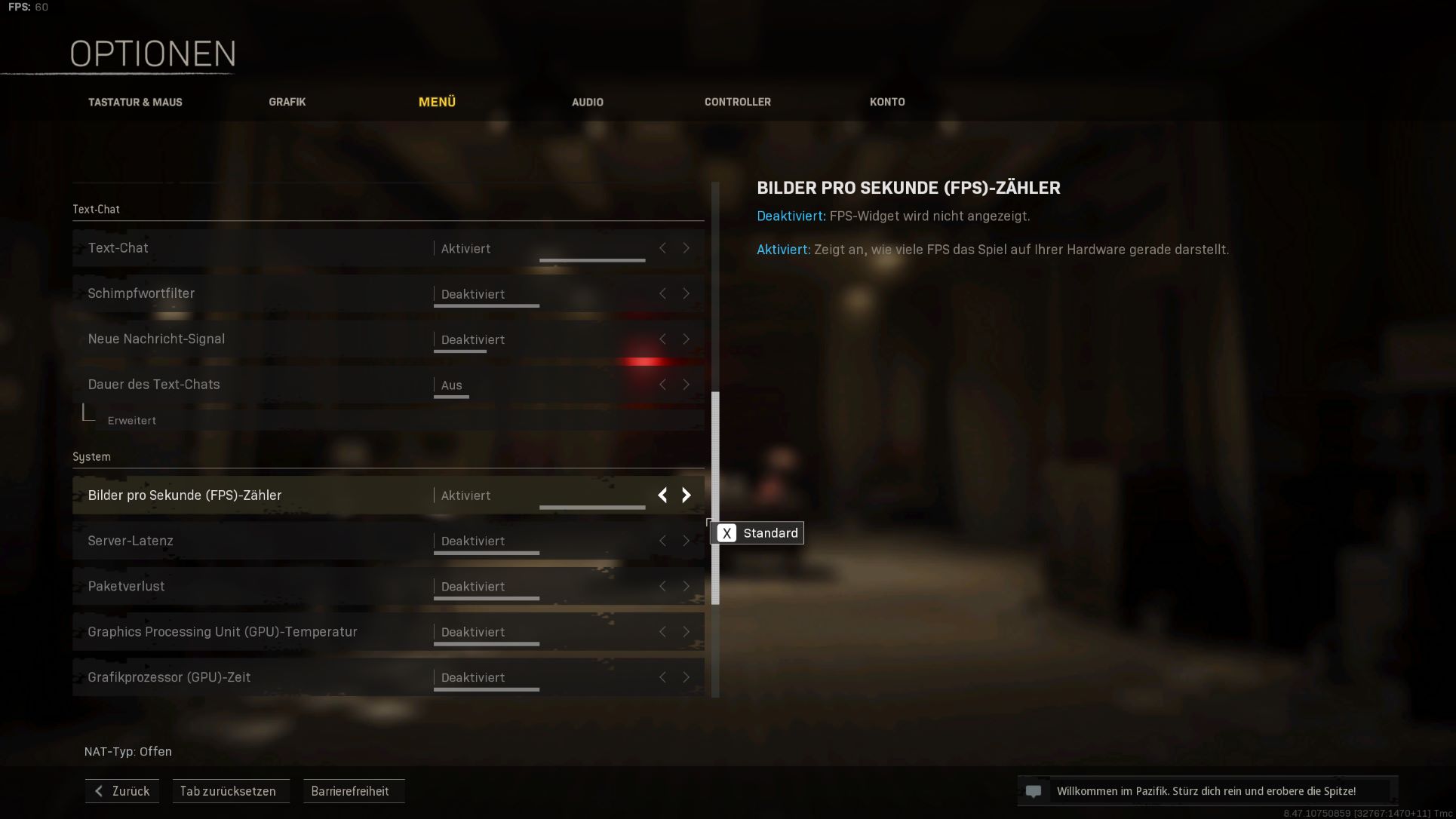
Once you have activated the FPS counter, you will see a small display in the top-left corner of the screen.
How many FPS should I have? As a minimum, you should try to achieve stable 60 FPS. But even 100 FPS is a significant improvement – even if your monitor cannot display that. If you only have a 60Hz monitor, you should therefore not set a frame rate limit in the graphics settings.
Ideally, you want as many FPS as possible. If you have a monitor with Variable Refresh Rate, you should set a value of 2 frames below your maximum refresh rate for the “Frame Rate Limit” option as recommended.
That’s it for our recommendations for the best settings in CoD Warzone. Do you know of any secret trick that we missed? What FPS do you get on average? And what is your favorite setting for the field of view? Let us know in the comments.
Speaking of field of view: PC players of CoD Warzone should currently feel very lucky that they can adjust their field of view. Warzone players on consoles are currently very unhappy about having to continue using a field of view of 80.