

Borderlands 4 has launched. MeinMMO presents tips and advice on how to optimize the shooter on your PC.

Borderlands 4 is facing various performance issues at launch. Some players are heavily affected, while others can play without problems. MeinMMO has compiled a series of tips for you on how to adjust your game and ideally optimize it so that the shooter runs smoothly:
Check your system requirements
In the first step, you should definitely check your hardware in the system again. If your hardware does not meet the requirements, you must expect that there will be problems. At this point, we will list the requirements for Borderlands 4:
Minimum Requirements:
- Intel Core i7-9700 / AMD Ryzen 7 2700X
- Memory: 16 GB RAM
- Graphics: NVIDIA GeForce RTX 2070 / AMD Radeon RX 5700 XT / Intel Arc A580
Recommended Requirements:
- Processor: Intel Core i7-12700 / AMD Ryzen 7 5800X
- Memory: 32 GB RAM
- Graphics: NVIDIA GeForce RTX 3080 / AMD Radeon RX 6800 XT / Intel Arc B580
How to find out what hardware is installed
What hardware do I have in my PC? You have two options to easily find out your hardware:
- You open the Task Manager on Windows and switch to the “Performance” tab. Here you can click through the various tabs and see your installed hardware (CPU, Memory, and GPU). If you have two GPUs (GPU 0 and 1), you have a processor with an integrated graphics unit.
- Type dxdiag into Windows and start the DirectX Diagnostic Tool: In the “System” tab, you will see your processor and memory, in the “Display” tab, you will see your graphics card and the available video memory (VRAM).
Additional notes: The manufacturer states that an SSD is mandatory. Generally, the game can also run on an HDD, but then you must expect long loading times.
Make sure you have enough storage space available on your main partition where Windows is installed. If you do not have enough storage, the operating system does not have sufficient space to swap certain data, which can cause problems.
Properly optimize Borderlands 4
Basically, there are various ways for you to save performance in Borderlands to get better performance and more FPS.
Where can you optimize?
- Reduce shadow quality and spot shadow quality: Shadow calculations are very demanding.
- Reduce texture quality and anisotropic filter quality: Depending on your GPU, a lot of performance can be saved here.
- Reduce or disable volumetric effects (fog, clouds): These effects usually require a lot of performance.
- Set post-processing quality to a lower level.
- Limit the frame rate: Prevents your graphics card from running at maximum performance and can improve performance.
- Upscaling methods like DLSS, FSR, TSR, or XeSS can massively increase performance by lowering the internal rendering resolution and then upscaling it, reducing the number of pixels the GPU needs to calculate.
- Install the game on the SSD: If you haven’t already, move your game to an SSD. This can improve performance.
- Enable Frame Generation (NVIDIA): Can significantly increase FPS, but only if you already reach at least 60 FPS or more. Otherwise, it may cause unsightly graphics errors. Frame Generation can only be used since the RX-4000 series.
- Reduce field of view (FOV and vehicle): The smaller the field of view, the less your graphics card has to render the environment. A high field of view can cause frame drops during fast movements.
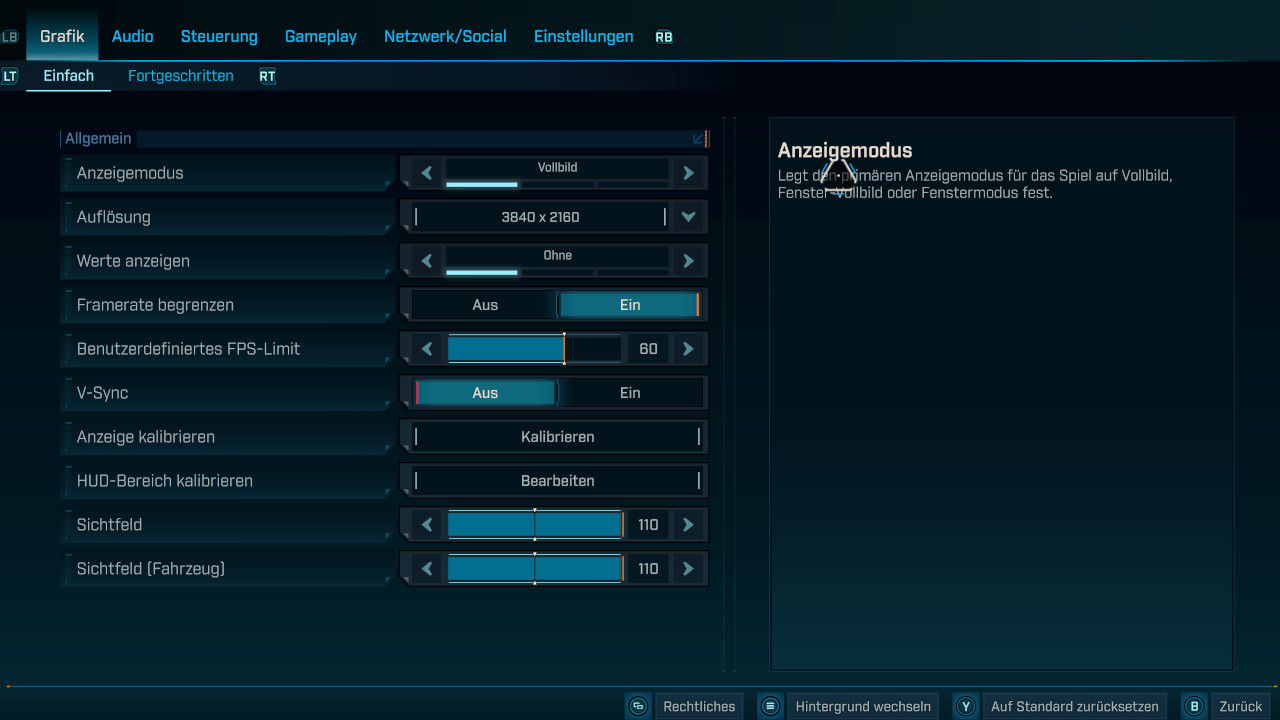
Borderlands 4: The best graphics settings
Who are the settings suitable for? Our recommendations are aimed at the average mid-range that most players use. If your graphics card is faster (Nvidia RTX 3080/4080/5080 and higher or AMD 6800 (XT), 7800 or faster) or slower (Nvidia RX 3060/4060/5060 and slower or AMD RX 6600/7600 and slower), you should adjust the settings accordingly or have more room for improvement.
Simple settings:
- Display mode: Full screen or windowed-full screen
- Resolution: Depends on your monitor and graphics card
- Show values: FPS if you want to check your values, otherwise “Off”
- Limit frame rate: On
- Custom FPS limit: 80
- V-Sync: Off if you have an FPS limit, or On if you’re playing without an FPS limit.
- Calibrate display: As needed
- Calibrate HUD area: As needed
- Field of view (FOV): 70-80
- Field of view (Vehicle): 70-80, a high field of view can cause stutters and FPS drops
Advanced settings:
General
- Graphics preset: Custom
- Anti-Aliasing: Disabled when using upscaling
Resolution scaling
- Upscaling method: Depending on the graphics card: DLSS (Nvidia), FSR (AMD) TSR (Epic), XeSS (Intel)
- Upscaling quality: Balanced
- Spatial upscaling quality (only with TSR): Balanced
- Scene capture quality: High
- Frame generation (only DLSS): Off, On
- NVIDIA Reflex Low Latency: On with Nvidia graphics card, otherwise Off.
Environment
- HLOD loading range (Hierarchical Level of Detail): Far
- Geometry quality: High
- Texture quality: High; depends on the VRAM memory of your GPU, if less than 8 GB lower the quality to Medium.
- Texture streaming speed: High or Very High
- Anisotropic filter quality: x4
- Foliage density: Medium
- Volumetric fog: Medium
- Volumetric clouds: Medium
- Shadow quality: Medium
- Spot shadow quality: Medium, set to “Low” for weak graphics cards
- Volumetric cloud shadows: Enabled
- Light quality (Lumen quality level): Medium
- Reflection quality: Medium
- Shading quality (Material quality level): Medium
Post-processing
- Post-processing quality: High
- Motion blur: 0.0
- Motion blur quality: Off


In the following article, you will find all our guides, lists, and information that we have on Borderlands 4 at MeinMMO in a compact overview. So if you are looking for something specific, you are at the right place: Borderlands 4: All guides, tips, and lists in overview

Your opinion is important to us!
Do you like the article? Then let us know!