

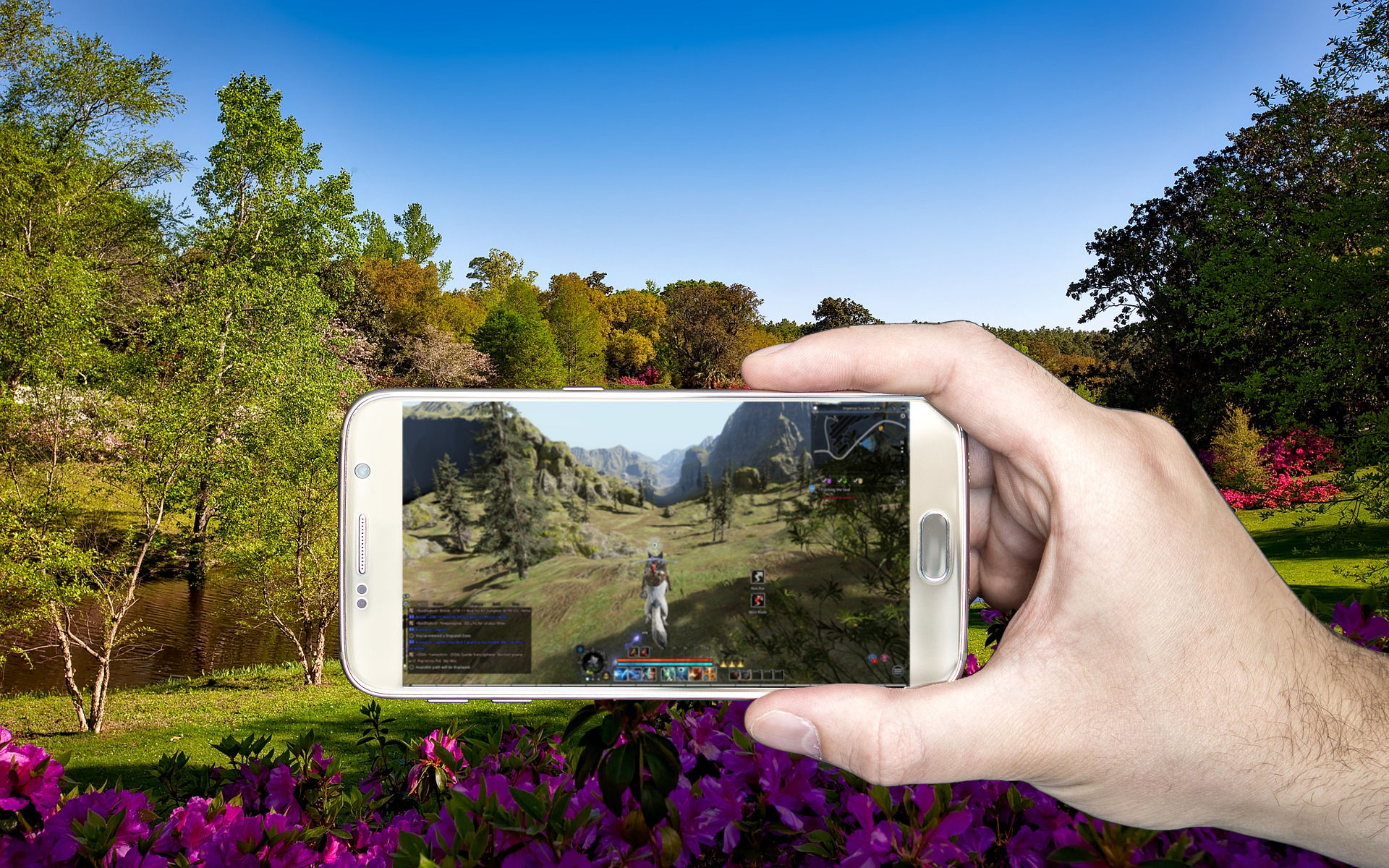
We will show you how to play Bless Online in your garden with the Steam Controller.

It is very warm outside. And although you want to play Bless, the heat puts a damper on things. But with this little trick, you can sit in the cool garden and experience your adventures in the world of Bless Online from there. We will show you how, in six easy steps.
Step 1: Connect the Steam Controller to your PC
Connect your Steam Controller wirelessly to Steam on your PC. For this, plug the wireless receiver into your PC and select the settings icon in the top right corner in Big Picture Mode.
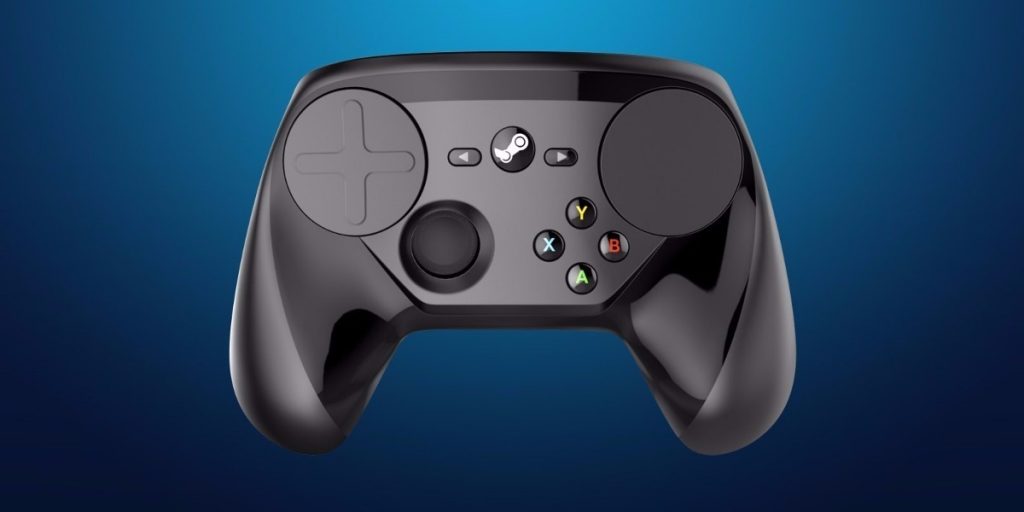
Under “Controller,” select the “Controller Settings” option and then choose “Add Steam Controller.” Now follow the on-screen instructions.
Step 2: Choose a suitable controller configuration for you
Go to your PC and select Bless Online in Big Picture Mode. Go to “Manage Game” and then “Controller Configuration.” Click on “Browse Configurations” and choose a configuration. Personally, I use “v2.1 BASIC Bless Online (Based off default keybinds) by 5Miles, but you can use any other configuration.
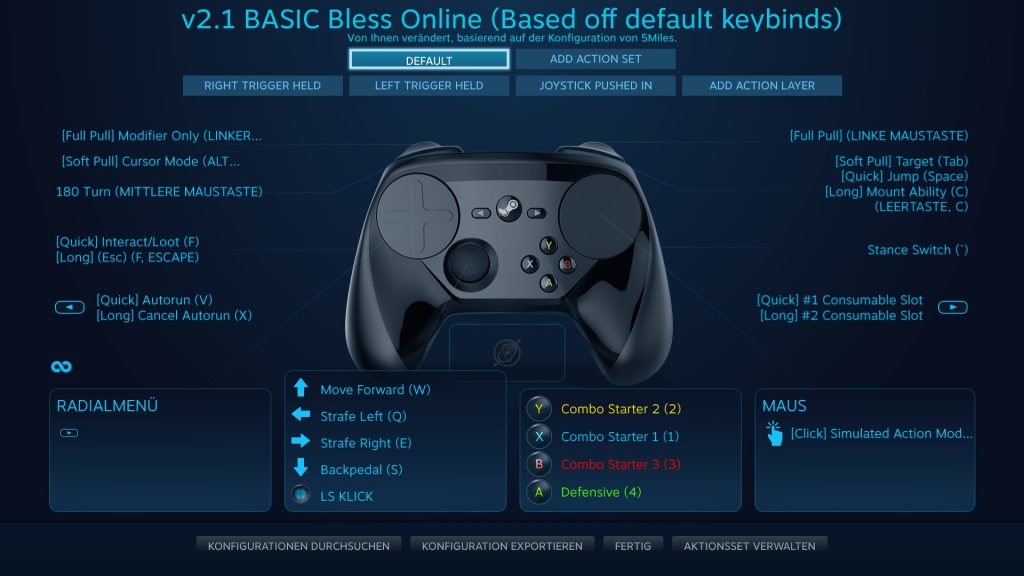
Take this and proceed to step 2. If you just want to play Bless Online with the Steam Controller, proceed to step 5.
Step 3: Install the Steam Link app
Download the Steam Link app from the Google Play Store. The app is currently only available for Android. Start the app on your smartphone or tablet and follow the instructions. Enable your Bluetooth and connect the Steam Controller to your phone or tablet.
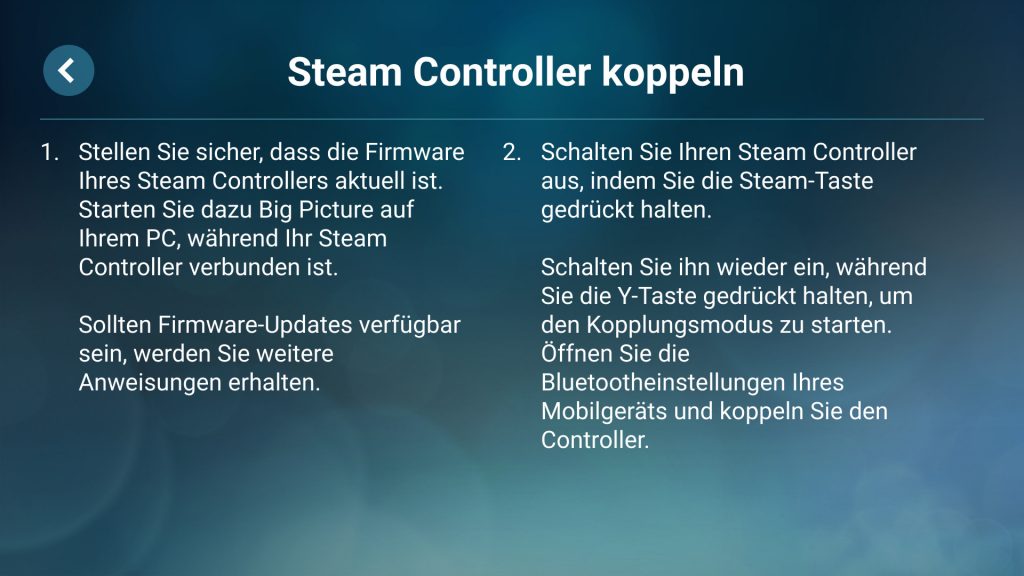
Step 4: Establish a connection between your PC and your phone/tablet
Now connect to your computer via Wi-Fi and check the connection between the Steam Link app and your PC running Steam.
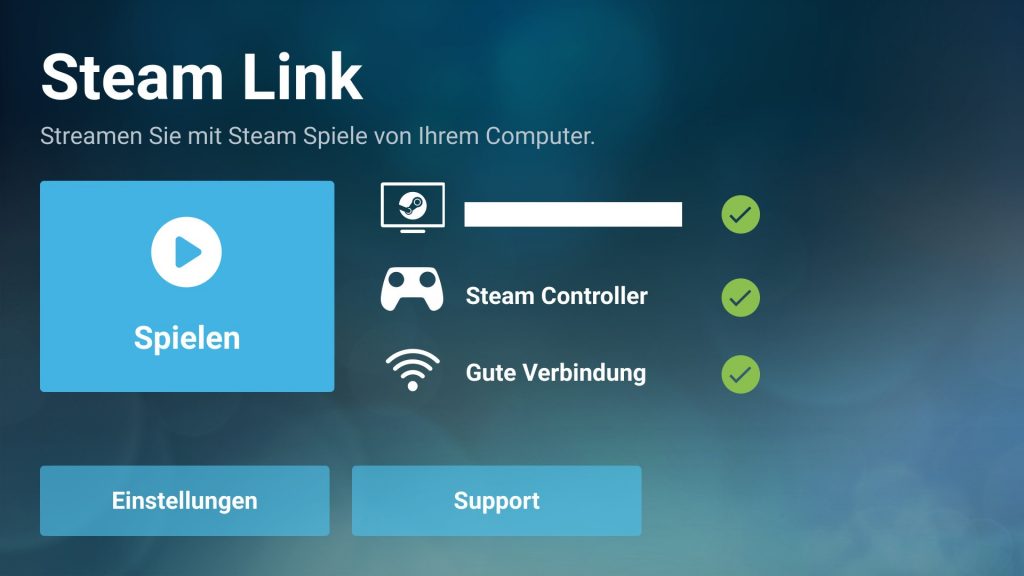
Tip: If your connection is poor or drops, select “Quality” under “Streaming Settings” in the Steam Link app and choose “Fast.” You can also limit the resolution under “Advanced.” Set it to 720p or 480p if you are having issues.
Step 5: Set up the Steam Controller properly
Important: Quit Steam! Right-click on the desktop icon and select “Run as Administrator” under “Compatibility settings.” Bless Online’s anti-cheat system blocks the Steam Controller if Steam is not run as an administrator.
Start Bless Online once you have run Steam as an admin. Navigate through the launcher with the mouse and keyboard and select a character to play.
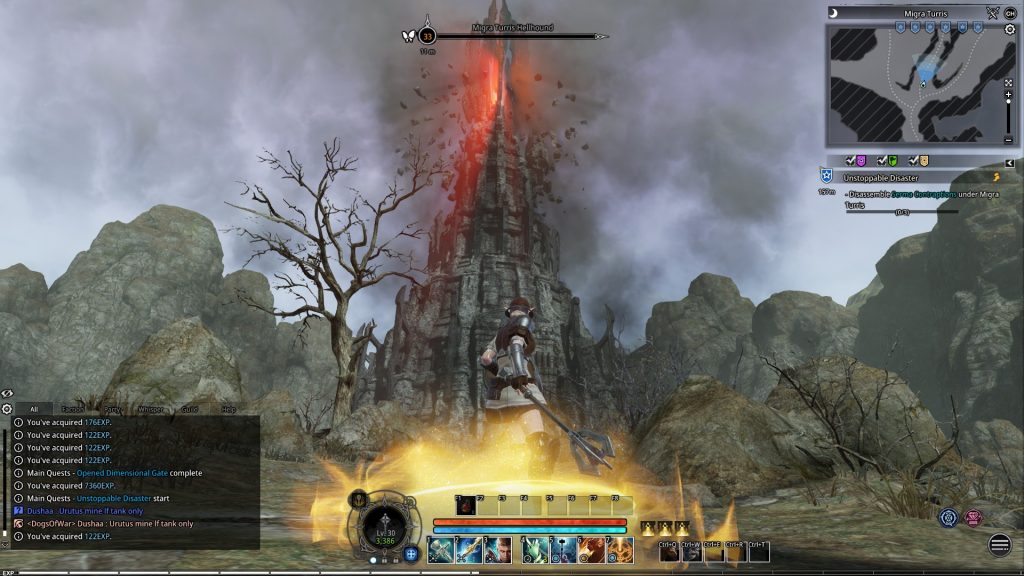
Now go to the interface settings under Keysettings and open the tab “Party.” There, you assign new keys to the settings. Assign “Select Yourself” to Numpad key 1 and so on, up to “Select Party Member 5.”
Then open the tab “Action Bar” and assign the key “^” to “Stance Conversion.” This is the key next to your 1. In the game, it will be displayed as “”.
Additionally, assign the “Combo Extender Y” the key “Z.”
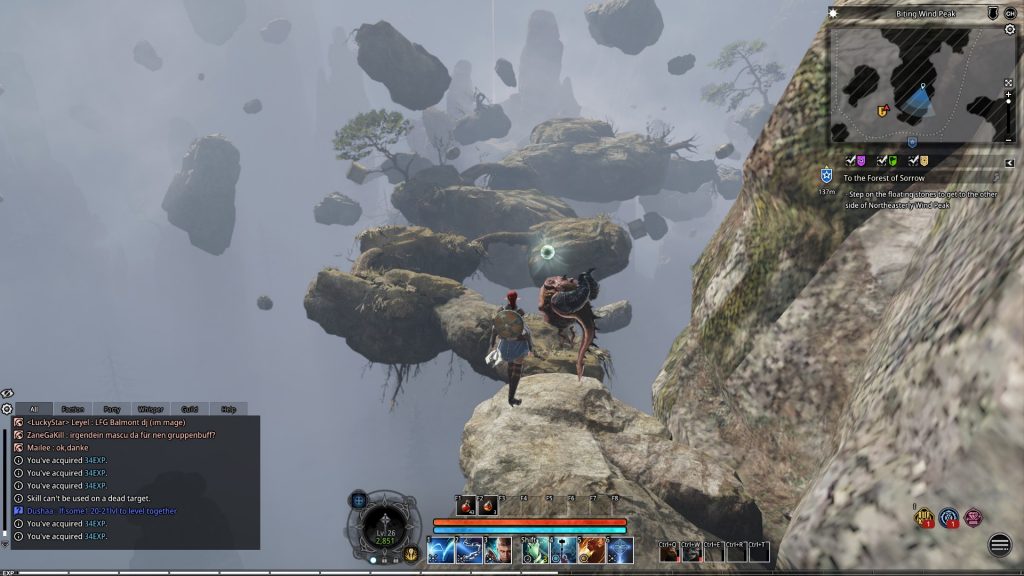
Now go to the tab “Game Settings” at the top and select “Control Mode.” There, you uncheck “Left + Right Mouse Click to move”
Finally, go to the controller configuration, select the top tab “Left Trigger Held” and click on the settings for the “Combo Extenders.” Now click on the ability for “Y” and assign it the position of the key “Z.” English and German keyboards have a different layout.
Step 6: Start in the game!
Connect PC and Android device: If you have set everything up correctly, start the Steam Link app on your Android device, pair the Steam Controller, and go to “Play.” Now you should be able to enjoy Bless Online from anywhere in your house.
This is how you control in the game:
Right next to the slash when you hold down the left bumper
- X = Ability 1/Combo Extender T
- Y = Ability 2/Combo Extender R
- B = Ability 3/Combo Extender Y
Holding right bumper:
- Left Circle = A menu through which you can activate your mounts, for example
- Left Stick = selects your party members
Tap right bumper = Tab
Left Stick = Run
Right Circle = Mouse. If you press it, the cursor disappears, and you have a pseudo-action camera.
Left Circle = Your abilities 4 to 7
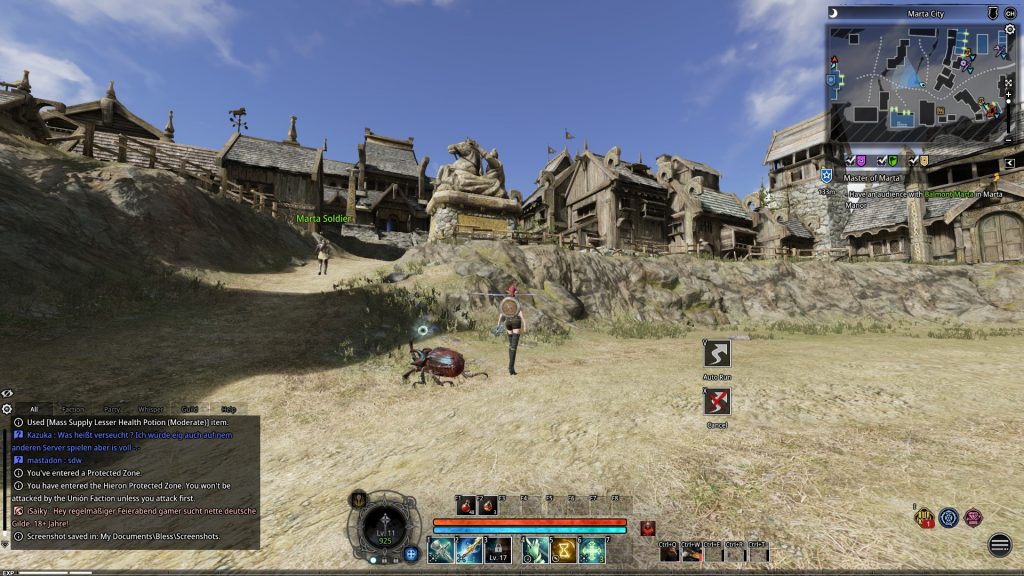
Right shoulder button = When pressed long it jumps
Left shoulder button = 180-degree turn. Especially practical in PvP
“Start” button = When pressed long, you consume your first item; when pressed briefly, your second item.
“Select” button = Autorun; when pressed long, you stop the autorun.
These are just the most important information about the controls. You can modify the controller configuration according to your preferences. We wish you good luck on your adventures in Bless Online.
You can also play any other Steam game in this way. The Steam Link app also works with other input devices, such as the PS4 controller.

Your opinion is important to us!
Do you like the article? Then let us know!