

With Bluetooth, many cables disappear – But how do I connect my headset and how do I connect a keyboard or speaker via Bluetooth?
Bluetooth makes many things easier: Many devices like smartphones, computers, or a headset can be quickly connected via Bluetooth, saving on cables. However, usually, not everything goes smoothly. We explain to you …
- What exactly is Bluetooth?
- Which devices support Bluetooth?
- What do I need to consider?
- How do I connect my device via Bluetooth?
- How do you solve problems with Bluetooth?
What is Bluetooth?
Bluetooth is an industrial standard for data transmission developed in the 1990s. The name comes from the Danish Viking king Harald Bluetooth (via Wikipedia).
Currently, there are ten Bluetooth versions, all of which are compatible with each other except for the energy-saving version 4.0 LE. Version 4.0 LE is mainly found in small devices like smartwatches. The latest version is Bluetooth 5.
This is Bluetooth 5: You have never heard of Bluetooth 5? This is not surprising, as even today (2019), only a few devices support the very new standard. The ROG Phone 2 from Asus supports Bluetooth 5, for example.
Advantages and Disadvantages of Bluetooth
Most people wonder if buying a Bluetooth device is worth it. Therefore, we present the advantages and disadvantages of Bluetooth:
That’s why Bluetooth could be a solution for you
- No cables: The most obvious advantage is the absence of cables. There is no more cable clutter under the desk or in front of the console.
- Freedom of movement: You can move freely, leave the smartphone on the table, or listen to music without cables or similar things disturbing.
- Lower radiation: If you talk with a headset or hands-free device, the radiation is significantly lower than if you hold the smartphone directly to your ear. The same applies to people who carry their smartphones in their pockets.
- In front of the TV: If you like gaming in front of the TV and don’t want to sit directly in front of the screen, Bluetooth could also be worth it. Headsets and controllers can be easily controlled via Bluetooth.
Are there disadvantages too? Bluetooth drains your devices’ batteries and doesn’t offer the best sound quality. It also cannot be used on airplanes. Furthermore, the price is somewhat higher than for wired devices.
Cabled accessories: For computers, there is also good hardware that still relies on cables. In our article, we present the best gaming mice for MMOs. If you already have a good mouse, we have a summary for you of what currently is the best keyboard on Amazon.
Which devices support Bluetooth?

- Laptops: Most laptops have a built-in Bluetooth chip. Windows, Linux, and Mac now officially support Bluetooth.
- Desktop PCs: Here it depends on the installed motherboard. Unlike many laptops or mobile devices, desktop PCs rarely offer Bluetooth out of the box. You will need a Bluetooth adapter.
- Mobile devices: Practically all modern smartphones and tablets have a Bluetooth chip built-in.
- Headsets and speakers: Many wireless speakers and headsets are equipped with Bluetooth.
- Consoles: PlayStation 4 and Xbox One all offer Bluetooth as a wireless standard. For the Nintendo Switch, you will need a Bluetooth adapter. Some controllers also offer Bluetooth.
- Small devices (smartwatches): Devices like smartwatches or fitness devices mostly use Bluetooth 4 LE (Low Energy). Unlike other Bluetooth devices, these are not backward compatible!
- Accessories: Many PC mice and keyboards now also offer Bluetooth.
Can I update Bluetooth?
That would be nice, but it is not so easy: Bluetooth is primarily controlled by the hardware chip in the device. Therefore, an upgrade from 3.0 to 4.0 via software is not that easy.
Then an update is possible: Sometimes system updates include Bluetooth updates. However, you should also not expect any major jumps as you remain dependent on the chip.
At what distance does Bluetooth work?
The range of Bluetooth smartphones is normally about 10 meters. Usually, this is sufficient for most purposes. However, there are also some devices that can reach 100 meters.
How do I enable Bluetooth on my Windows PC?
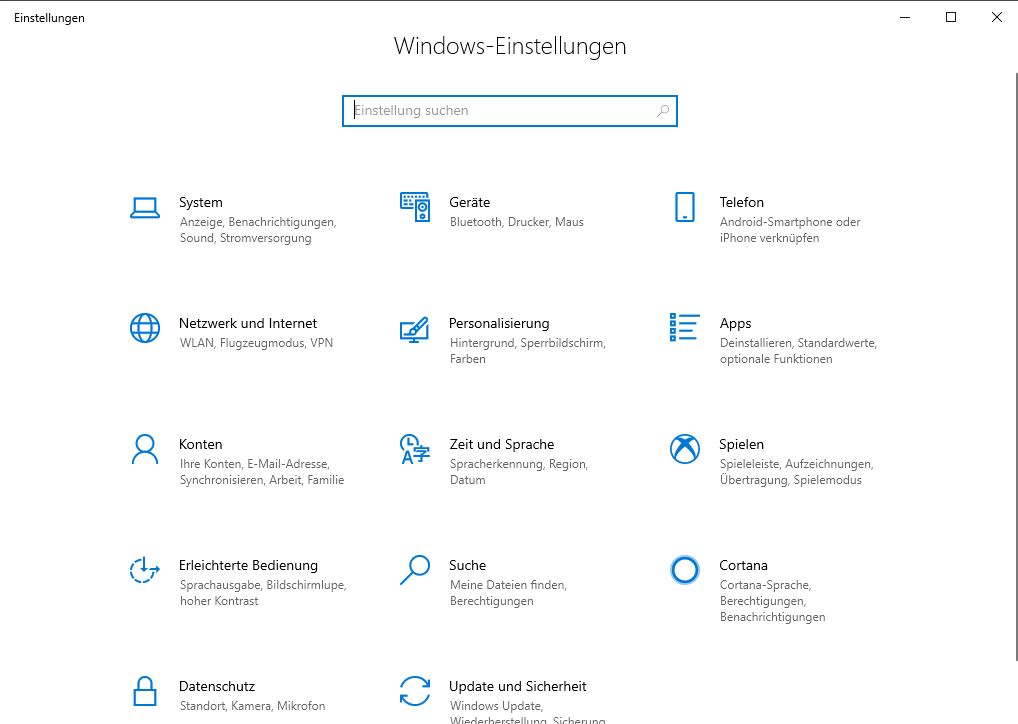
- Open the settings of Windows 10 via Explorer or by using the shortcut Ctrl + i
- Then click on the “Devices” button
- Then open the Bluetooth entry
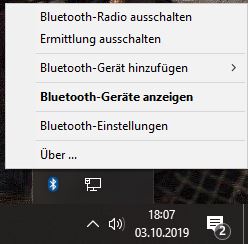
It’s even easier: Alternatively, search for the Bluetooth icon in the taskbar, right-click it, and activate/deactivate the adapter here.
How do I enable Bluetooth on my Ubuntu PC?
- Select the gear icon in the menu bar.
- In the settings, select the option “Bluetooth.”
- Then activate the switch to “On.” After that, all discovered devices will be displayed in a list that can be connected to Ubuntu.
Bluetooth does not start on Ubuntu
Solution: In order for Bluetooth to work smoothly on Linux, the packages “bluez-utils” and “libopenobex1” must be installed on the system.
The packages can easily be installed via the console (shortcut Ctrl + Alt + T) with the command “sudo apt-get install bluez-utils libopenobex1”. On Ubuntu distributions, Bluetooth is usually pre-installed.
Watch out for compatibility: If you use an external adapter, you need to pay attention to the instructions. Some adapters do not support Unix systems.
How do I connect a Bluetooth keyboard/mouse/headset?
In the following, we will explain how to connect Bluetooth devices to a Windows 10 PC, a Windows 7 PC, an Ubuntu PC, or with Android. For Android, it does not matter whether it’s a tablet or a smartphone.
For simplicity, our example device is a Bluetooth headset. However, the solution generally applies to all devices.
Windows 10
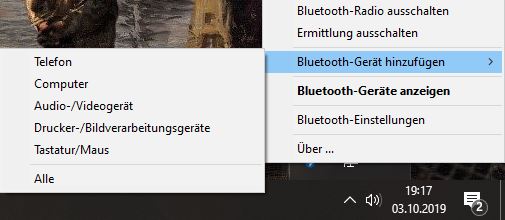
Step 1: Once Bluetooth is activated, you can go through the taskbar: Here, you right-click the Bluetooth icon and select “Add Bluetooth Device.”
You should select the appropriate device; in our case, that is the “Audio/Video device.” If unsure, you can choose “All.”
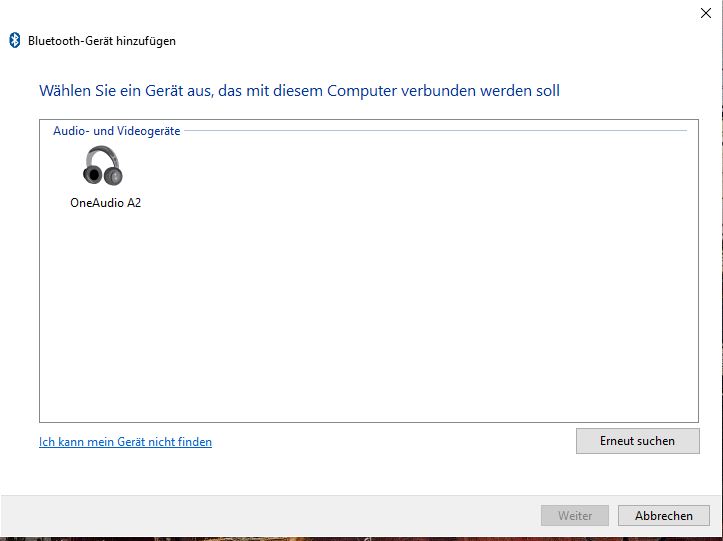
Step 2: A new window will open. This window will display all suitable devices. Since we initially selected “Audio and Video device,” only those devices will be offered now.
Select the device with a left-click and click next.
Step 3: And that should successfully connect the device! Windows 10 will provide a new window indicating if the device is connected.
Then click “Finish” and the window will close.

Windows 7
Step 1: First, open the control panel in Windows 7. Then select the option “Add Device” under “Hardware and Sound.”

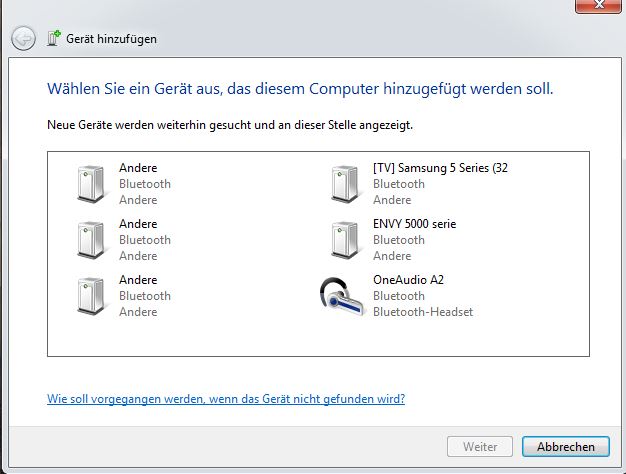
Step 2: Under “Add Device,” all devices will be displayed that can be connected. In our example, we want to connect a Bluetooth headset.
Here, select the appropriate device and then click next.
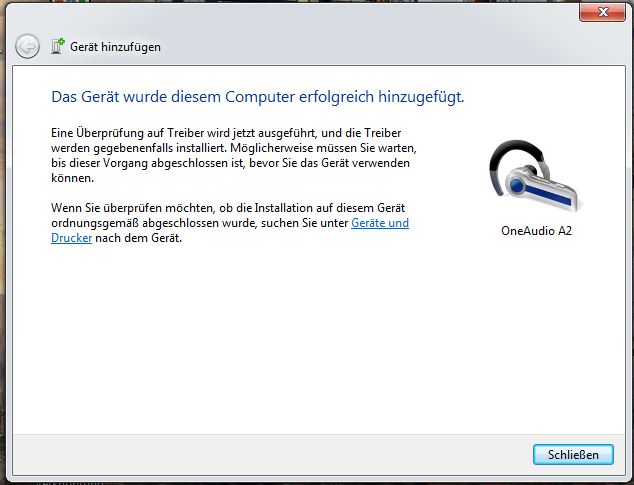
Step 3: Now the device should be successfully connected. Windows 7 will confirm with a window that your device is connected, and you can click close.
Android 8
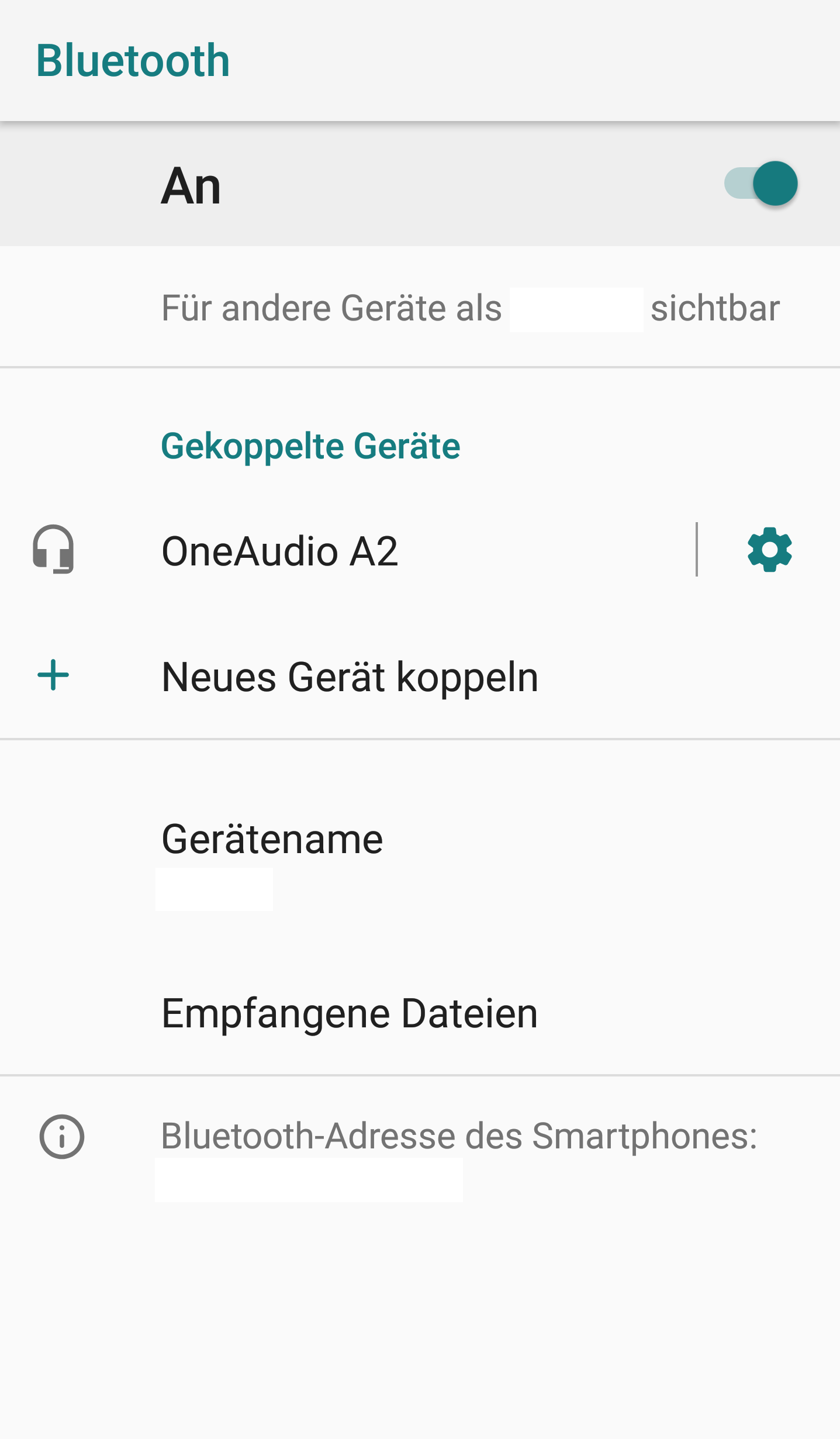
Step 1: First, select Bluetooth in the settings on Android and turn Bluetooth on. Then click “Pair New Device” to connect your Android device to another Bluetooth device.

Step 2: Under “Pair New Device,” all available devices will be displayed. In our case, that is the headset we would like to use.
We will tap the device and then Android will try to establish a connection with the other device.
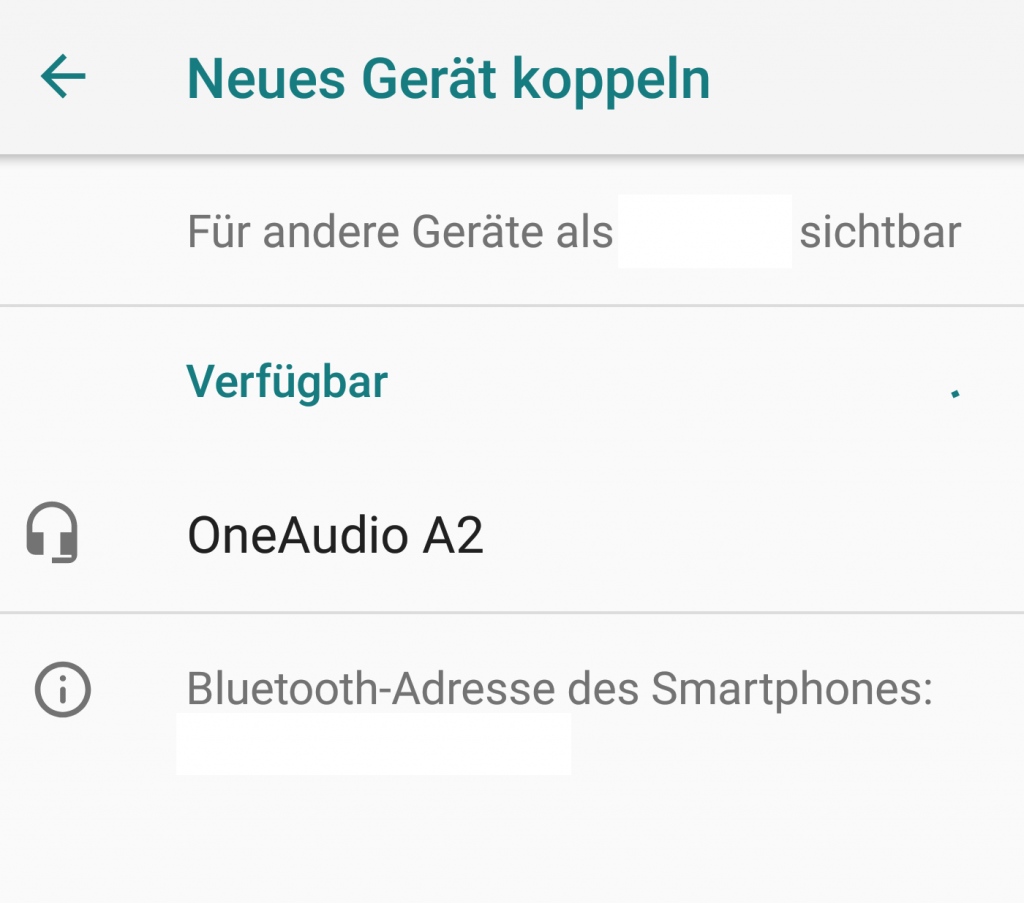
Step 3: If Android can connect to the other device, it will appear under “Paired Devices”. For us, it’s the headset. If you now turn off Bluetooth and turn it back on later, all previously paired devices will still be there.
By tapping “Pair New Device,” you can also pair more devices.
Ubuntu
Step 1: For Ubuntu and all distributions based on it, type “Bluetooth” in the menu bar or click on the icon in the menu bar. This will open the Bluetooth setup wizard.
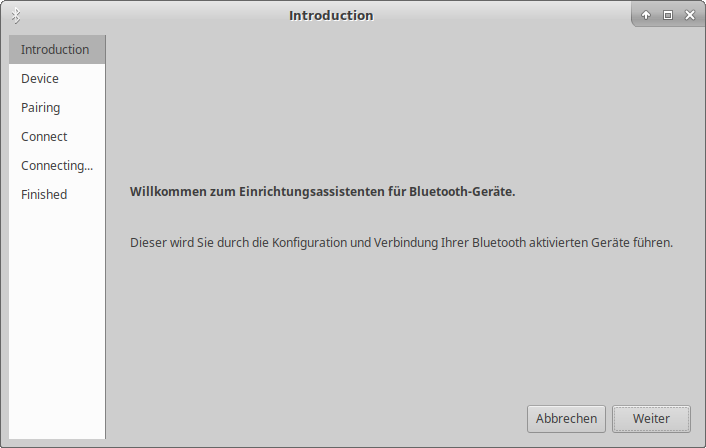
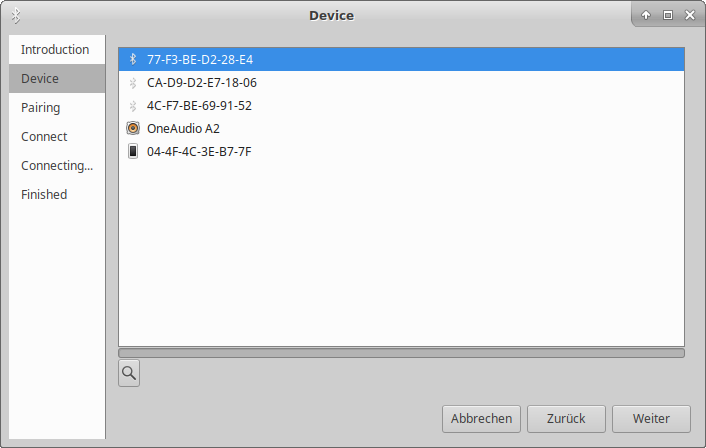
Step 2: Under the “Device” section, select the correct device. Ubuntu usually offers the Bluetooth address of the device.
Here, select the appropriate device and click next. In our case, it’s the headset, marked by Ubuntu with a speakerbox.
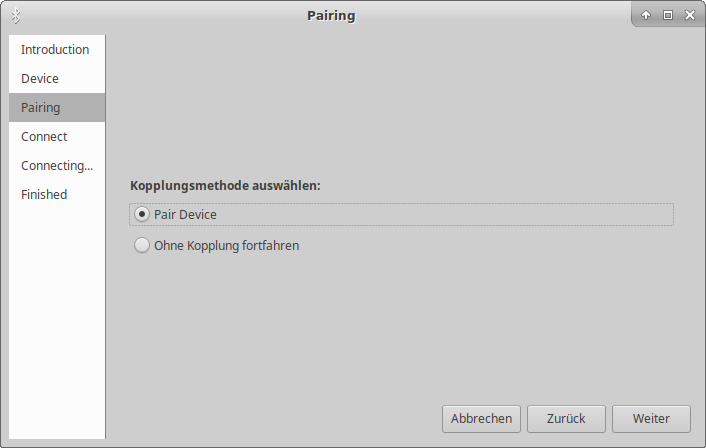
Step 3: Finally, select whether you want to pair your device or proceed without pairing. We want to use the headset, so we choose “Pair Device.”
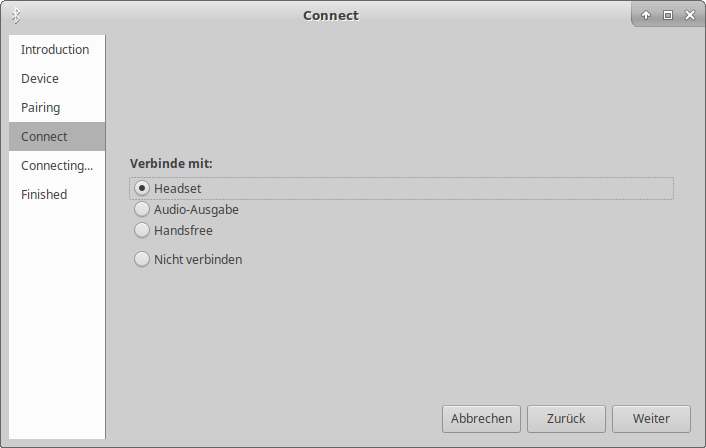
Step 4: Then select the type under “Connect”:
- Headset: If you want to talk to people, then headset is the best choice
- Audio output: Choose this if you only want to listen to music or game sound
- Handsfree: Choose handsfree if you want to talk and listen to music.
Then click next.
Step 5: If everything went well, Ubuntu will give you a message back.
You can then click close; the device should normally work correctly now.

Troubleshooting for Bluetooth
Sometimes Bluetooth doesn’t work smoothly. Below, we offer you a few solutions for the most common problems.
Why does my phone or PC not connect to Bluetooth?
This can have various causes. The best way is to turn off Bluetooth and then turn it back on. If that doesn’t help, often a restart of the device can be effective. The chip will be turned off, and any old connections will also be disabled.
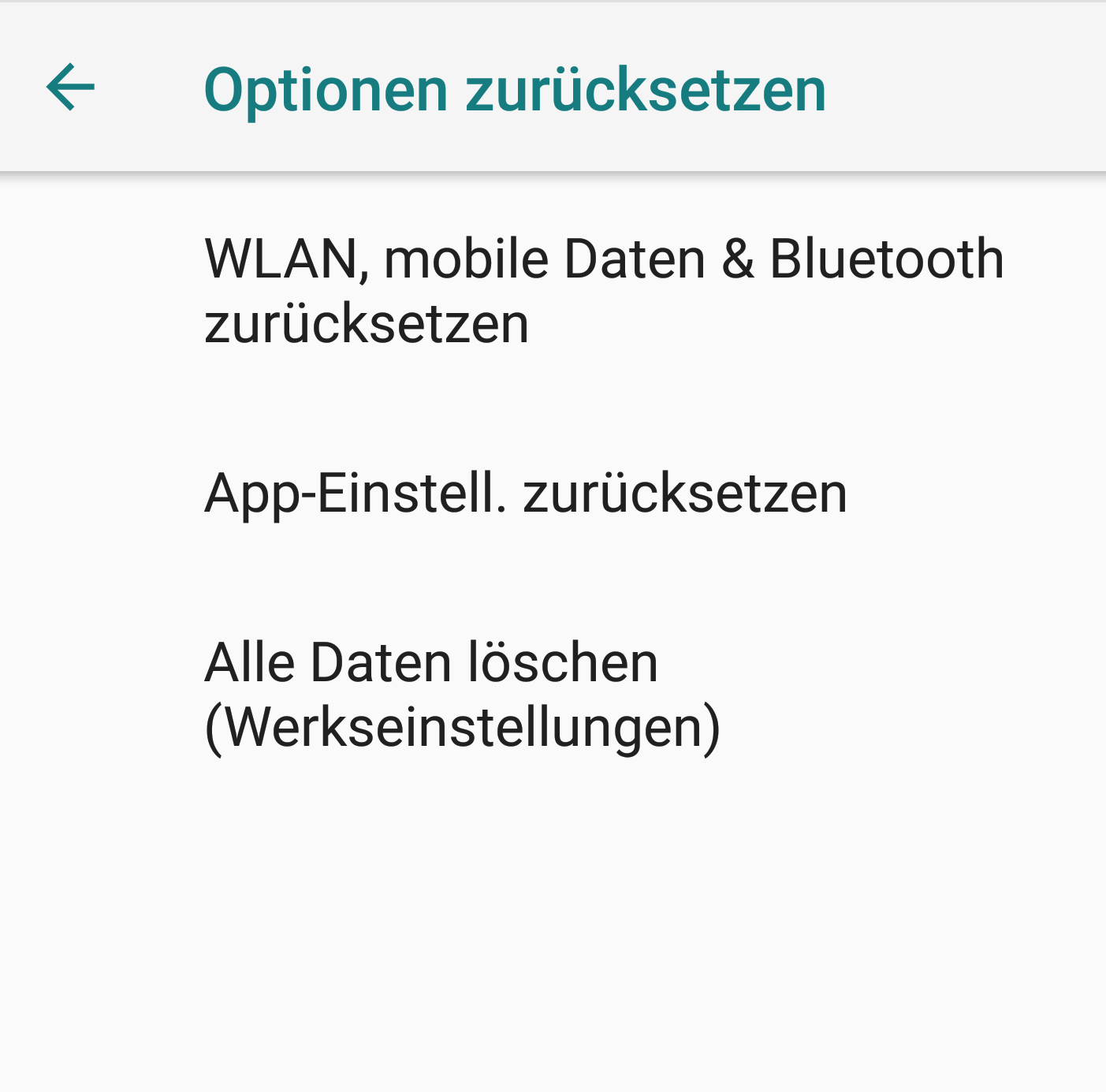
Tip for Android: Another option is to reset Bluetooth. Go to System and find the setting “Reset options.” Then select “Reset Wi-Fi, Mobile Data & Bluetooth.”
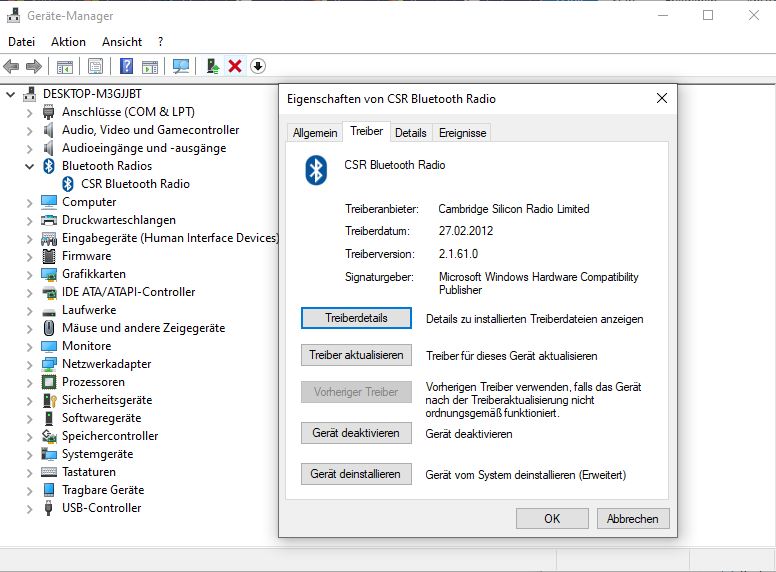
Tip for Windows: If the PC has its own Bluetooth chip, it may help to uninstall the driver or install a new one. For this, either access the device manager from Windows or look on the manufacturer’s website.
For external USB adapters, the same rule applies: A reinstallation can also help. Or you can remove the adapter and plug it back in.
My device is not displayed/found
It often happens that a device is either not found or your own device is not displayed. The following approaches can help:
- Check battery: The simplest thing is to check the battery status of the devices. If the battery level of one of the devices is too low, it can lead to connection problems.
- Enable visibility: On a smartphone, open the Bluetooth settings. The device remains visible as long as the settings are open. The name of the active device is displayed at the top.
- Older smartphones with Bluetooth 2.1 or 3: Older devices do not work with newer Bluetooth devices such as fitness trackers and smartwatches that require a Bluetooth “Smart” or “Low Energy”-compatible mobile device (Bluetooth 4 LE).
- Check drivers: In Windows device manager, problems with devices are often represented with a yellow triangle with an exclamation mark. If such a triangle appears, it is often helpful to update the driver.
I am gaming with a Bluetooth headset and suddenly have terrible quality!
This is the reason: The problem is the transmission rate of Bluetooth. Bluetooth is more than sufficient for conversations or music alone. However, if you want to transmit sound, music and conversations at the same time, then Bluetooth reaches its limits.
The trick Bluetooth uses against your will: If you only listen to music, Bluetooth uses A2DP, a lossless codec. However, if you also talk, Bluetooth lacks the bandwidth and does the following: Imagine compressing sound into an mp3 file. Bluetooth does the same, only the quality is much, much worse. In Bluetooth, this is called Hands-Free Profile (HFP).
Solution: Often Bluetooth gaming headsets come with cables. If you are gaming alone or only listening to music, Bluetooth is great; otherwise, it is better to use the cable.
Bluetooth 5 is supposed to solve many problems here, but it is still not widely available.
Do you have any further problems or suggestions about Bluetooth? Let us know in the comments.
What does the future look like for gaming hardware? Cooler Master has introduced the MM830, a mouse aimed explicitly at MMO gamers:


Your opinion is important to us!
Do you like the article? Then let us know!