


You bought a Nintendo Switch 2 and are starting the device for the first time? MeinMMO explains which settings are important at the start and what you should consider when setting up your console for the first time.
The Nintendo Switch 2 is officially available. However, when you start your console for the first time, you should make some settings before diving into Mario Kart or your next Zelda adventure. You can find a few essential settings and some optional tips in our article.
Nintendo Switch 2, first steps for start:
- First setup of the Switch 2
- System transfer
- Creating a user account
- Setting up the “Virtual Game Card”
- Creating a family group and sharing games
- Optional: Purchase of a “Nintendo Switch Online” subscription
- Practical settings at the end
First setup of the Switch 2
When you start your Switch 2 for the first time, you will be guided through the initial setup. How to set up your Switch 2 correctly can also be read on MeinMMO. By the way, the initial setup cannot be skipped. If updates are missing on your Switch 2, they will also be installed during the setup.
System transfer to the Switch 2
If you already own an original Switch or an OLED model, you can transfer your data to the Switch 2. However, before the transfer, you should pay attention to a few important things:
- You can only perform the system transfer during the initial setup. A later transfer of your data is NOT possible.
- If you transfer your data via transfer to your Switch 2, all data on your old Switch will be deleted!
- Note that both of your consoles must be in the same network and in close proximity.
- For the transfer, you need an official power supply for both your old Switch and the Switch 2.
Creating a user account on the Switch 2
If you did not perform a system transfer, you will need to create a new user on your Switch. This is initially a local user. All saved data for the games you start with the account will be linked to the selected user when starting a game.
Local users can also be linked with a Nintendo online account. Only with an online account can you purchase games in the eShop, acquire the online subscription “Nintendo Switch Online,” and use certain online features, such as cloud saves. You can also set up additional local accounts alongside your online account.
If you have already linked a user with your online account on your old Switch, you can also use this user on your Switch 2. Just log in to your Switch 2.
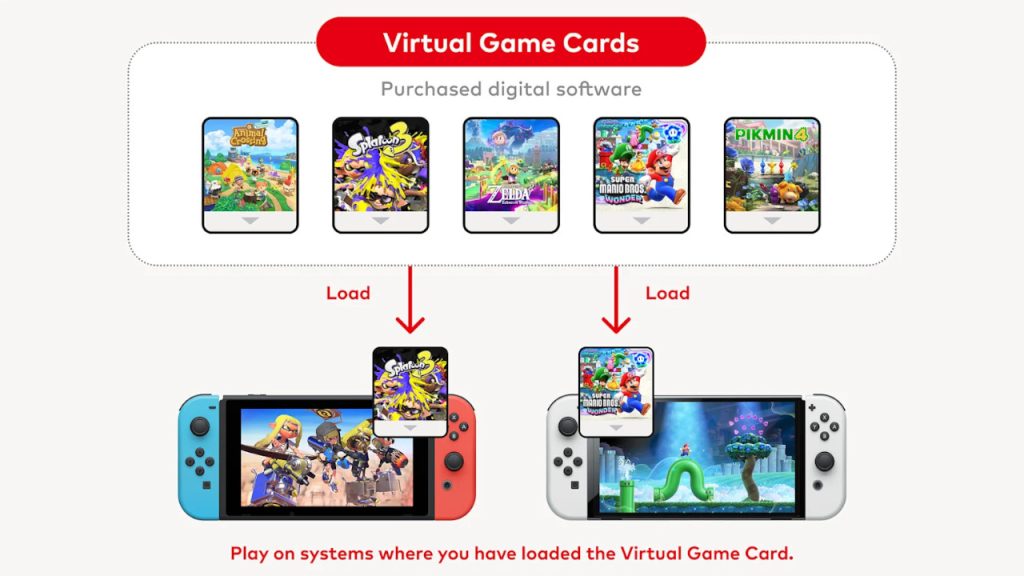
Setting up the “Virtual Game Card”
With the “Virtual Game Card,” you can temporarily lend digital games between Switch consoles. This applies to both your own consoles and consoles and users using the same family account.
“Virtual software cards” can be found directly in the main menu of the Switch at the round dots. By clicking on the menu item, you can further set up the function and share or even restrict certain games. To use the virtual software cards, you need to set up the system once.
Creating a family group and sharing games
A practical optional feature is the ability to create a family group on the Switch. All members of the group need their own Nintendo account.
The advantage of the family group: You can lend your digital games (Virtual Game Cards) to up to three family members simultaneously: Games can be lent to family members for 14 days, and the save data remains saved even after lending.
You do not need a subscription to Nintendo Switch Online for the family group, but it is optionally possible. The family subscription is also a bit more expensive than the solo subscription of “Nintendo Switch Online.”
Optional: Purchase of a “Nintendo Switch Online” subscription
The Nintendo Switch offers a paid subscription, similar to Xbox and PlayStation. The subscription gives you access to the online multiplayer mode for games like Mario Kart World and a large library of classic games and cloud saves. However, note: most classic games are only available in English, and cloud saves are not supported by all games.
The subscription also includes features like GameChat and improved classic games with enhancements on the Switch 2.
Costs for Nintendo Switch Online: An individual membership for 1 month costs €3.99, €7.99 for 3 months, and €19.99 for 12 months. There is also a family membership that costs €34.99 for 12 months and covers up to 8 Nintendo accounts.
Practical settings at the end
Skip user selection: In the settings, you can specify whether a specific user should be selected when starting a game. You can set it here that a specific user should always be used.
System and game lock: Through settings and system, you can lock your Switch 2 with a PIN. If you use your Switch with multiple people, such as children, you can also protect individual virtual game cards with a PIN code.
Automatic downloads and updates: In the settings under Standby mode
, you should select the option “Keep LAN in standby mode”. Then your console can start updates or download games even in standby mode.
Lower maximum volume: Especially with children, you can lower the maximum volume of your Switch when using headphones to protect hearing. To do this, select “Lower maximum headphone volume” under “Console” in the settings and activate it.



The Nintendo Switch 2 launched globally on June 5, 2025. To ensure a smooth start with the console, guides are particularly useful. If you need tips and tricks for Nintendo’s new hybrid console, you can find a collection of all important guides for the Nintendo Switch 2 on MeinMMO: Nintendo Switch 2 Guides: All tips and tricks in overview

Your opinion is important to us!
Do you like the article? Then let us know!