

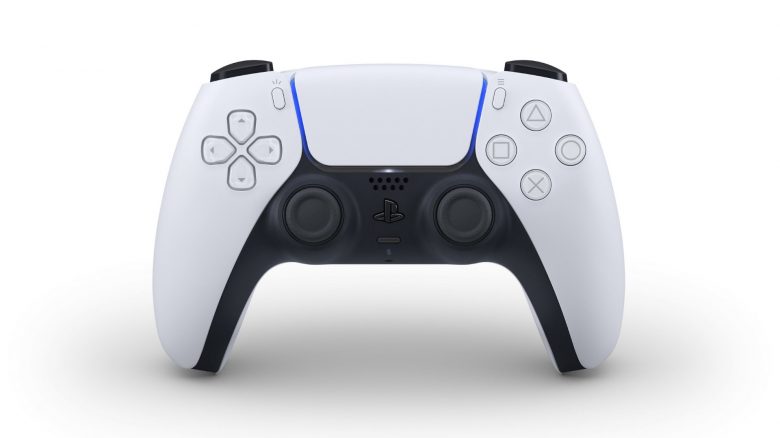
With the DualSense as an input device for the PS5, Sony surprised with not only the new name but also the release of the first details. Thanks to advanced features, it technically stands out significantly from its predecessor. However, when all features are activated, they come at the expense of battery life. We will show you how to extend the battery life of the DualSense with 6 simple tips.
Sony has created a gamepad for the PS5 that elevates your gaming experience to a new immersive level. However, these innovations also mean that you need to connect your controller more often via cable or place it on an extra charging station.
Our colleagues from 3D Juegos have compiled 6 tips to help you conserve battery while playing, so you don’t have to interrupt your gaming session. Not all of the following settings are obvious to find, but they can be set in simple steps via the configuration menu of the PS5.
Tips for Longer Battery Life
Reduce/Deactivate Vibration Intensity and Trigger Effect Intensity
Through vibration and the adaptive triggers for haptic feedback, games gain significant immersion. Your remaining battery capacity will thank you when you do the following:
- By pressing the PS button in the center of the controller, you can access the gear icon for all settings.
- Then select Accessories -> Controller (general) -> Vibration Intensity -> choose a lower vibration level or turn it off completely.
The same approach applies to the adaptive triggers using the PS button:
- Select Accessories -> Controller (general) -> Trigger Effect Intensity -> decrease intensity or completely deactivate.
Feel free to experiment with the various options below the highest setting. Even the next lower intensity still provides a sufficiently immersive gaming experience while conserving battery.
Adjust Brightness of Controller Lights
For this option, you also use the familiar path for settings:
- PS button -> gear icon -> Accessories -> Controller (general) -> Brightness of Controller Lights.
The lights cannot be completely turned off, but at least their brightness can be reduced, which in turn benefits the battery.
Volume of Controller Speakers
It is also battery-saving to reduce the volume of the built-in speaker in the DualSense. You can find the option via the path already mentioned:
- PS button -> gear icon -> Accessories -> Controller (general) -> Similar Settings -> Controller Speaker -> Sound -> Volume.
However, some games use the speaker instead of the TV speakers for certain audio outputs and effects. If you turn the volume all the way down, games may ignore this, and you may miss important details. Therefore, it is advisable to disable this feature in the games themselves.


Mute Integrated Microphone
The integrated microphone can be disabled by pressing the small LED below the PS button. However, this remains active only until the console is turned off and must be re-set each time. It is more sensible to have this automatically enabled the next time you start:
- PS button -> gear icon -> Sound -> Microphone -> Microphone Status when Logged In.
Select “Mute” here and enjoy a bit more privacy.
Turn Off Controller During Game Breaks, Even Better: Set Time Until Controller Turns Off
There are sometimes situations that force you to pause the current game and attend to more important things. Unless you need to stop playing immediately, a press of the PS button will take you to the control center on the PS5 home page. There you can turn off your current input device via the controller icon. Even easier is if this happens automatically. For this, go back into the settings:
- PS button -> gear icon -> System -> Power Saving -> Set Time Until Controller Turns Off.
You can choose between 10, 30, and 60 minutes. The lowest option is more than sufficient, as the DualSense can be turned back on by pressing the PS button.
Play Older Games with a PS4 Gamepad
Our sixth and final tip does not directly relate to the PS5 controller, but it still ensures that the PS5 controller has enough capacity for PS5 games. If you still have a Dual Shock 4 from the older PlayStation 4, you are in luck. Connect it to the PS5 and play your old backward-compatible PS4 titles. The newer DualSense cannot apply its features to games that originally appeared on the previous console.
With these tips, you can now extend the battery life of your PS5 controllers. Nothing stands in the way of extended gaming sessions.
Have you already used the tips mentioned? What are your experiences with them?

Your opinion is important to us!
Do you like the article? Then let us know!