

Call of Duty: Modern Warfare 2 keeps crashing? We have tips on how to fix these crashes.
Call of Duty: Modern Warfare 2 is the latest installment in the popular shooter series. However, some players complain about annoying crashes and other issues that disrupt gameplay.
MeinMMO presents you a handful of tips and tricks on how to fix crashes on PC and get your game running better again.
All tips at a glance:
- Check system requirements
- Reduce graphics settings
- Run the game as administrator
- Update old graphics card drivers
- Install current system updates for your operating system
- Check your game files (Steam or Battle.net)
- Disable system overlays while gaming
- Check Windows
- Enable “Hi-Rez Assets” cache
- Set an exception in the Windows Firewall
- MW2 should start at the correct resolution
- Delete the config file
Check system requirements
First, you should check if your gaming PC is even capable of running the new first-person shooter. If your system meets the minimum requirements, the game should definitely start. However, it’s better if you have stronger hardware available.
Minimum
| OS | Windows® 10 64 Bit |
| Processor | Intel® Core™ i3-6100 / Core™ i5-2500K or AMD Ryzen™ 3 120 |
| RAM | 8 GB RAM |
| GPU | NVIDIA® GeForce® GTX 960 or AMD Radeon™ RX 470 – DirectX 12.0 compatible |
| DirectX | Version 12 |
| Network | Broadband Internet connection |
| Storage | 125 GB free storage space |
Recommended
| OS | Windows® 10 64 Bit or Windows® 11 64 Bit |
| Processor | Intel® Core™ i5-6600K / Core™ i7-4770 or AMD Ryzen™ 5 1400 |
| RAM | 12 GB RAM |
| GPU | NVIDIA® GeForce® GTX 1060 or AMD Radeon™ RX 580 – DirectX 12.0 compatible |
| DirectX | Version 12 |
| Network | Broadband Internet connection |
| Storage | 125 GB free storage space |
MeinMMO also lists the PC system requirements for Call of Duty: Modern Warfare 2 in more detail. We show you what the requirements for your hardware are for Minimum, Recommended, Competitive, and Ultra, and what else you should pay attention to:
Reduce graphics settings
Time required: 15 – 30 minutes | Cost: none | Difficulty: Easy
If you meet the minimum requirements of CoD: MW2 but are far from meeting the recommended requirements, it is advisable to reduce certain graphics settings.
- For instance, reduce texture quality if you have a graphics card with limited video memory.
- Also reduce the detail level in the game for better performance.
- Reduce your field of view in the game.
- Shadows, in particular, often require a lot of performance and only marginally detract from your experience.
By doing this, you can also avoid the game crashing suddenly because your computer can no longer handle it.
The best settings for the shooter can also be found on MeinMMO if you want to aim for the best frame rate:

Run the game as administrator
Time required: 5 minutes | Cost: none | Difficulty: Easy
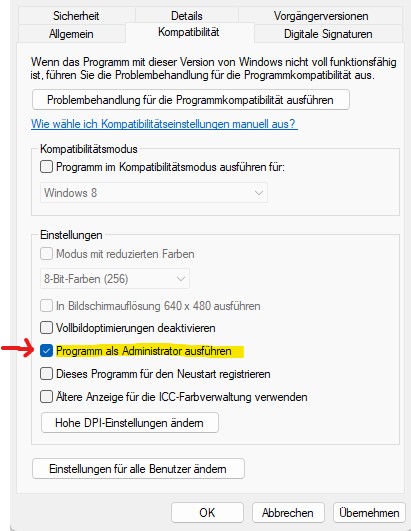
If your game regularly crashes or the error 0x887a0005 appears, you should run the game as an administrator.
- To do this, go to the folder where your game’s exe file is located, right-click on the file, and select “Properties.”
- Here, switch to the “Compatibility” tab.
- Under “Settings,” check “Run this program as an administrator” and finally click “Apply” at the bottom right.
If you play the game via Steam, you also need to run Steam as an administrator. Otherwise, Steam cannot start CoD: Modern Warfare 2. You do this the same way as with the game’s exe.
Update old graphics card drivers
Time required: 15 – 30 minutes | Cost: none | Difficulty: Easy
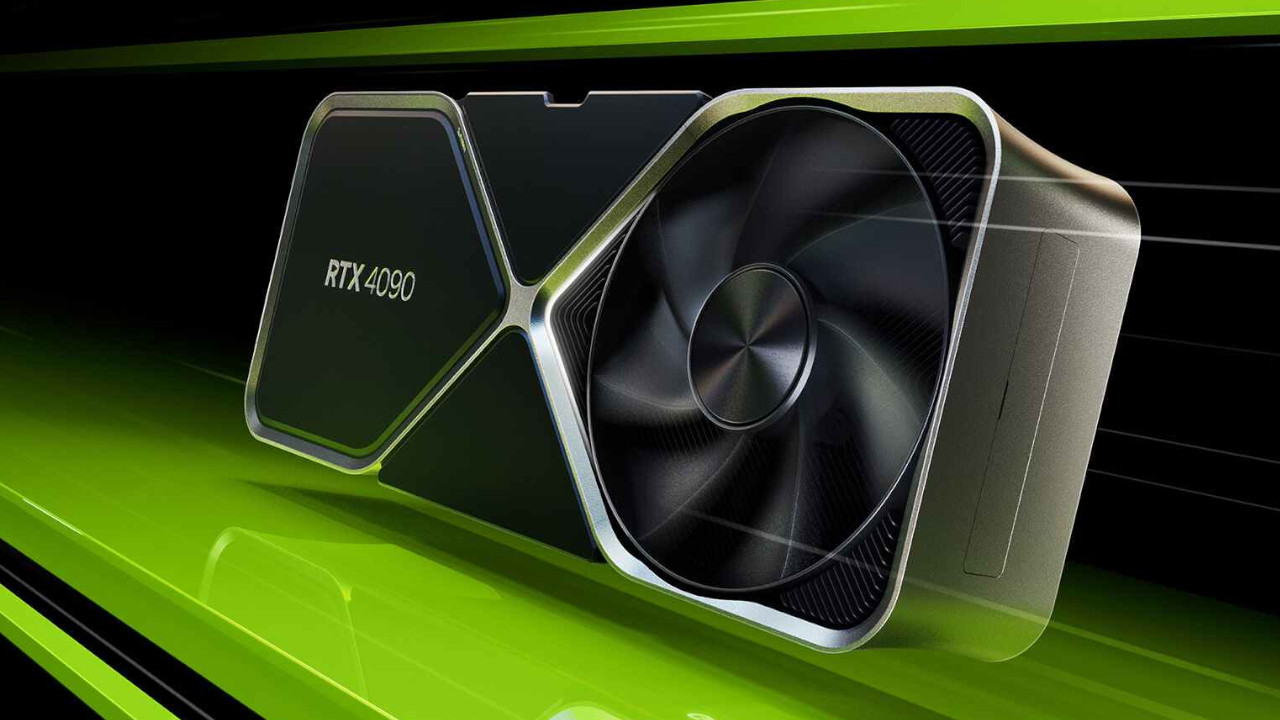
You should also update your graphics card driver. AMD, Intel, and Nvidia often provide bug fixes and improvements for certain games with their drivers. Additionally, this software often unlocks features that you cannot use without the update.
As a backup, you can save the installation file of your old software. If the update causes more problems instead of fewer, you can reinstall the old version.
Install current system updates for your operating system
Time required: 15 – 60 minutes | Cost: none | Difficulty: Medium
Keep your operating system up to date. Regardless of which operating system you use, you should install the latest updates. This helps to close potential security gaps and resolve issues that the OS might cause.
Depending on how long it has been since you last installed updates, the process may take a little longer. You should therefore plan a little time for it. Also, remember about drivers for audio devices and peripherals, which are often forgotten quickly.
Check your game files (Steam or Battle.net)
Time required: 60 – 120 minutes | Cost: none | Difficulty: Easy
Sometimes it can happen that game files are damaged during download or an update. In this case, the game will not start or simply crash. On PC, you have the option to check your game files – depending on which client you use.
Since Modern Warfare 2 is very large, checking the game files and replacing them takes quite a while. Therefore, you should not check the files before a particularly important match but rather take enough time beforehand.
While the files are being checked, you cannot play the game.
If you are using Battle.net:
- Open Battle.net
- Click the gear icon next to the blue “Play” button and select “Scan and Repair.”
- The game will then reload and ideally the error is fixed.
If you are using Steam:
- Right-click on the game in your library.
- Click on Properties and then on Local Files.
- Select the option to verify the integrity of game files.
- Then the game will be verified by Steam. Finally, Steam will let you know whether and how many files were faulty and replaced.
Disable system overlays while gaming
Time required: 30 minutes | Cost: none | Difficulty: Medium
Many programs like Steam, Discord, or graphics card software offer certain overlays. This allows you to see notifications in the game or monitor your system’s performance.
However, some games do not work well with these overlays or are not supported at all. Ideally, you should disable these overlays. They also require a certain amount of system performance because they are displayed constantly in the background.
Check Windows
Time required: 30 minutes | Cost: none | Difficulty: Easy
Another option is to check your Windows system. This can already be done with simple built-in tools, and you do not need to install additional software:
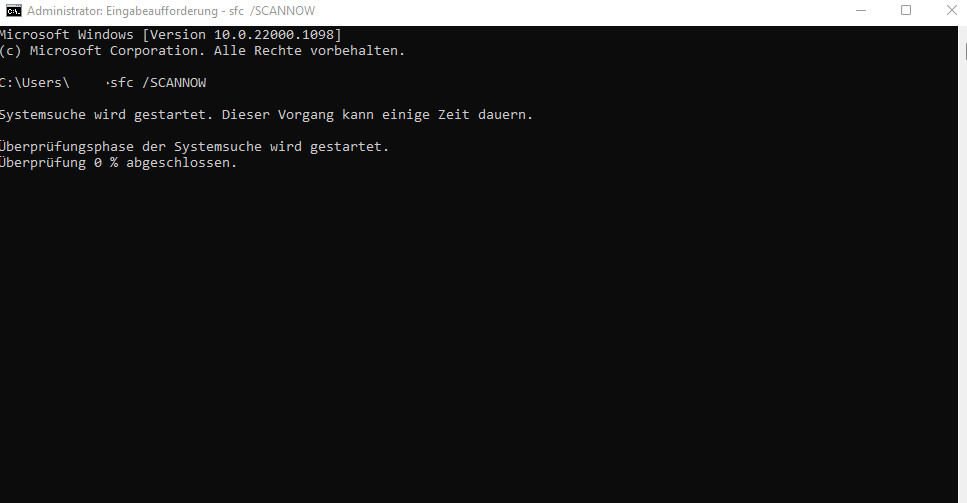
- To do this, open the Windows start menu and type “cmd.” Then right-click on “Command Prompt” and run the program as an administrator.
- Type in the window sfc /SCANNOW and confirm with Enter.
- Windows will search for faulty files and repair them. This may take a few minutes.
Enable “Hi-Rez Assets” cache
Time required: 5 – 10 minutes | Cost: none | Difficulty: Easy
If you use high-resolution graphics, this can also lead to a crash. To prevent such crashes, you can enable a cache in the settings where you temporarily store data on the hard drive. To use the “Hi-Rez Assets Cache,” you need at least 32 GB of free storage space.
This creates a cache that helps when streaming assets when they are needed. If you do not enable this setting, you may experience glitches or crashes in the worst case.
Set an exception in the Windows Firewall
Time required: 10 minutes | Cost: none | Difficulty: Medium
If the firewall blocks the execution of the game, CoD: MW2 will crash on startup. The same applies to antivirus programs from other providers. It is best to set an exception here so that the game can start smoothly.
MW2 should start at the correct resolution
Time required: 10 minutes | Cost: none | Difficulty: Easy
In some cases, it may happen that the resolution of your game does not match the resolution of your monitor and is too large or too small. In this case, taking a look at the config file of MW2 helps.
To do this, go to your Documents folder in Windows, find the MW2 folder and the corresponding user. You can open and edit the config file with the normal text editor of Windows.
The resolution is usually represented as two four-digit numbers (e.g., 1920×1080 for Full HD).
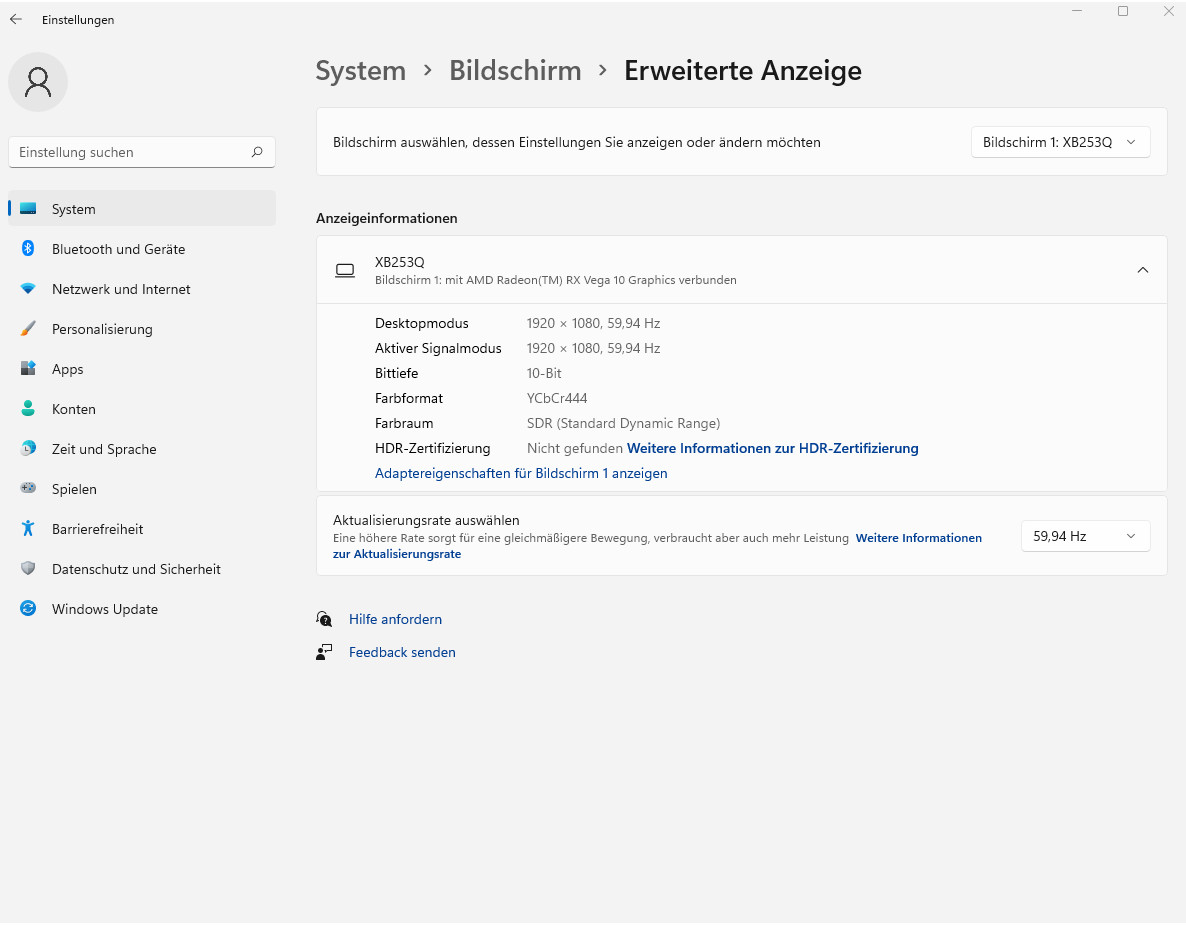
Check whether the value entered here matches the resolution that your monitor can display. You can easily check which resolution your monitor currently supports:
- Press the Windows key + I
- Here, select “Display” and then “Advanced Display”
- Here you will see the screen resolution that you are currently using
Delete the config file
Time required: 5 minutes | Cost: none | Difficulty: Easy
You made settings in the game, and suddenly the game does not start anymore or crashes all the time? It may help to simply delete the configuration file of your game.
To do this, go to your Documents folder in Windows, find the MW2 folder and the corresponding user, and delete the file.
The deleted file will automatically be regenerated by the game the next time you start it. Ideally, the reason for the crash will then be resolved.
More tips and guides for CoD MW2: Are you looking for more guides for the new Call of Duty? Then check out MeinMMO: Here we provide you with current tips and information about the new shooter. Also included are weapon setups and setting tips if you want to start strong:
CoD MW2: All guides, tips, and weapon setups at a glance

Your opinion is important to us!
Do you like the article? Then let us know!